Article Deprecated
This article is obsolete and the information provided in it is no longer correct. Please read the updated article: here.
[DEPRECATED] Use Work IQ MCP servers in 3rd party agents outside Copilot Studio and Microsoft Foundry

Writer
Quiz available
Take a quick quiz for this article.
![[DEPRECATED] Use Work IQ MCP servers in 3rd party agents outside Copilot Studio and Microsoft Foundry](https://candedeastropublic.blob.core.windows.net/images/articles/work-iq-mcp-custom-agents/hero_v2.webp)
Work IQ MCP (Model Context Protocol) servers provide a secure, standardized way to integrate Microsoft 365 data—like emails, calendar events, Teams chats, and SharePoint files—directly into your AI agents. While you can use these servers easily within Microsoft Copilot Studio and Microsoft Foundry, you might want to connect an entirely custom, 3rd-party agent or web service to these endpoints to ground your own LLMs with enterprise data.
This article details the step-by-step process of registering the Work IQ MCP app in your tenant, configuring an Entra ID application, requesting delegated permissions, and connecting your custom application to Work IQ MCP endpoints.
By leveraging Work IQ MCP servers, organizations can ground their custom AI agents in real-time Microsoft 365 data without the complexity of building individual Graph API integrations for every workload.
Prerequisites
- Global Administrator or Privileged Role Administrator access to your Microsoft Entra ID tenant to run enablement scripts and grant admin consent.
- A Microsoft 365 Copilot license for the user accounts that will be authenticating and using the tools.
- A custom agent or web service architecture capable of handling OAuth 2.0 Authorization Code or Device Code flows.
Step 1: Register Work IQ MCP tools in your tenant
Before any applications can query the Work IQ MCP servers, the tools must be enabled in your Microsoft 365 tenant. The Microsoft Work IQ GitHub repository provides PowerShell scripts to automate this setup.
- Download the scripts from the Work IQ GitHub Repository.
- Open PowerShell as an administrator.
- Run the
Enable-WorkIQToolsForTenant.ps1script to register the necessary service principals in your tenant.Code - Follow the prompts to authenticate as a tenant administrator.
- Once complete, run
Verify-WorkIQTenant.ps1to ensure the tools were provisioned correctly.Code
Note: This process establishes the overarching Agent 365 applications
(such as WorkIQ-PublicMCPClient) in your Enterprise Applications.
Step 2: Register an app in Microsoft Entra ID
Your custom agent needs its own identity in Entra ID to request tokens for the Work IQ MCP servers.
- Go to the Microsoft Entra admin center.
- Navigate to Identity > Applications > App registrations and select New registration.
- Provide a name for your custom agent (e.g.,
My Custom WorkIQ Agent). - Under Supported account types, choose Accounts in this organizational directory only (Single tenant) or multi-tenant depending on your architecture.
- Provide a Redirect URI (e.g.,
WeborSingle-page application (SPA)pointing tohttp://localhost:3000/auth/callbackfor local development). - Click Register.
Add API Permissions: V1 vs V2 Architecture
When searching for APIs to add to your app registration, you will likely encounter different Work IQ variants. Microsoft is currently transitioning between two distinct permission models:
| Feature | V1 Model (Legacy) | V2 Model (Recommended) |
|---|---|---|
| DisplayName | Work IQ Tools | Work IQ [Workload] MCP |
| Architecture | Centralized Gateway | Dedicated per-workload |
| Permissions | Granular (e.g., McpServers.Mail.All) | Single (Tools.ListInvoke.All) |
| Best For | Fallback / Missing V2 servers | New Projects |
The Recommendation: You should prefer the V2 Model (e.g., “Work IQ
Teams MCP” with Tools.ListInvoke.All) for all new projects. It aligns with
modern Agent 365 infrastructure and enforces better isolation between tools.
| Permission | Admin consent required |
|---|---|
| V Tools | |
Tools.ListInvoke.All List and Invoke all tools in Work IQ Copilot MCP server | No |
- In your new App Registration, go to API permissions > Add a permission.
- Select APIs my organization uses.
- Search for Work IQ or Agent 365.
- Choose the V2 specific server (e.g., Work IQ Teams MCP) and select the
Tools.ListInvoke.Allpermission. - Provide Admin consent for the tenant to ensure users aren’t blocked by consent prompts.
Step 3: Authenticate the user (Delegated Permissions)
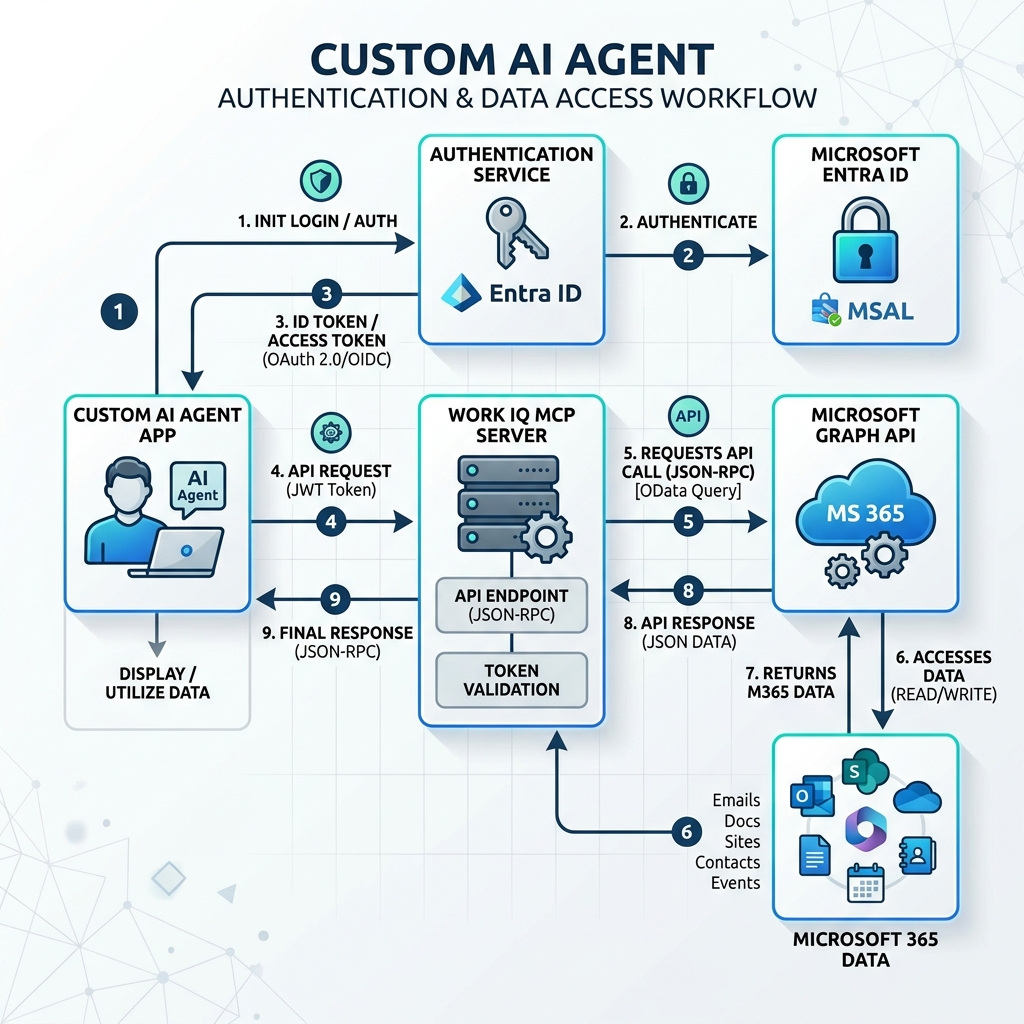
Your application must acquire an access token on behalf of the user. The user must have a Microsoft 365 Copilot license. This is typically done using MSAL (Microsoft Authentication Library).
Here is a simplified example using msal-node in an Express.js application:
Step 4: Connect to Work IQ MCP endpoints
The MCP servers operate over standard HTTP using JSON-RPC 2.0 payloads. They are tenant-scoped endpoints hosted at a specific URL pattern. You can target different workloads by replacing the {server_name} in the following base URL:
https://agent365.svc.cloud.microsoft/agents/tenants/{TENANT_ID}/servers/{server_name}
Commonly available Work IQ MCP server names include:
- Mail:
mcp_MailTools - Calendar:
mcp_CalendarTools - Teams:
mcp_TeamsTools - OneDrive:
mcp_OneDriveTools - SharePoint:
mcp_SharePointTools - Word:
mcp_WordTools - User/Profile:
mcp_MeTools - Universal Search:
mcp_M365Copilot(Preview)
4.1. Initialize the MCP Session
You must first initialize a session with the MCP server to negotiate capabilities and obtain an mcp-session-id.
4.2. Invoke tools
Once initialized, you can invoke tools natively supported by the server.
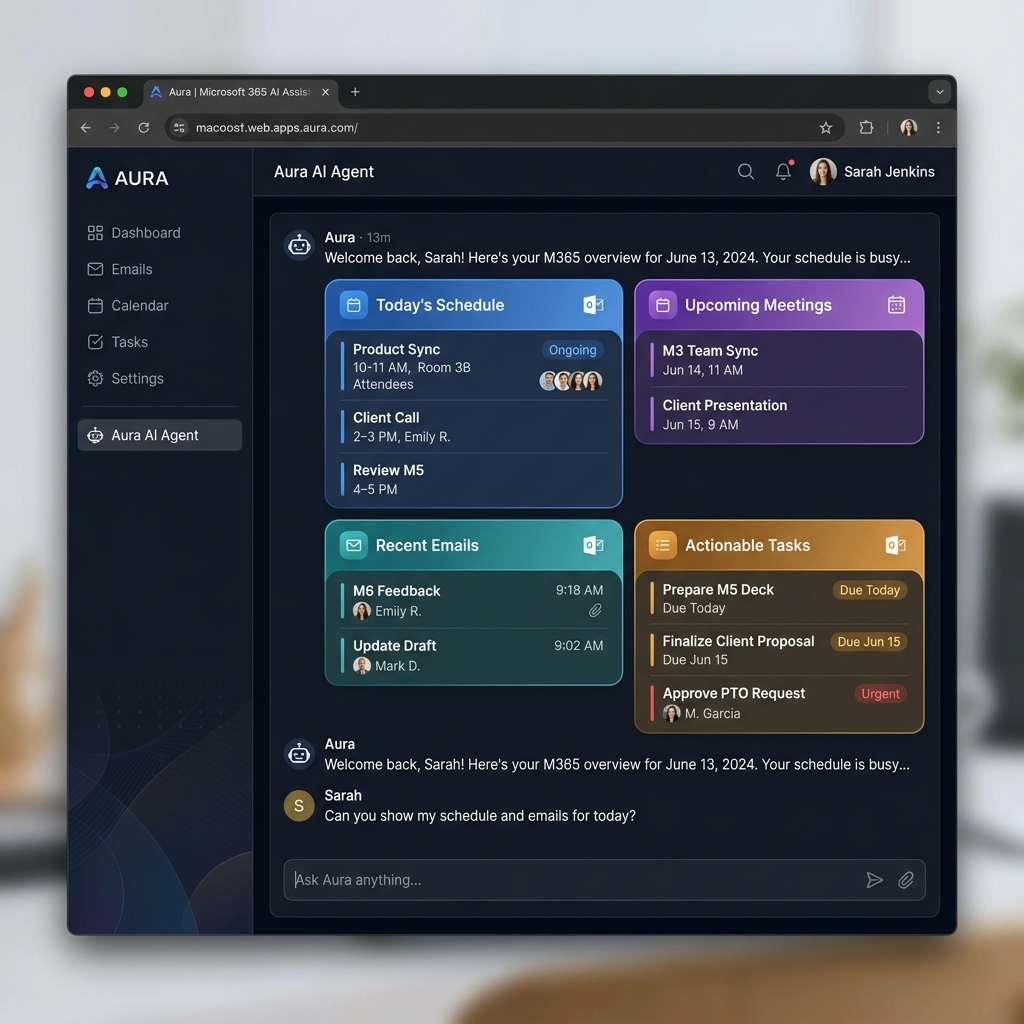
Your custom agent can now interpret the JSON-RPC tool response and synthesize it back to the user.
Deep Dive: Work IQ Copilot (mcp_M365Copilot)
While there are many dedicated MCP servers for specific workloads (like Mail or Calendar), the Work IQ Copilot server (mcp_M365Copilot) stands out as the primary mechanism for broad discovery and context retrieval.
Preview Feature: The Work IQ Copilot server is currently in preview. Functional availability may vary, and it is not recommended for critical production workflows until GA.
This server is designed to search across your entire Microsoft 365 ecosystem—including SharePoint sites, OneDrive files, email messages, Teams chats, and other connected M365 content.
When to use Work IQ Copilot
You should invoke this tool for any user request that requires locating information contained within Microsoft 365 content when no workload-specific tool is available. It serves two main purposes:
- Universal Search: If the user’s request could plausibly be answered using organizational content (e.g., “Find the project report from last week”), use this tool.
- Fallback Mechanism: If a user requests information from a specific workload but that specific tool is unavailable, you should use Work IQ Copilot as a fallback to attempt retrieval. Tip: If the search tool can’t retrieve the information, your agent should clearly state that the information isn’t accessible rather than hallucinating from general knowledge.
The Copilot Chat Tool
The primary tool exposed by this server is Copilot Chat. It provides direct chat integration with M365 Copilot, supporting persistent multi-turn conversations and file grounding.
Required Parameters:
message: The chat message text from the user to send to Copilot.
Optional Parameters:
conversationId: The ID of an existing Microsoft 365 Copilot conversation. If provided, the tool continues the same thread (retaining multi-turn context). If missing, a new conversation is automatically created.agentId: The Agent ID for the Microsoft 365 Copilot conversation.fileUris: An array of file references (with URI properties from SharePoint, OneDrive, etc.) used to ground the response. This allows you to explicitly attach files as contextual resources.
Available Work IQ MCP Servers Reference
The following table summarizes the available Work IQ MCP servers and their typical use cases.
| Server Name | Description & Use Cases | Returned Data |
|---|---|---|
Work IQ Copilot (mcp_M365Copilot) | Broad discovery across M365 ecosystem (SharePoint, OneDrive, Teams, Mail). | Documents, Chat context, fileUris for grounding. |
Work IQ Mail (mcp_MailTools) | Read, search, and manage Exchange mailbox data. | Emails, Attachments, Thread context. |
Work IQ Calendar (mcp_CalendarTools) | Manage meetings and availability. | Events, Attendees, Teams links. |
Work IQ Teams (mcp_TeamsTools) | Read chat history and respond in channels. | Messages, Channel data, Membership. |
Work IQ Word (mcp_WordTools) | Interact with Word documents and comments. | Document content, Revisions, Comments. |
Work IQ SharePoint (mcp_SharePointTools) | Query intranet files and structured lists. | Site data, Library files, List items. |
Work IQ OneDrive (mcp_OneDriveTools) | Access user's personal cloud storage. | Personal files, Sharing links. |
Work IQ User (mcp_MeTools) | Query organizational directory and presence. | Profiles, Manager/Reports, Presence. |
| Dataverse MCP | CRUD operations across Dynamics 365 records. | Leads, Accounts, Custom entities. |
Note: Depending on your tenant region and release configuration (Targeted vs. Standard Release), some endpoints might be labelled as preview.
Read next