The "Day 2" Problem: Why TypeSpec is the Missing Link in M365 Copilot Development

Writer
Quiz available
Take a quick quiz for this article.

TypeSpec is an open-source Microsoft tooling designed for type-driven creation and lifecycle management of OpenAPI specifications—a perfect fit for building reliable, scalable APIs that power LLM agents and Copilot API actions.
If you ask most developers how to build an API for Microsoft 365 Copilot, they’ll give you the standard “code-first” answer: “Just use FastAPI or .NET Core! They generate the OpenAPI spec automatically. You don’t even need to look at the JSON.”
And for “Day 1”—the day you build and launch your initial agent—they are absolutely right.
Modern libraries do an incredible job of scaffolding Swagger (OpenAPI) documentation directly from your code. You take that generated JSON, feed it into the M365 Copilot creation wizard, and boom: you have a Declarative Agent. It works, it’s fast, and you didn’t have to write a single line of API specification manually.
But then comes “Day 2.”
This is where the reality of enterprise software sets in, and where the “easy” code-first approach often falls apart. This is exactly why TypeSpec was invented, and why it is critical for the long-term success of M365 Copilot agents.
The Reality Check: When “Auto-Generate” Breaks Down
Let’s paint a picture of the problem. You have a deployed M365 agent that references your API. The agent’s configuration (the declarativeAgent.json and plugin.json) is tightly coupled to that specific OpenAPI structure.
Now, business requirements change. You need to:
- Add a new route.
- Refactor an existing model (e.g., splitting
customerNameintofirstNameandlastName). - Tweak the descriptions so the Large Language Model (LLM) understands the tool better.
If you rely purely on your C# or Python code to re-generate the spec, you run into a wall.

The Three Horsemen of the “Day 2” Apocalypse:
- Loss of Context: When you re-generate JSON from code, you might wipe out manual tweaks you made to the spec previously (like
x-openai-isConsequentialflags or hyper-specific LLM descriptions that don’t belong in C# comments). - Reference Hell: Your M365 Agent configuration points to specific
operationIds. If your code generator subtly changes how it names these IDs during an update, your Agent breaks immediately upon deployment. - The “JSON Blob” Nightmare: If you try to avoid re-generation and just “quickly edit” the existing OpenAPI JSON file, you are now manually wrestling with a 2,000-line text file. One missing brace or wrong reference, and validation fails.
This is the problem TypeSpec solves. It isn’t just “another way to write specs”—it is a tool for managing API complexity at scale. By using dedicated files like main.tsp, you regain control.
The Migration Strategy: You Don’t Start from Zero
A valid criticism is that rewriting a massive enterprise API definition into TypeSpec from scratch is unrealistic.
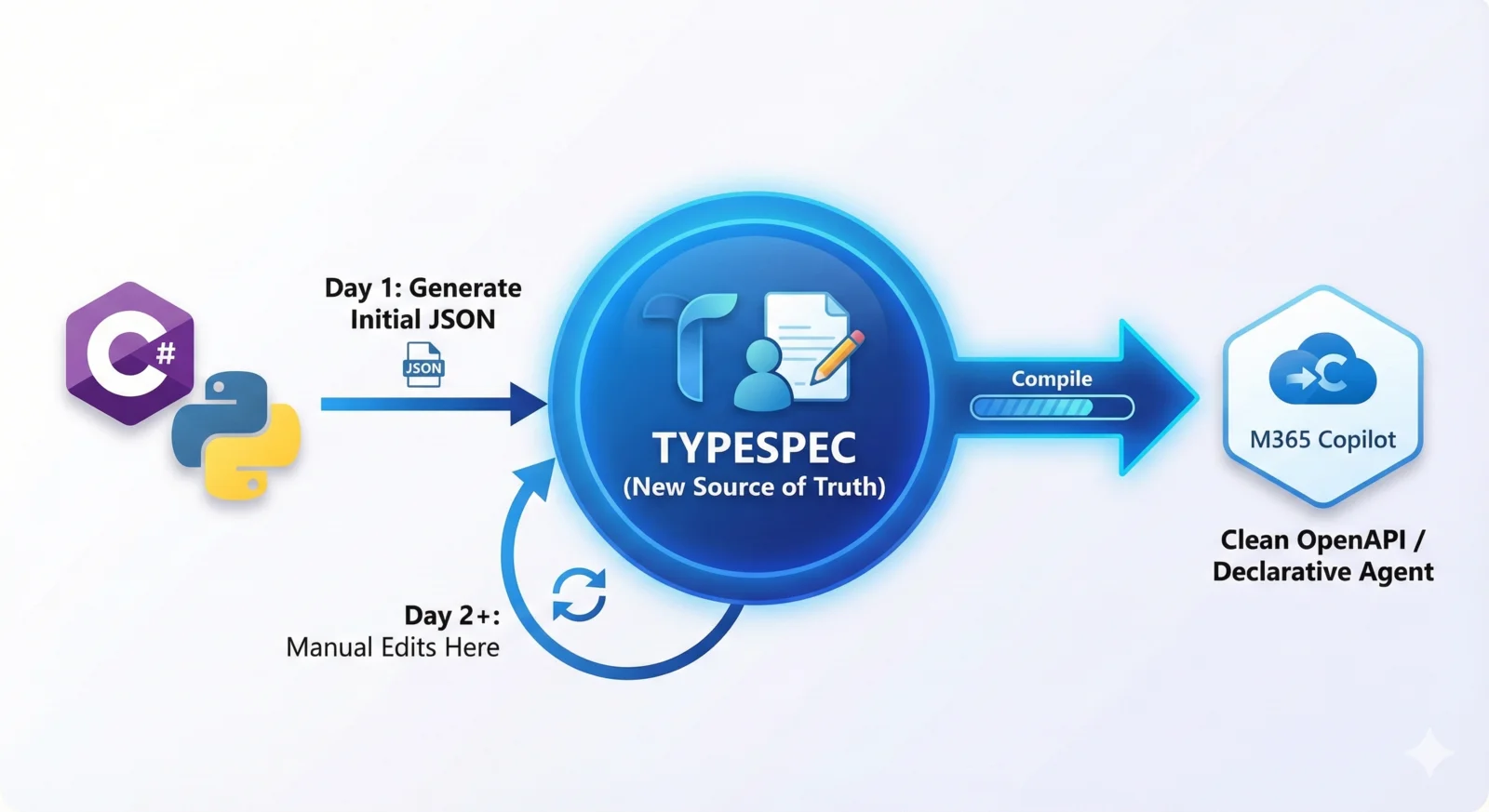
Good news: You don’t have to. The smartest workflow for enterprise teams is “Generate Once, Maintain in TypeSpec.”
- Day 1: Use your existing .NET/Python code to generate the initial OpenAPI JSON.
- Conversion: Use the official Microsoft tool to bootstrap that JSON into a TypeSpec project.
- Day 2+: Disconnect the auto-generator. TypeSpec is now your source of truth. All future API changes happen in TypeSpec first, ensuring stability for your M365 Agent.
Hands-On Tutorial
Let’s walk through how to actually implement this workflow.
Level 100: Getting Started
First, get the tooling set up on your machine.
1. Prerequisites (Node.js)
TypeSpec requires a modern version of Node.js.
Warning: Node.js 18 is End-of-Life (EOL) as of April 2026. Ensure you are using at least Node.js 20.0.0 and npm 7.0.0.
2. Global Installation
Open your terminal and install the TypeSpec compiler globally to get the tsp command line tool.
3. The VS Code Extension (Mandatory)
For syntax highlighting, IntelliSense, and live error checking, you must install the extension.
- Open VS Code Extensions (
Ctrl+Shift+X). - Search for “TypeSpec”.
- Install the extension by Microsoft.
Level 200: The “Convert & Maintain” Workflow
Here is the realistic workflow for an existing enterprise API. Instead of writing from scratch, we bootstrap from your existing Swagger/OpenAPI JSON.
1. Initialize a Project
Create a new folder for your specs and run the initialization wizard. Select the “Generic REST API” template when prompted.
2. The Secret Weapon: Import Your Existing JSON
We will use the openapi3 library to convert your existing “Day 1” JSON into editable TypeSpec code.
First, install the necessary library in your project folder:
Next, assuming you have your auto-generated my-api.json file ready, run the conversion command:
What just happened? The tool read your complex JSON blob and decompiled it into clean, readable *.tsp files. It automatically organized your schemas into models, your endpoints into routes, and preserved all your existing descriptions.
3. The “Day 2” Edit
Now, when you need to update that customer model, you aren’t fighting JSON or hoping C# attributes translate correctly. You just open main.tsp and edit it cleanly in TypeScript-like syntax:
4. Compile Back to JSON
When you are ready to update your M365 Copilot agent, you compile your “Day 2” spec:
This generates a fresh, perfectly valid openapi.json in the tsp-output folder, ready for upload to Copilot Studio.
Why This Wins
By adopting this workflow, you treat your API contract as a first-class citizen. You decouple your AI Agent’s definition from your backend implementation details.
- Backend Team: Can refactor code without fear of accidentally breaking the agent’s contract.
- AI/Agent Team: Can fine-tune descriptions and operation IDs in TypeSpec to optimize LLM performance without needing to touch backend C# or Python code.
Stop relying on “magic” generation that you can’t control. Take ownership of your Agent’s interface with TypeSpec.
Read next