SharePoint Advanced Management: Copilot Execution Plan

Writer

SharePoint Advanced Management (SAM)
Copilot Readiness — Step-by-Step Execution Plan (PowerShell only)
Purpose: Hand this document to one operator. Following it top to bottom secures Microsoft 365 Copilot by cleaning up the SharePoint and OneDrive permissions, sprawl, and oversharing that Copilot would otherwise surface to end users. Every instruction is PowerShell. There are no portal steps.
Who can run this: Anyone comfortable with Microsoft 365 in general. No prior SharePoint experience is assumed. You do need the admin roles listed in Category 0.
How to read each task
- [ONE-TIME] — Do it once. After it is done, it stays done.
- [RECURRING — …] — Repeat on the stated schedule (e.g. every week, every month). Readiness is an ongoing operation, not a one-off project.
- Placeholders: Wherever you see
contoso, replace it with your tenant name. Replace example site URLs and group IDs with your own. ReplaceC:\SAMwith any folder you want reports saved to (create it first).
Plan at a Glance
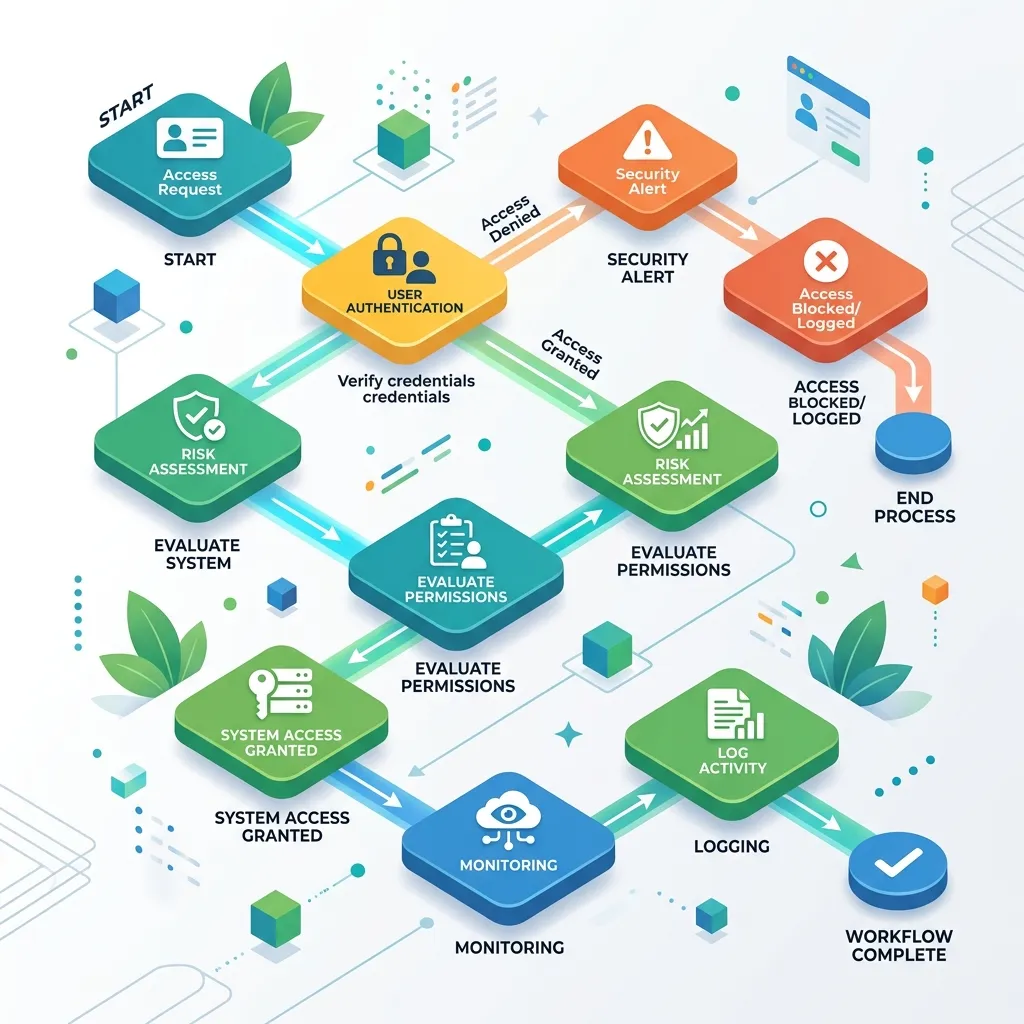
Run the categories in order. Start Category 3 (the risk-data collection) as early as possible — its first run can take up to 5 days in the background, so kick it off, then keep working through the other categories while it finishes.
| Category | Focus | Cadence |
|---|---|---|
| 0. Access & conventions | Confirm roles and placeholders | One-time |
| 1. Workstation setup | Install modules, connect, confirm SAM is live | One-time |
| 2. Tenant sharing defaults | Tighten link defaults, hide EEEU/Everyone | One-time + monthly check |
| 3. Risk data (DAG reports) | Measure who can reach what | First run once, refresh monthly |
| 4. Content sprawl | Find and archive inactive sites | Monthly |
| 5. Ownerless sites | Ensure every site has 2 owners | Monthly |
| 6. Oversharing remediation | Reviews, RAC, RCD, block-download | As needed / ongoing |
| 7. Monitoring & audit | Verify settings, audit changes, re-measure | Weekly / monthly |
Category 0 — Access and Conventions
Before any command will work, confirm you have the access below. Without it, commands fail with permission or license errors.
Task 0.1 — Confirm your admin roles [ONE-TIME]
Why: SAM policies, reports, and site changes require a SharePoint-level admin role. Archiving (Category 4) additionally needs rights on an Azure subscription for billing.
- SharePoint Administrator (preferred) or Global Administrator — required for everything in this plan.
- Owner or Contributor on an Azure subscription in the same tenant — required only for Category 4 (archiving).
Note: At least one user in your tenant must have a Microsoft 365 Copilot license. That single license switches on the full SAM toolkit tenant-wide. You do not buy SAM per user. Category 1 verifies this is working.
Task 0.2 — Understand the placeholders [ONE-TIME]
Why: every command in this plan is copy-paste ready except for values unique to your tenant. Decide these once so you can substitute quickly throughout.
- Tenant name — the part before
.sharepoint.com. Your admin URL is alwayshttps://<tenant>-admin.sharepoint.com(the-adminis mandatory). - Report folder — create a local folder now to hold exported CSV reports, e.g.
C:\SAM\Reports.
Category 1 — Set Up Your PowerShell Workstation
This connects your machine to the two services that drive SAM. Do this once per machine. If you change machines, repeat it.
Task 1.1 — Install the two PowerShell modules [ONE-TIME]
Why: SAM is split across two toolsets. The SharePoint Online Management Shell runs the governance reports and site lockdowns. PnP PowerShell handles tenant sharing defaults and the EEEU controls. You need both.
Task 1.2 — Verify the module version (do not skip) [ONE-TIME]
Why: the data-access governance reports in Category 3 only exist in version 16.0.25409 or later. Older versions silently lack the report commands — you would waste a day before noticing. Confirm the version, and update if needed.
Task 1.3 — Connect to both services [RECURRING — each session]
Why: you must connect before any command runs. Both connections use modern sign-in (a browser window opens for MFA). You will repeat this short step at the start of every working session.
Gotcha: Do not use -Credential with a stored username/password — the governance report commands block it by design. Always sign in interactively, or use a certificate-based app registration if you later automate this.
Task 1.4 — Confirm SAM is actually switched on [ONE-TIME]
Why: a license can show as assigned but not yet be provisioned. The real test is whether a SAM-gated command responds instead of returning a license error. Run a harmless read-only command. If it returns a value, SAM is live. If it errors with a license message, wait a few hours after assigning the Copilot seat and try again.
Category 2 — Lock Down Tenant-Wide Sharing Defaults

These settings change the default behaviour for all new sharing across the tenant. They reduce the rate at which new oversharing is created. They are forward-looking — they do not fix links that already exist (that is Categories 3 and 6).
Task 2.1 — Record current settings first [ONE-TIME]
Why: before you change anything, save the current state so you can prove what changed and roll back if needed.
Task 2.2 — Make sharing links default to specific people, view-only [ONE-TIME]
Why: by default SharePoint pre-selects the most permissive sharing option. Changing the default to “specific people” and “view” means a careless share no longer exposes content broadly or grants edit rights by accident.
Task 2.3 — Stop the “Everyone Except External Users” (EEEU) claim [ONE-TIME]
Why: the EEEU claim grants access to every current and future employee. It is the single biggest oversharing liability for Copilot. Hiding it from the people picker stops anyone from applying it to new content.
Hiding is not removing: This stops NEW EEEU grants. It does not strip EEEU from content where it is already applied. The DAG reports in Category 3 find the existing grants, and Category 6 remediates them.
Category 3 — Collect the Risk Data (DAG Reports)
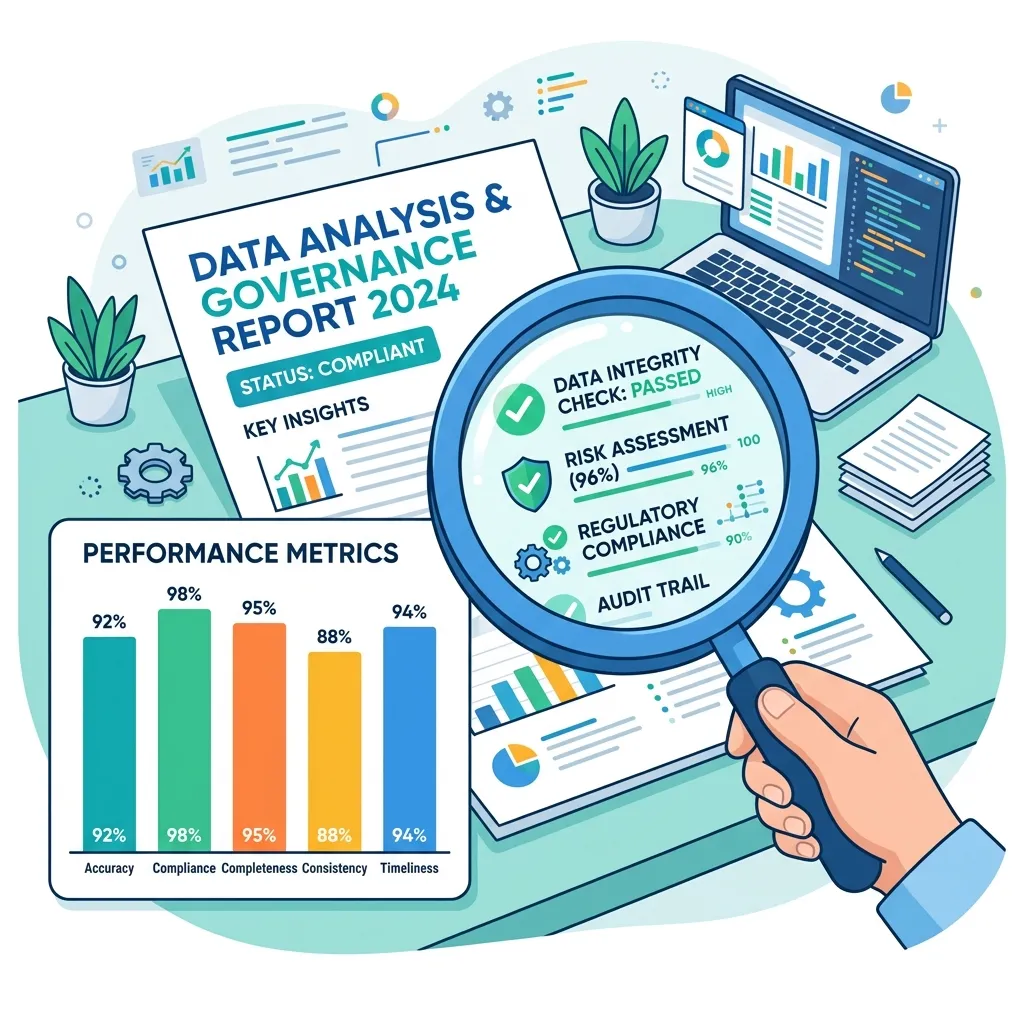
This is the measurement phase: a factual map of who can reach what. Start it early — the first run can take up to 5 days because it scans every document and list item. Later runs finish within 24 hours. You can hold two reports (one per workload) and regenerate every 30 days.
Task 3.1 — Start the oversharing baseline for SharePoint [RECURRING — first run once]
Why: this report looks inside Microsoft 365 groups to count the actual number of users who can reach each site — the truest measure of Copilot exposure. Start it on day one and walk away.
Tip: Set -CountOfUsersMoreThan 100 instead of 0 to jump straight to the worst offenders — sites reachable by more than 100 users.
Task 3.2 — Start the same baseline for OneDrive [RECURRING — first run once]
Why: OneDrive accounts overshare too. Run the equivalent report for OneDrive for Business so your picture is complete.
Task 3.3 — Check whether the reports are finished [RECURRING — poll until done]
Why: the reports run in the background. You must poll for status. Note the ReportId in the output — you need it to download. Re-run this command every day or two until Status shows Completed.
Task 3.4 — Download the finished reports to CSV [RECURRING — after each refresh]
Why: the on-screen view shows only the top 100 sites. The CSV holds up to 10,000 and is what you filter offline to build your priority list. Paste the ReportId from Task 3.3.
Task 3.5 — Build your prioritized hit-list [RECURRING — after each refresh]
Why: turn the raw CSV into an action list. The example below keeps only sites reachable by more than 1,000 users and sorts worst-first. These are the sites Category 6 will lock down. Adjust the file name and threshold to your data.
Column names vary: Open the CSV once and confirm the exact column header for the user count, then use that header in the command above.
Category 4 — Reduce Content Sprawl (Inactive Sites)

Reviewing permissions on sites nobody has touched in years is wasted effort — remove them from Copilot’s reach instead. Archiving moves a site to cheap cold storage and pulls it out of Copilot’s index entirely; the site is unavailable until reactivated. Run the detection part monthly.
Task 4.1 — Inventory every site with its last-activity date [RECURRING — monthly]
Why: you cannot decide what is inactive until you can see last-modified dates and storage in one place. This exports the full list.
Task 4.2 — Identify sites inactive for 6+ months [RECURRING — monthly]
Why: produce a candidate list of stale sites. The example flags anything not modified in 180 days. Eyeball this list before acting — recognise 10–20 sites to confirm the scope is sane.
Task 4.3 — Enable Microsoft 365 Archive (prerequisite) [ONE-TIME]
Why: archiving fails silently unless pay-as-you-go billing is linked to an Azure subscription. This billing link is the one part of the whole plan that is not a single PowerShell command — it is a one-time activation tied to your Azure subscription. Confirm your tenant can archive by running the read-only check below; if it errors, the billing link is not in place yet.
Cost context: Archived storage is about $0.05/GB/month versus $0.20/GB/month standard — roughly 75% cheaper, and you are only billed for archived data that pushes total storage over your included quota. Restores are free within 7 days; after that a reactivation can take ~24 hours, and a reactivated site cannot be re-archived for ~4 months.
Task 4.4 — Dry-run, then archive the inactive sites [RECURRING — as needed]
Why: never bulk-archive blind. First run with -WhatIf to see exactly what would happen without changing anything. Only when the preview matches your intent, remove -WhatIf to execute. The loop reads the list you built in Task 4.2.
Reversible: To bring a site back: Set-SPOSiteArchiveState -Identity '<site-url>' -ArchiveState Active. If you would rather keep a site visible but frozen, use a read-only lock instead of archiving: Set-SPOSite -Identity '<site-url>' -LockState ReadOnly.
Category 5 — Fix Ownerless and Single-Owner Sites
If a site has no owner, nobody can review or correct its permissions — a governance dead end. The standard is a minimum of two owners per site, so cover continues when one owner leaves or is away. Run detection monthly.
Task 5.1 — Inventory owners on every site [RECURRING — monthly]
Why: you need to see the primary owner of each site to find the gaps.
Task 5.2 — Find sites with no primary owner [RECURRING — monthly]
Why: these are the urgent cases — a site with a blank owner cannot be governed at all.
Task 5.3 — Assign owners on the gaps [RECURRING — as needed]
Why: every site needs a responsible owner. Set the primary site-collection owner on each flagged site. Replace the URL and the owner’s sign-in address with real values (use a CSV loop for many sites).
Category 6 — Remediate Oversharing on High-Risk Sites
Now act on the hit-list from Category 3. Match the tool to the urgency: delegate a review when the site owner should decide, hide a site from Copilot when you need breathing room, and hard-restrict access when you cannot wait.
Task 6.1 — Delegate a permissions review to the site owner [RECURRING — as needed]
Why: for compliance reasons you (the admin) cannot see item-level permissions, but the site owner can. This sends the owner a focused review request tied to a DAG report. You need the ReportId (from Task 3.3) and the site’s ID. There is a hard cap of 1,000 review triggers per tenant per month, and it works for SharePoint sites only (not OneDrive).
No enforcement: If an owner ignores the review or clicks complete without changing anything, nothing is auto-locked. For sites that cannot wait, use Task 6.3 or 6.4.
Task 6.2 — Hide a site from Copilot and org-wide search (RCD) [RECURRING — as needed]
Why: Restricted Content Discovery removes a site from Copilot and organization-wide search while leaving direct access intact for people who already have permission. Use it to take a high-risk site out of Copilot’s reach while you clean up its permissions. It cannot be applied to OneDrive.
Do not over-apply: Hiding too many sites starves Copilot of legitimate grounding data and produces worse answers. RCD reindexes every file in the site, so large sites take time to take effect. Apply it to genuine high-risk sites only.
Task 6.3 — Hard-restrict a site to specific groups (RAC) [RECURRING — tenant enable once, then per-site]
Why: Restricted Access Control overrides existing permissions and limits a site to named Microsoft 365 or Entra security groups. Anyone outside those groups loses access, even via existing links. Use it for your most sensitive sites. Step 1 enables the capability tenant-wide and is required once; allow about an hour before the per-site command works.
Need the group’s GUID? Run: (Get-PnPMicrosoft365Group -Identity 'Finance Team').Id — or get it from your group list. Double-check the group contains every legitimate user before you apply RAC, or you will lock people out.
Task 6.4 — Block download, print, and sync on confidential sites [RECURRING — as needed]
Why: on a board or HR site you may want people to read documents in the browser but never take a copy. This blocks downloading, printing, and syncing while still allowing in-browser viewing.
Category 7 — Ongoing Monitoring and Audit
Readiness is an operating model, not a project. These recurring checks confirm your baseline holds and catch new risk before it reaches Copilot.
Task 7.1 — Verify the baseline settings still hold [RECURRING — monthly]
Why: tenant settings can be changed by other admins. Re-check the values you set in Category 2 and compare against your saved baseline.
Task 7.2 — Audit who changed SharePoint admin settings [RECURRING — weekly]
Why: you need to know if someone re-opened external sharing, changed a storage limit, or altered access controls. This searches the unified audit log for SharePoint admin changes in the last 7 days. It needs the Exchange Online module and audit logging turned on in your tenant.
Task 7.3 — Re-measure exposure and compare [RECURRING — every 30 days]
Why: prove your cleanup is working. Regenerate the baseline report (Tasks 3.1–3.4) every 30 days and compare the count of heavily-permissioned sites against last month. The number should fall.
Task 7.4 — Track open owner reviews [RECURRING — weekly]
Why: reviews you triggered in Task 6.1 stay pending until the owner acts. Check which are still outstanding so you can chase them or escalate to a hard restriction.
Quick Command Reference
Everything in execution order. Replace contoso, site URLs, GUIDs, and C:\SAM with your own.
Read next