Mastering System.Activity in Microsoft Copilot Studio: Telemetry, File Uploads, and Context

Writer
Quiz available
Take a quick quiz for this article.

Mastering System.Activity in Microsoft Copilot Studio: Telemetry, File Uploads, and Context
In Microsoft Copilot Studio, authoring an intelligent agent requires more than just pre-defined responses; it requires contextual awareness. As the primary “context carrier” for any interaction between a user and an agent across different channels like Teams, M365 Copilot, or the web, the System.Activity variable is the engine that provides this awareness. It offers a deep, programmatic look into the metadata of every message, file upload, and system event.
When architecting agentic AI solutions for enterprise environments, relying solely on text-based intent recognition is rarely enough. To build truly responsive and context-aware agents, you need to monitor the entire user interaction lifecycle. From parsing file uploads in an IT helpdesk to tracking when users delete or react to messages in Microsoft Teams, understanding the underlying telemetry is critical.
In this technical guide, we will merge these core concepts into a continuous workflow. We’ll explore the foundation of the System.Activity object, understand how to build event-driven telemetry, and finally dissect how to capture, parse, and validate user-uploaded files using Power Fx.
What is the Activity Variable?
The System.Activity variable is a system-level object that captures deep details about the current interaction. Think of it as a “digital envelope” that contains not just the user’s text message, but also information about where the message came from, who sent it, and any attached files.
The Three Main Activity Types
While there are several classifications of activities in the Bot Framework schema, most authoring in Copilot Studio focuses on these three core types:
- Message: The most common type, representing text or media specifically sent by a user to the agent.
- Event: Background processes, telemetry signals, or specific activities sent invisibly to the bot.
- Invoke: Specialized, programmatic activities used for explicit integration interactions and extensions.
| Data Type | Payload Source | Processing & Routing Path |
|---|---|---|
| Message Activity | User Text, Speech, or Media Uploads | Routed directly to the internal Natural Language processing engine to evaluate Intent. |
| Event Activity | Invisible Telemetry (Deletions, Reactions) | Bypasses intent processing entirely and triggers 'Activity occurs' topic nodes. |
| Invoke Activity | Programmatic Extensions & Integrations | Used explicitly to trigger backend programmatic functions or API interactions. |
Anatomy of the Activity Object
When you dive into the System.Activity schema, you unlock access to several critical properties. Below are the most important fields that developers need to leverage:
| Property | Description |
|---|---|
| Activity.Text | The actual string of text most recently sent by the user. |
| Activity.Attachments | A table (array) containing metadata and raw content for any files uploaded by the user. |
| Activity.ChannelID | The unique identifier for the platform (e.g., Teams vs. Web). |
| Activity.From.Name | The user-friendly name of the person sending the message. |
| Activity.Recipient.Name | The display name of the agent receiving the message. |
| Activity.Value | Additional, often channel-specific, unstructured data or objects associated with the activity. |
[!CAUTION] Security Warning — Know Your Trust Boundaries:
Activity.From.Nameis a display-only string that can be trivially spoofed on any open channel.Activity.From.Idis channel-scoped and bot-specific — more reliable for session tracking, but not a verified global identity. For sensitive operations, always use platform-verified identity variables (System.User.Idin Teams) or a full OAuth token (User.AccessTokenwith manual auth). See the Key Takeaways section for a full breakdown.
Identifying Your Channel (The “Where” Factor)
The behavior of your agent heavily depends on where it is actively deployed. Activity.ChannelID is the best way to implement “channel-specific” logic. Because not all channels support the same feature sets, this property provides safety.
- PVA Studio (
pva_studio): This ID appears when you are testing inside the Copilot Studio authoring canvas. - M365 Copilot (
m365copilot): Seen when the agent is published and accessed through the Microsoft 365 Chat interface. - MS Teams (
msteams): Seen when the agent is deployed as a dedicated app within Microsoft Teams.
Why this matters: You might want to format an adaptive card or markdown message differently for the compact Teams mobile interface versus the broader M365 Copilot web view. You can use the fx formula bar to write custom routing logic, such as:
The Golden Rule: Channel Specificity Before designing your agent
workflows, it is critical to understand a platform boundary: Advanced activity
tracking and telemetry are channel-specific. The event triggers we will
discuss below—such as message reactions, deletions, and edits—are natively
supported when your Copilot Studio agent is published to the Microsoft Teams
channel. If you deploy this same agent to M365 Copilot Chat or a custom web
canvas, these specific background telemetry events will fail to trigger.
Always wrap these capabilities in conditional logic (if-loops) checking the
ChannelID if you are building an omnichannel agent.
Mastering Event-Driven Telemetry in Microsoft Teams Agents
In Microsoft Teams, users don’t just send plain text messages—they react, edit, and delete them mid-conversation. By leveraging Copilot Studio’s event capabilities, we can capture these background channel events. This capability is invaluable for customer service scenarios (like tracking issue resolution sentiment via thumbs-up reactions) or maintaining strict audit trails for enterprise workflows.
1. Transitioning from Intent to Event Triggers
Most developers are familiar with standard intent triggers, which fire a topic when a user types a specific keyword (e.g., “teams” or “help”). To capture background telemetry, we must shift from text-matching to generic event-listening.
- Create a New Topic from blank.
- Click the default trigger node, select Change Trigger, and choose Activity occurs.
- Click Edit on the new trigger node to specify the exact Activity Type you want to listen for.

2. Capturing Core User Activities
Here are the specific activity types tracked natively inside Microsoft Teams and their business value:
The Reaction Event (MessageReaction)
Users frequently use emojis (thumbs up, hearts) to acknowledge agent responses. Capturing this allows you to measure sentiment or satisfaction without forcing the user to type a formal text-based survey response.
- Setup: Set the Activity Type in the trigger node to Message Reaction.
- Execution: When a user reacts to any message sent by the agent in Teams, this topic fires. You can configure the agent to respond with a simple acknowledgment (“Thanks for the feedback!”) or write the reaction state back to a database to close out a support ticket.
The Deletion Event (MessageDelete)
In enterprise chat, users frequently delete messages containing typos or premature information. Tracking this ensures your agent’s context doesn’t become disjointed.
- Setup: Set the Activity Type to track Message Deletions.
- Execution: If a user deletes a prompt they just sent, the agent can recognize the state change and respond appropriately (e.g., “I noticed you deleted your last message. Do you need to start over?”).
The Update Event (MessageUpdate)
Similar to deletions, users often edit messages retrospectively to add missing parameters. If your agent workflows operate synchronously, it might process the original message and miss the edit completely.
- Setup: Set the Activity Type to Message Update.
- Execution: When a user implicitly edits a message (e.g., changing “Create a ticket” to “Create a high-priority ticket”), the agent intercepts the update event, allowing you to prompt the user to clarify if they want the action re-run with the new, updated context.
3. Unlocking Deep Telemetry with System Variables
To truly leverage these background events, you need to extract the metadata accompanying them. Copilot Studio exposes this through system variables, providing raw access to the JSON payload coming from the Teams architecture.
By utilizing a Send a Message or Set Variable node, you can parse the following variables directly during an event:
Activity.Text/System.LastMessage.Text: Captures the literal string of text sent by the user.Activity.ChannelData: Exposes the raw, channel-specific telemetry payload. Note thatSystem.Activity.ChannelDatais natively type JSON. You can actively process this structure using theJSON(System.Activity.ChannelData)function if you need stringified output. Additionally, for specific raw routing setups, you can extract the Base64 representation of an uploaded file directly from this payload by accessingFirst((System.Activity.ChannelData).OriginalAttachments).contentUrl(this returns the file’s Base64 or Data URI string, if it exists).Activity.Type(orActivity.Id): This is the most crucial variable for event routing. It explicitly identifies the exact background event, returning string values such asmessageUpdateormessageDelete. It also exposes broader environmental constraints like your specific Tenant ID.
Instead of creating a dozen separate topics for every minor event trigger,
route all “Activity occurs” triggers to a single master telemetry topic. From
there, use a Condition Node evaluating Activity.Type to branch the logic
downstream based on whether the event was a deletion, update, or reaction.
4. Deployment and Testing Pro-Tips
Testing channel-specific events requires publishing the agent and interacting with it directly inside the Teams client. Because enterprise propagation can sometimes be delayed, utilize these two tricks to optimize your agent testing cycles:
- The Visual Version Check: When making underlying changes to activity triggers, edit the agent’s details in Copilot Studio and change its avatar icon color (e.g., from red to blue). Once you publish, keep an eye on Teams. When the icon color visibly updates in your Teams chat list, you have absolute visual confirmation that your latest systemic build has successfully propagated to the client.
- The Hard Refresh: Microsoft Teams aggressively caches individual agent sessions and states. Always perform a hard refresh of the Teams client (or sign out and fully sign back in) if your newly configured event triggers are stubbornly failing to fire during testing.
Deep Dive: Handling File Attachments & Metadata Extraction
One of the absolute most powerful uses of the Activity variable is processing user-uploaded files. Whether you are creating a helpdesk bot that needs screenshot evidence or an HR assistant collecting resumes, you need to know how to capture, process, and extract this data under the hood.
For this walkthrough, let’s assume we are building a “Bug Tracker” agent. We want users to be able to type a trigger word—like “screenshot”—which will prompt the agent to ask for an image of the error they are experiencing. We can structure a new topic named Screenshot Upload and set the trigger phrase to “screenshot”.
Method 1: The Basics of Capturing and Replaying a File
The simplest way to handle an upload is gracefully using a standard Question Node.
- Add an Ask a question node.
- Set the message to: “Please upload a screenshot.”
- Under the Identify configuration, select File.
- Save the user response as a local variable (e.g.,
varFile).
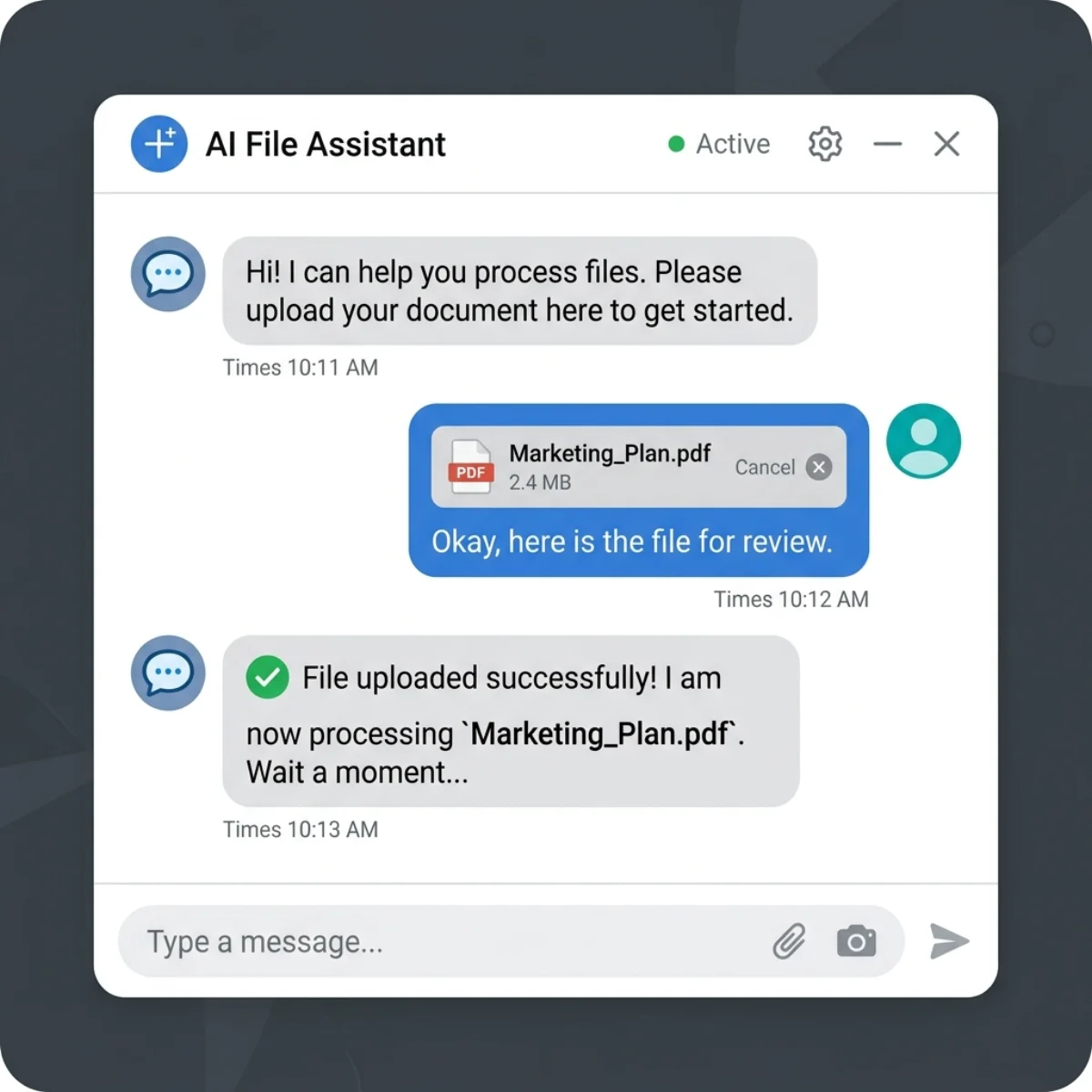
Once the user uploads their file, Copilot Studio natively stores the actual file content directly inside varFile. If you want to confirm receipt, you can easily replay the file back to the user. Simply add a Send a message node, type “Here is the file you uploaded:”, and insert the varFile variable using the {x} insert menu. The Copilot chat interface will render the file natively in the conversation.
Method 2: Deep Dive into Metadata Extraction
While the varFile method is great for simple visual replaying, real-world applications usually require much more systemic context. You might need the file’s exact name to logically save it to a SharePoint drive, or you might need its MIME content type to ensure the user actually uploaded an image and not a malicious PDF.
To get this granular data, we have to interact with the broader System.Activity.Attachments object.
Understanding System.Activity.Attachments
When a user uploads a file, it is automatically assigned to Activity.Attachments. It is crucial to note that attachments are inherently stored as a Table, meaning you must proactively treat them as an array even if the user only uploads a single file.
If you awkwardly try to output System.Activity.Attachments directly into a message node, you won’t get a clean visual result. You will instead get a raw JSON-like array (table) containing various native data points like kind, date value, and the internal conversation file reference. Because it is a table of objects, we need to use Power Fx formulas to parse it and surgically extract the exact fields we want.
Extracting Properties with Power Fx
Since the user is implicitly uploading a single file in our Bug Tracker scenario, we only need the exact first item in the attachments table. We can grab this using the First() function natively in Power Fx.
Here is how to extract the four main properties of an uploaded file. In a Message Node, click the fx (Power Fx) button and author the following expressions:
1. File Name
Extracts the exact native name of the file (e.g., logo-error.png).
2. Content Type
Identifies the MIME type of the uploaded file (e.g., image/png or application/vnd.openxmlformats-officedocument.wordprocessingml.document).
3. File Value
Additional data associated with the upload. Note: Depending on the specific file and local environment, this property may sometimes return completely empty/blank in practice, but it remains heavily available and defined in the schema.
4. Actual File Content (Blob)
Extracts the literal, raw file blob. This definitively functions identically to the varFile variable from Method 1 and will fully render the file visually in the chat window.
UI Troubleshooting Tip: The Copilot Studio authoring canvas can occasionally be finicky. If you find that you cannot correctly edit a Message Node after heavily adding multiple nested Power Fx variables to it, don’t waste time fighting the browser UI. Simply delete the node entirely, add a fresh “Send a message” node, and try again.
Real-World Use Cases: Why Extract This Data?
Extracting raw metadata isn’t just an academic exercise; it natively unlocks tremendously powerful automation capabilities for your active agents.
- Intelligent Validation: Native system limitations mean you can’t explicitly force a user to upload only a specific file extension dynamically in the basic Question Node. However, by strictly extracting
First(System.Activity.Attachments).ContentType, you can build conditional logic downstream. If you specifically request a screenshot and the Content Type unexpectedly returnsapplication/vnd.openxmlformats-officedocument.wordprocessingml.document(a standard.docxfile), you can forcefully route the conversation to a message node that says, “Please do not upload Word documents. We only accept PNG or JPG files,” and loop them actively back to the initial upload prompt.
| Condition Check | Workflow Action | User Experience |
|---|---|---|
ContentType = image/png | Proceed to next node | The file is securely accepted and rendered back to the user visually. |
ContentType = application/vnd... | Reject and redirect flow | User receives an error message and is forced to loop back to the upload prompt. |
- Third-Party Integration: If you are autonomously passing the user’s isolated issue explicitly to a backend system asynchronously via a Power Automate flow, you strictly need the extracted
Nameand theContent(Blob) to completely execute, successfully recreate and logically store that precise file independently in external databases like OneDrive, SharePoint, or Azure Blob Storage. - Looping Bulk Files: Because attachments inherently present as an array, you can use Power Fx to count them or loop through multiple files concurrently if your deployed agent natively supports bulk uploads globally.
Method 3: Saving Files to SharePoint (The SPO Create File Action)
When automating file storage natively inside M365 ecosystems, one of the most important actions in Power Automate is the SharePoint Online (SPO) “Create file” action. Understanding its data-type requirements is one of the most common stumbling blocks for Copilot Studio developers.
The SPO “Create file” action has two mandatory parameters:
- File Name: The name of the file as a string (e.g.,
error_screenshot.png). Map this fromFirst(System.Activity.Attachments).Name. - File Content: This parameter requires binary data. It does not and cannot accept a plain string or a file object reference. This is a hard requirement of the SharePoint connector — it needs the raw binary bytes of the file to reconstruct it correctly in the document library.
The Cross-System Transport Problem
This is where developers hit a critical wall. The Content property from System.Activity.Attachments is a blob-like object inside Copilot Studio — binary data held in memory during the conversation session. Two systems are talking to each other here (Copilot Studio and Power Automate), and binary blobs cannot be transported across this system boundary natively. A raw blob is not a serializable value you can cleanly hand off through the flow trigger’s input schema.
This means you face a two-step type conversion pipeline:
Step 1 (Copilot Studio) — Serialize the blob into a transmittable string:
Why Text() here? The Content property is typed as a binary blob, not a string. Copilot Studio’s flow trigger inputs use a text/string schema for data passing. By wrapping the blob in Text(), you serialize it into a standardized Data URI string — a text representation of the binary data that looks like:
This string is now a plain, serializable text value that can safely cross the system boundary into Power Automate via a Text type flow input (e.g., file_content).
Step 2 (Power Automate) — Deserialize the string back to binary for SharePoint:
Inside your Power Automate flow, the SPO “Create file” File Content parameter requires binary. You must convert the incoming text back into binary before handing it to SharePoint. Use this expression in the File Content field:
This strips the data:image/png;base64, prefix and decodes the remaining Base64 payload back into the raw binary bytes that SharePoint expects.
Conversion Decision: dataUriToBinary() vs base64ToBinary()
The correct conversion function depends entirely on what format your string is in when it reaches Power Automate:
| Scenario | String Format | Correct Function |
|---|---|---|
Content passed via Text(First(System.Activity.Attachments).Content) | data:image/png;base64,... (Data URI — has prefix) | dataUriToBinary() |
Content pulled from ChannelData.OriginalAttachments.contentUrl | Often a Data URI | dataUriToBinary() |
| Raw Base64 from a custom API or stripped payload | iVBORw0KGgo... (no prefix) | base64ToBinary() |
The cardinal rule: if your string starts with data:, use dataUriToBinary(). If it is a naked Base64 string with no prefix, use base64ToBinary(). Using the wrong function guarantees a corrupted, unreadable file in SharePoint — the bytes will be misinterpreted and the file will fail to open.
Key Takeaways and Best Practices
To securely implement these activity and file tracking patterns, utilize these structural guidelines:
-
Check for Native Hallucinations: When continually testing in high-latency network environments (like heavily cached Teams Desktop clients), the agent architecture may occasionally falsely re-prompt for an already uploaded file. Ensure your programmatic logic constantly handles empty attachment tables gracefully without crashing.
-
Format for Visual Clarity: Use VS Code or an online JSON viewer to routinely physically inspect the complete
Activityobject structure periodically during initial development. This significantly helps you confidently map out deeply nested properties of the localChannelDataobject independently. -
Security First — The Three-Tier Identity Model: Not all identity fields carry the same trust level. Understanding this distinction is critical for secure agent design:
Field Trust Level Why Activity.From.Name❌ Never trust A plain display string. Easily spoofed on Web Chat, Direct Line, or the Bot Emulator. Never use for authorization. Activity.From.Id⚠️ Limited trust Channel-scoped and encrypted, but only unique per bot instance — not a global identifier. Safe for non-sensitive session tracking or as a database key within your bot only. System.User.Id✅ Trusted (Teams) When your agent uses “Authenticate with Microsoft” (the default for Teams), this variable is populated by the platform from the user’s verified Microsoft Entra ID. It corresponds to the user’s Entra ID Object ID — a tenant-wide, immutable identifier. Use this for secure user lookups, personalization, or passing identity to backend systems via Microsoft Graph. User.AccessToken✅ Trusted (Manual Auth) Only available when the agent is set to “Authenticate manually” and an Authenticate node has fired. Contains a cryptographic OAuth token that can be validated by a downstream API. Use for scenarios where you need delegated user access to external systems. For any agent executing sensitive enterprise tasks — accessing HR data, triggering financial workflows, or calling privileged APIs — always gate those actions behind a verified identity check using
System.User.Id(Teams) or a validatedUser.AccessToken(manual auth). Also checkSystem.User.IsLoggedInbefore reading any of these variables to handle unauthenticated edge cases gracefully.
By confidently mastering the System.Activity object natively alongside the flexible System.Activity.Attachments array and Power Fx operations, you easily transition your Copilot Studio agents organically from simple conversational text chatbots into deeply robust, secure, securely tracked, actively context-aware file-processing enterprise applications that seamlessly comprehend how modern digital workforces genuinely engage continuously in Microsoft Teams globally.
Read next