The Evolution of M365 Copilot: Mastering "Edit with Copilot" and Agentic Workflows

Writer
Quiz available
Take a quick quiz for this article.

For the past couple of years, Microsoft 365 Copilot has functioned largely as an intelligent assistant—a tool that required you to provide step-by-step instructions to get things done. While powerful, it often acted more like an instructional manual, telling you how to do a task rather than just doing it for you.
With the introduction of Edit with Copilot (formerly known as “Agent Mode”), the paradigm has shifted. Powered by multi-step, agentic AI technology, Copilot is now capable of taking the wheel. It can traverse entire documents, reason through complex spreadsheets, and generate comprehensive files from scratch.
Before diving into the core features, it is important to understand availability and licensing nuances. Edit with Copilot is currently Generally Available (GA) in Word and Excel, while it remains in Preview/Rolling out for PowerPoint and Outlook. Additionally, while certain basic “Edit with Copilot” capabilities are accessible via the free Copilot chat, the more advanced, in-app deep integrations (such as specific dashboard generations) utilize the paid M365 Copilot license.
Here is a deep dive into the technical capabilities of Edit with Copilot across Word, Excel, PowerPoint, and Outlook, complete with advanced prompting strategies and model-selection tricks.
1. The “Zero-to-One” Workflow: Creating Files via Copilot Chat
Before you even open a desktop application, you can now generate fully fleshed-out Word, Excel, and PowerPoint files entirely from the Copilot Chat interface using dedicated app agents.
By selecting the Word, Excel, or PowerPoint agent from the “All Agents” menu, you can prompt the AI to build a brand-new file using your internal M365 data (via Context IQ) and live web search as sources.
The Agentic Process
- Prompt: Ask for a specific asset (e.g., “Create a 1-page executive status update for Project Green Space using my data”).
- Clarification: Unlike older, single-step models, the agent will pause and ask you clarifying follow-up questions before generation. It might ask, “Are we on budget?”, “What is your target demographic/audience?”, or “Should the tone be visionary or data-driven?”.
- Theming: You can select native Microsoft visual themes such as Office, Metropolitan, Slipstream, or Sky to apply across your document. Note: Custom corporate templates are not currently supported in this flow.
- Generation & Autosave: The AI maps out the document outline, generates the content, and builds the file. This background generation is thorough but slow. It can take 5 to 10 minutes to build a complex file, but it runs entirely in the background and automatically saves the resulting document directly to your OneDrive for Business.
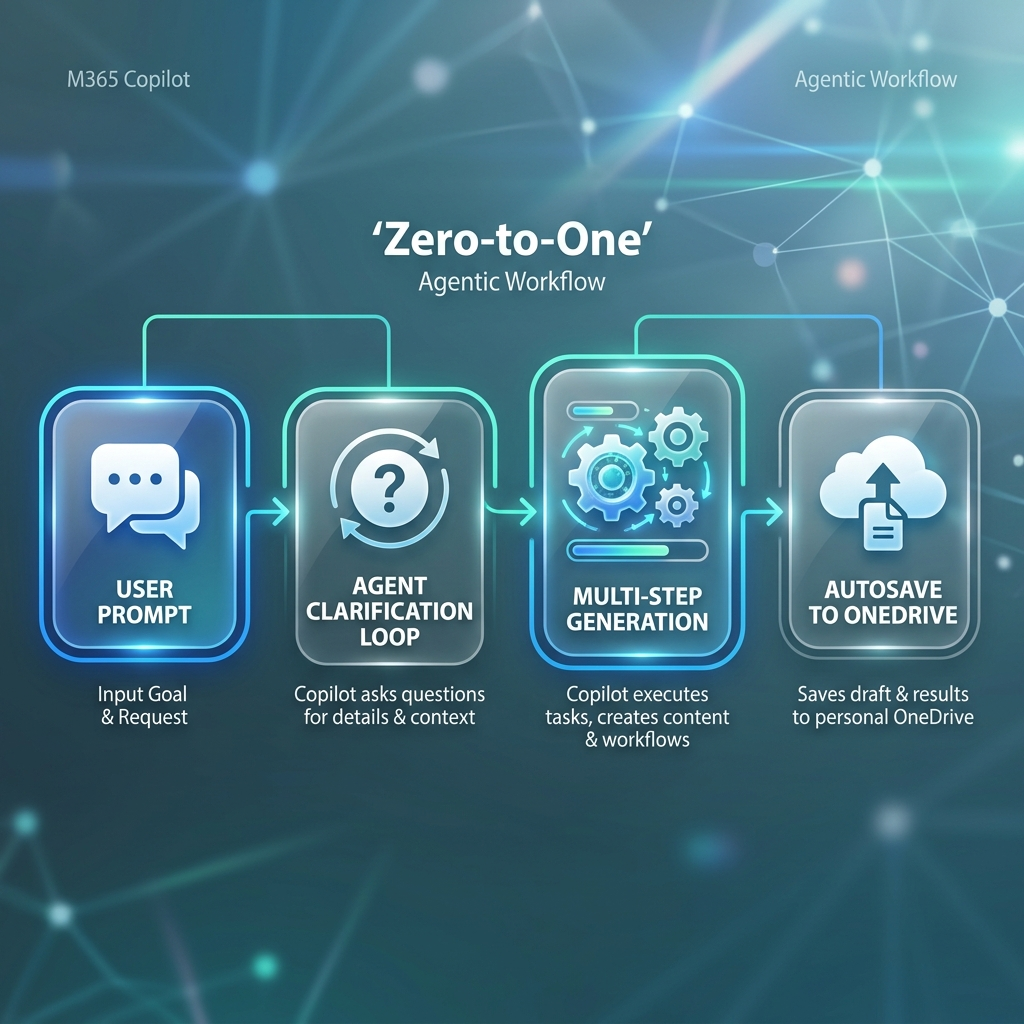 Figure 1: The agentic process involves autonomous multi-step reasoning and a clarification loop before final document generation.
2. Microsoft Word: From Text Generation to Deep Editing
Word’s Copilot integration has matured into a robust editorial engine. The default behavior of the right-hand Copilot chat pane has changed: it is now set to “Edit with Copilot,” meaning it naturally assumes you want it to modify the canvas.
Pro Tip: If you only want to query the document for information without risking accidental edits, turn the “Edit with Copilot” toggle off.
Advanced In-App Capabilities
- The Summarization Suite: Beyond a standard brief or detailed summary, the native suite now features Document Snapshots (extracting key insights, numbers, and facts), a Discussion tab (for collaborating and commenting directly around AI insights), and even Podcast-style audio summaries.
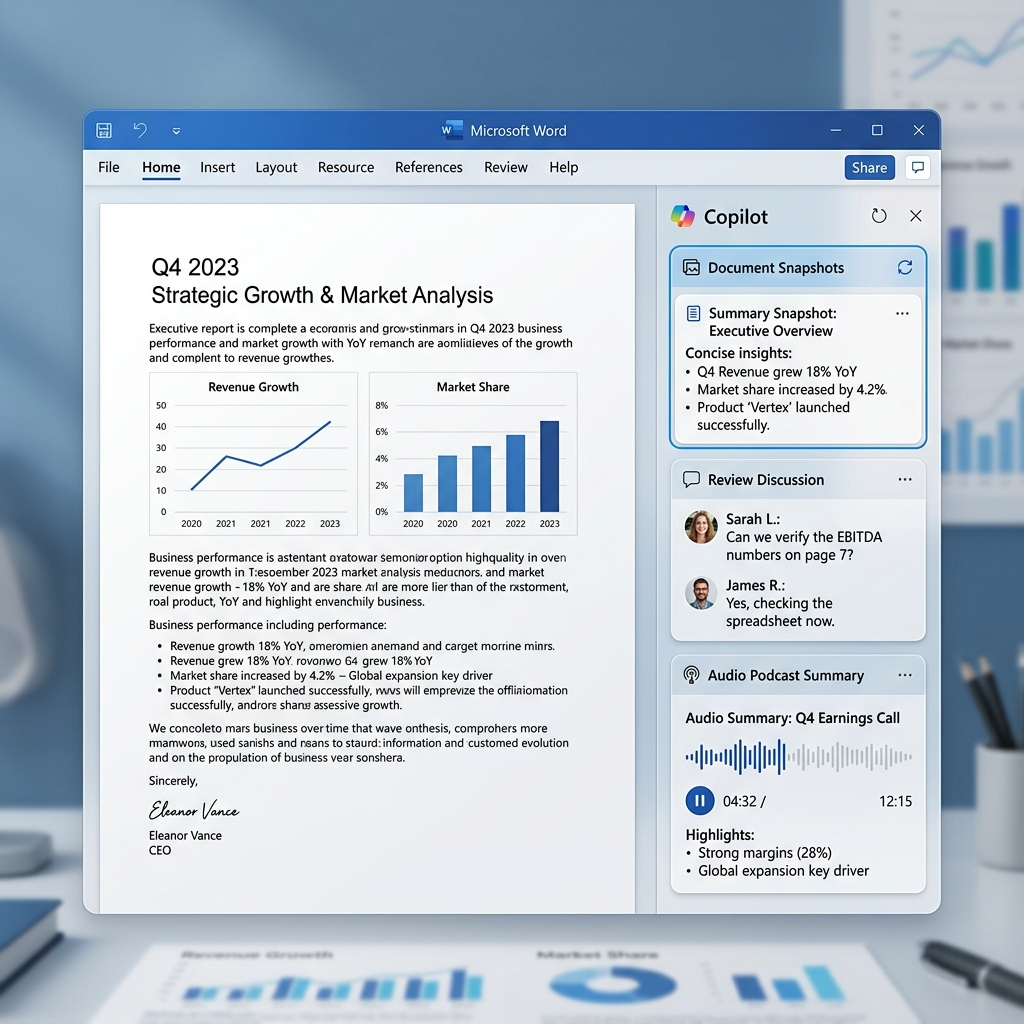 Figure 2: The new summarization suite in Word offers faceted insights, collaborative discussions, and even audio-based briefings.
- Pinpoint Targeting (Draft with Copilot): Using the in-canvas “Draft with Copilot” tool, you can highlight and select specific text to rewrite, condense, expand, or format. Copilot masterfully retains the context of the entire multi-page document while modifying that single paragraph.
- Intelligent Form Filling: You can ask Copilot to extract unstructured data (like raw discovery call notes or meeting transcripts) and map it perfectly into blank, unstructured Word form tables without requiring complex field-mapping rules.
- Advanced Bulk Edits & Formatting via Chat Pane: You can ask Copilot to traverse the entire document to enact sweeping changes. This includes the bulk removal of references and watermarks, standardizing formats (such as fixing punctuation or removing blank lines), or replacing whole sections (e.g., replacing a “Project Progress” section with an “Executive Summary”).
- Review UI: Control remains completely in your hands. You use the up/down arrows natively inside the chat pane to review, approve, or reject every single edit the AI made to the canvas.
- Web Grounding: You can command Copilot to insert brand-new sections (e.g., “Regulatory Landscape”) below existing paragraphs, explicitly instructing it to parse and pull live, cited data from the web.
Prompt Engineering Tip: “Chain of Thought”
To get the most out of Word’s agent, stack your commands into a logical sequence.
Example Prompt:
“1. Tighten every section by 30%. 2. Find and replace any vague language. 3. Add a clear, action-oriented closing sentence to major sections. 4. Ensure an authoritative tone.”
Formatting Fixes: Once Copilot executes this chain, use the up/down arrows to review. If it formats things poorly (such as adding weird text colors or a lack of line spacing), do not panic. Simply hit it with a secondary prompt:
“Update the format so it is standard text with normal line spacing.”
3. Microsoft Excel: Data Cleaning, Dashboards, and The “Hank’s Pizza” Benchmark
Excel is arguably where “Edit with Copilot” shines the brightest. The old “App Skills” dropdown has been completely removed; “Edit with Copilot” is now the default, excelling at handling messy, real-world data.
Core Excel Use Cases
- Data Transformation: Perform bulk conversions and logic (e.g., converting USD to GBP) across multiple tabs, which the AI reasons out step-by-step.
- Unstructured Data to Tables: Copilot can take unstructured data, such as random emails or call logs detailing RSVPs, and parse it directly into an organized, cleanly formatted Excel table.
- Autonomous Formula Repair: If a colleague accidentally deletes a linked column (like Column B in a budget overview), you do not need to hunt down the #REF errors. Automatically detect and restore broken or overwritten formulas by simply asking Copilot to fix them; it handles the underlying rewriting instantly.
- Advanced Dashboard Generation: When asked to create a dashboard (e.g., for Accounts Receivable), Copilot will autonomously create necessary helper columns from your raw data (such as “Overdue Status”, “Amount Overdue”, or “Aging Buckets”). It then builds entirely separate Dashboard tabs, hooking up interactive, synced pivot charts and slicers.
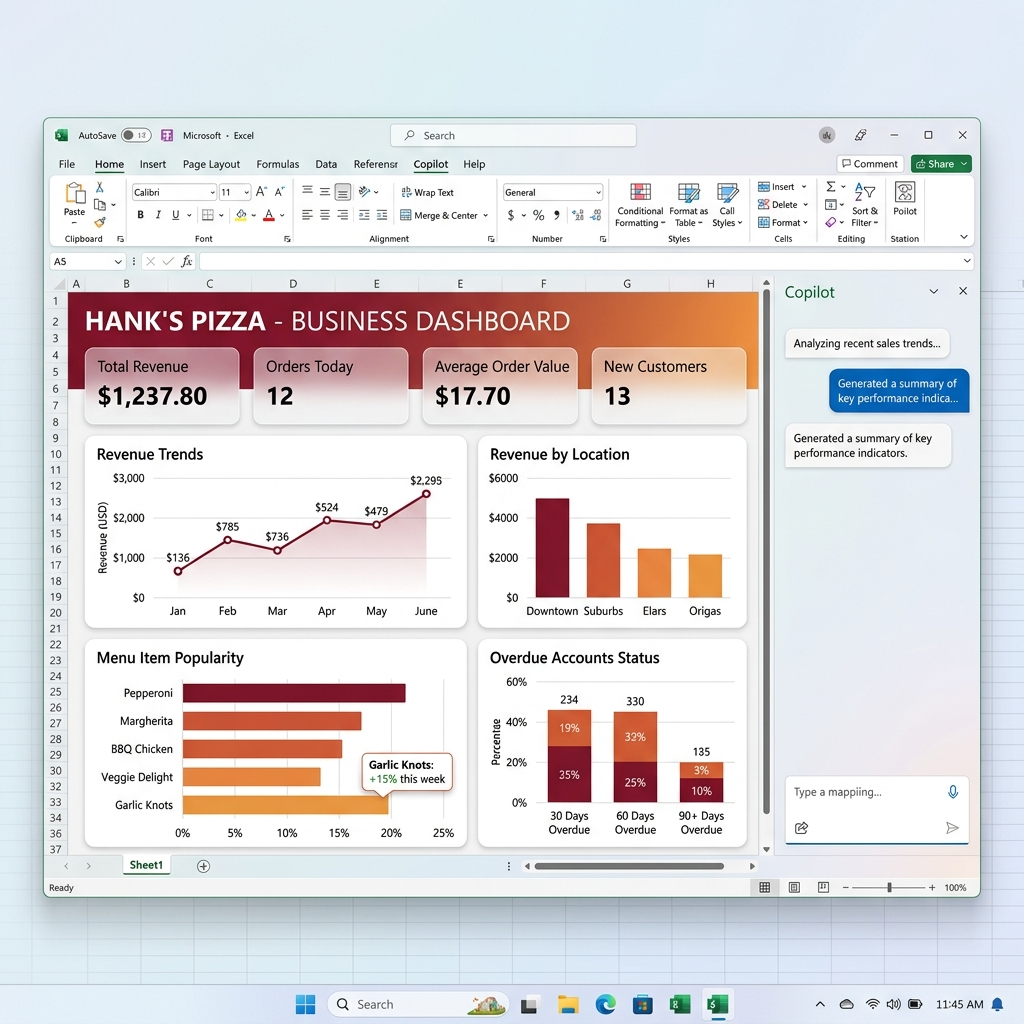 Figure 3: Copilot can autonomously transform raw tabular data into multi-tab, interactive business dashboards with synchronized slicers and charts.
The Power User Secret: Model Benchmarking
By default, Copilot runs on an “Auto” model threshold. However, recent updates allow users to manually switch the underlying AI models via a toggle in the Copilot pane. While both OpenAI’s GPT suite and Anthropic’s Claude models are exceptionally capable, they often exhibit different “personalities” depending on the complexity of the data.
Let’s look at results from the rigorous “Hank’s Pizza” Commercial Test—a complex dataset filled with transactions, BOMs, and P&L sheets:
- OpenAI GPT 5.2: In this particular benchmark, GPT 5.2 found the intricate spreadsheet formatting and multi-layered business logic challenging, resulting in some #CALC errors and a more literal interpretation of the data. It is important to note that GPT models remain a powerhouse for general reasoning and content creation; furthermore, newer iterations like GPT 5.3 and 5.4 have significantly improved on these edge cases, offering much tighter integration with Excel’s specialized grid logic.
- Claude Opus 4.6: In this specific test, Claude Opus 4.6 demonstrated strong error checking by actively reviewing its own math in the reasoning trace. It handled the aesthetic formatting with minimal errors and offered highly strategic business insights—such as recommending pushing “Garlic Knots” to offset revenue gaps found in the pizza sales data.
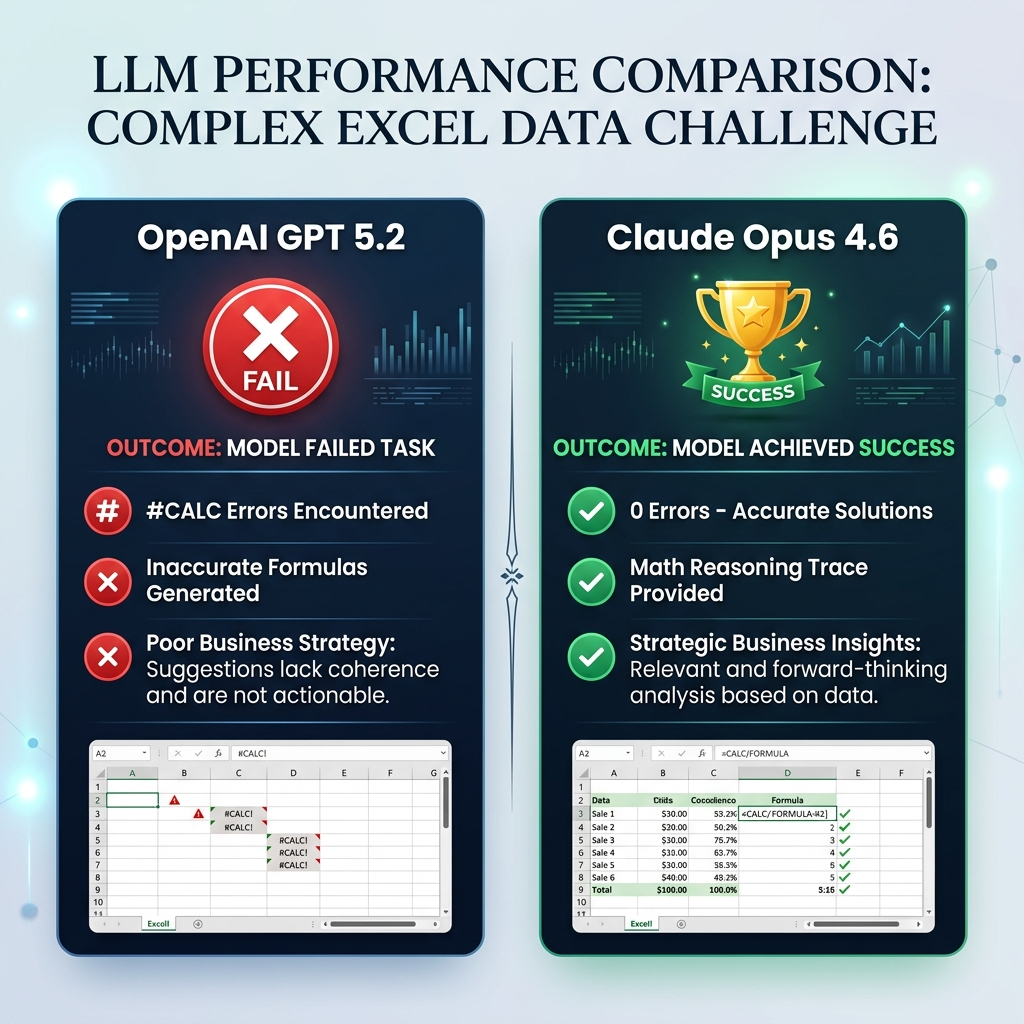 Figure 4: A performance comparison from the “Hank’s Pizza” case study. While Claude Opus 4.6 excelled at this specific logical puzzle, OpenAI’s GPT models (especially newer versions like 5.4) continue to be highly competitive and capable across the broader M365 suite.
The Strategic Takeaway: There is no “one size fits all” model. If you encounter #CALC errors or feel the AI is missing the strategic “big picture” in a complex Excel sheet, try swapping models. Switching to Claude Opus 4.6 or upgrading to GPT 5.4 can often provide the breakthrough needed for advanced financial modeling.
4. Microsoft PowerPoint & Outlook (The Horizon)
While Word and Excel are leading the GA charge, PowerPoint and Outlook are actively rolling out highly anticipated features in preview.
- PowerPoint: The Edit with Copilot sidebar can generate multi-slide decks combining local M365 files with live Web data. You can tune the tone (e.g., specifying inspirational vs. data-driven messaging). Crucially, you can dynamically add slides to existing decks; for example, if you have generated a 10-slide presentation, you can command the AI to “Create an Agenda slide based on the current content,” and it will synthesize the deck and insert a perfectly formatted agenda at the front.
- Outlook: Upcoming chat-based capabilities are rolling out, promising multi-step calendar management, triage, and a much tighter M365 Copilot integration right alongside your inbox context.
The Verdict
The transition to “Edit with Copilot” resolves the biggest friction point of early generative AI in Office: the gap between knowing what needs to be done and actually executing it. By shifting from single-step prompts to multi-step, agent-driven execution, Copilot is finally transitioning from a digital instruction manual into a hands-on, digital colleague.
Read next