Unlocking Automation in M365 Copilot Cowork: A Deep Dive into Skills and Plugins

Writer
Quiz available
Take a quick quiz for this article.

The way we interact with Microsoft 365 Copilot is evolving. Cowork is rapidly becoming the new standard interface for our daily AI interactions, acting as a centralized hub for productivity. Recently, Microsoft has dramatically expanded what Cowork can do by introducing Skills and, as of the major May 5th announcement, enterprise-grade Plugins.
Whether you are looking to automate your weekly administrative grind or deploy complex, multi-layered data analysis tools across your organization, understanding how to leverage Skills and Plugins is essential. Here is your definitive technical guide to building, branding, and deploying these new capabilities.
What Are Copilot Skills?
You can think of Skills as lightweight, highly focused inline agents. However, unlike standalone Copilot Studio agents, Skills are directly injected into the Cowork chat experience. They exist inline with your standard chat, ready to be invoked via specific trigger phrases to handle particular tasks.
Microsoft provides several built-in skills out of the box (like generating PDFs, Word documents, or scheduling calendars), but the true power lies in creating your own.
Building Your First Skill: The “Skill Management” Meta-Skill
To start building, you need to use a skill to make a skill. In the Cowork interface, click to add work context and select Skills. At the bottom of the list, you will find the Skill Management skill.
Pro Tip: Always invoke the Skill Management skill first and let it process to initialize the environment. Once initialized, you can start conversing with it to generate your custom tools.
Example Workflow: The Weekly Status Report
Let’s say you want to automate your weekly update to your manager. You can prompt the Skill Management tool:
“Create a personal skill that drafts my weekly status update. I want a longer, detailed narrative version.”
Cowork will process this and return the Markdown documentation for your new skill, which includes:
- The Skill Name
- Descriptive context
- Trigger phrases (to invoke it later)
- Built-in guardrails
Testing and HTML Quality Reports
One of the best developer-experience features of the Skill Management tool is its testing capability. When you test a newly built skill, Cowork generates a Skill Quality Report.
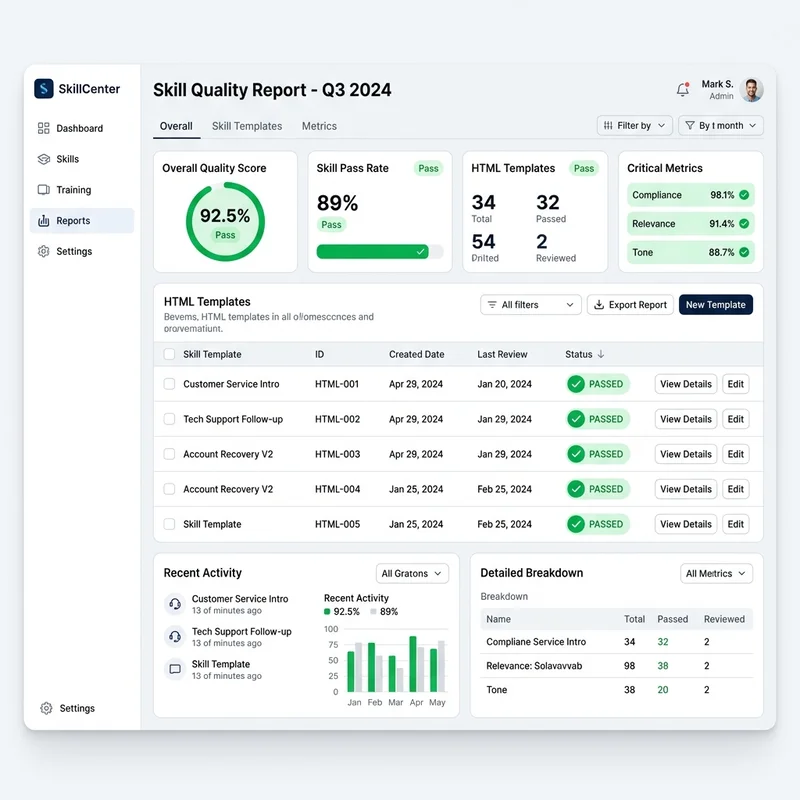
This isn’t just text in the chat; it generates a direct HTML file detailing test passes, failures, and recommended improvements that you can review. This report breaks down all passes, failures, and necessary updates, allowing you to fine-tune the prompt logic before relying on it for real work.
Advanced Customization: HTML Templates and Executive Branding
Executing skills allows them to scan tenant activities and output results directly to specific applications. By default, a status report skill will scan your tenant for the week’s activity and drop a plain-text email directly into your Outlook Drafts folder. However, for professional environments, plain text rarely cuts it.
You can iterate on your skill using natural language to apply strict formatting and branding guidelines. For example, you can prompt Cowork to update the skill with the following parameters:
- HTML Templating: Output the draft using a specific HTML email template rather than plain text.
- Tone Control: Shift the output to use “executive language” (e.g., summaries, short-form bullets).
- Structural Enforcement: Require an Executive Summary at the top, followed by short-form bullet points for the details.
- Visual Branding: Apply color-coded sections using your company’s specific hexadecimal color values.
- Accessibility: Ensure the final HTML output meets accessibility standards.
The Ultimate Automation: Scheduled Skills
If you are running the same skills every Friday at 4:00 PM, you can remove the manual trigger entirely. Cowork supports Scheduled Skills, allowing you to set up recurring automation. Your branded, tenant-scanned weekly wrap-ups can simply appear in your Drafts folder automatically every Friday, waiting for your final review.
The Next Level: Copilot Plugins (May Update)
While Skills are incredible for individual task automation, the May 5th update introduced a massive leap forward: Plugins.
If a Skill is a single tool, a Plugin is the entire toolbox. Plugins are enterprise-grade packages that bundle multiple disparate skills and data connectors together into a single distributable format.
Architecting a Plugin: The Financial Research Use Case
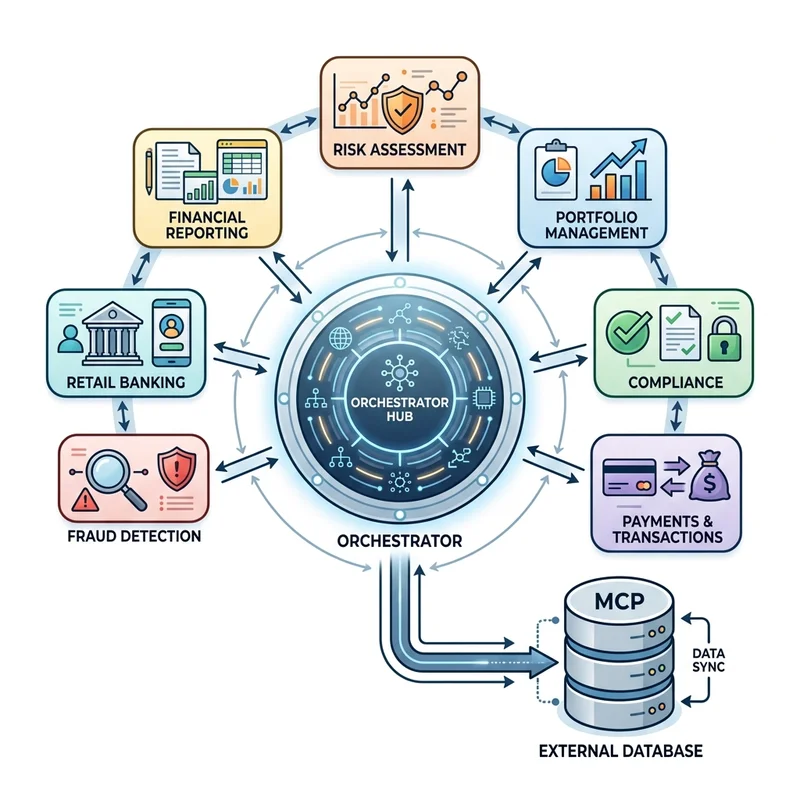
Imagine you need to perform deep financial research on a competitor. A single skill might scrape a summary, but a Plugin can orchestrate an entire workflow.
By passing a comprehensive prompt to Cowork, you can generate a custom Plugin that packages seven distinct skills:
- Company Snapshot
- Financial Trends
- Peer Comparison
- Risk Factor Analysis
- Earnings Deep Dive
- Executive Research
- Filing Search
Integrating External Data via MCP
Crucially, Plugins are not limited to Microsoft 365 data. In this financial example, the Plugin includes a connector to a Model Context Protocol (MCP) server attached to the SEC EDGAR website. This allows the Copilot orchestrator to securely pull public 10-K reports and file data from outside the tenant, merging it with internal insights.
When generated, Cowork packages all these skills and the MCP connector into a single .zip file.
Enterprise Deployment: The Admin Workflow
Role-based limitations dictate the deployment flow: Users build skills; Enterprise Admins deploy plugins. Once the .zip file is generated, the Enterprise Admin must deploy it via Agent 365.
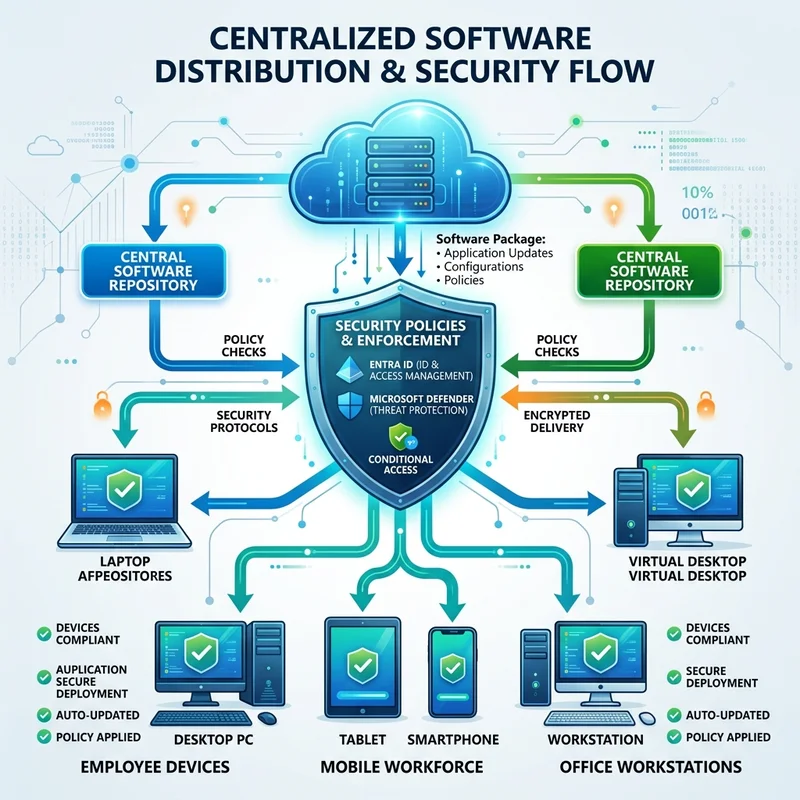
The upload process and governance involve:
- Upload Process: Navigate to Agent 365, select Add Agent, and upload the
.zippackage. - Targeting: Determine the publishing scope. Plugins can be deployed to individual users, specific groups, or organization-wide (with auto-install capabilities).
- Security & Compliance: This is where enterprise governance shines. Admins enforce policies via Entra ID, Purview, Defender, and SharePoint. You can enforce conditional access policies, tie the Plugin to specific access packages, and approve any special permissions required by connectors (e.g., allowing the outbound connection to the SEC EDGAR MCP server).
The End-User Experience
Once deployed, the Plugin seamlessly integrates into the user’s workflow. Users can toggle installed plugins via the “Skills and Plugins” menu in their Cowork prompt box. They can also browse the organizational agent store to discover new plugins published by IT.
When a user prompts Cowork to “Perform financial research on Microsoft,” the Copilot orchestrates the bundled skills automatically based on the prompt. It recognizes the enabled Financial Research Plugin and autonomously cycles through the bundled skills—starting with the Company Snapshot, moving into Risk Factor Analysis, and querying the SEC database—layering the outputs into a cohesive, comprehensive response.
Availability and Prerequisites
The flexibility of Cowork isn’t tethered to your desktop. Mobile Availability is here: Cowork is now officially supported on the Microsoft 365 Copilot mobile app, allowing you to invoke heavy-duty Plugins while on the go.
Prerequisites: Cowork and the capabilities detailed above are currently part of the Frontier program. To access these features, your organization must be enrolled in the Microsoft Frontier program, and users must have an active Microsoft 365 Copilot license.
Read next