Technical Deep Dive: Unlocking the Next Generation of Microsoft 365 Copilot Architecture and Features

Writer
Quiz available
Take a quick quiz for this article.

Staying ahead of the continuous deployment cycle of Microsoft 365 Copilot requires an understanding of both user-interface optimization and underlying model mechanics. From enterprise orchestration frameworks to in-app feature deployments, this technical brief deconstructs the latest suite of upgrades rolled out across the M365 Copilot ecosystem.
Authored in alignment with insights from the Microsoft Cloud Solution Architecture engineering team (specifically Nick Harris, Senior Copilot Cloud Solution Architect at Microsoft), this post details the structural changes designed to enhance workflow automation, advanced prompting mechanics, and multi-model implementations.
1. M365 Copilot Chat: Core UI Consolidation and GPT 5.5 Model Orchestration
The foundational chat interface has undergone an architectural UI overhaul to maximize screen real estate and optimize prompt engineering workflows.
Left Navigation & Prompt Gallery Consolidation
To streamline workspace ergonomics, Microsoft has introduced a centralized App Launcher button on the left navigation panel. This structural update collapses previously disparate touchpoints into a unified gateway:
- Unified Access: Both the Create engine and Copilot Notebooks now reside inside this single launcher menu, clearing the left-hand rail for a less cluttered canvas.
- Contextual Prompt Categories: The central prompting container now features modular categories—such as Files, Emails, and People—allowing users to filter the semantic search graph instantly.
- Extensible Gallery: The complete, unedited Copilot Prompt Gallery is now accessible globally via a clean ellipsis (…) toggle within the interface.
The Arrival of GPT 5.5 Modalities
In the model picking matrix, Microsoft has integrated GPT 5.5 models, introducing a dual-engine architecture tailored to computing tradeoffs:
| Modality Name | Under the Hood Capability | Target Use Case |
|---|---|---|
| Think Deeper | High-reasoning, multi-step chain-of-thought processing. | Complex data synthesis, code generation, and multi-source cross-referencing. |
| Quick Response | Low-latency, optimized inference mapping. | Rapid summarization, drafting, and real-time textual iterations. |
2. Advanced Enterprise Automation: Scheduled Prompts & Agent Builder
Moving beyond ad-hoc querying, Copilot’s automation layers have received substantial updates to support sustained background execution and bespoke agent topologies.
Inline-Editable Scheduled Prompts
The Schedule a Prompt feature has evolved from a static background worker into an agile, stateful automation tool.
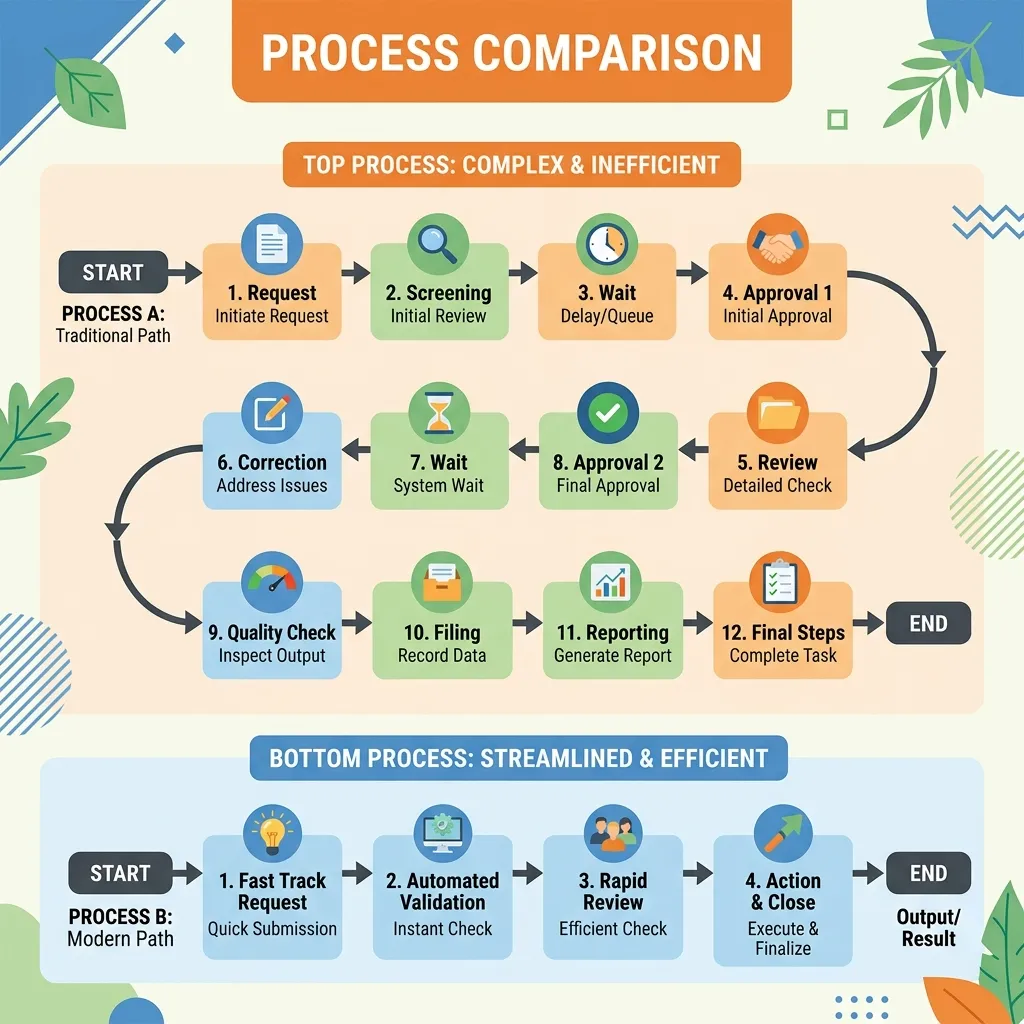
Previously, modifying a scheduled task required an inefficient process of disabling the job, rewriting the parameters, and manually re-scheduling. The new UI introduces inline editing, allowing administrators and users to alter execution cadences, modify underlying prompt tokens, and toggle a new automated email notification ping that triggers the moment the background job concludes.
Refreshed Agent Builder Studio
The low-code/no-code environment for constructing specialized Copilot Agents features a cleaner layout optimized for parallel configuration.
- Bifurcated Workspace UI: The canvas splits cleanly down the middle, pinning the Agent Chat Preview (Testing Window) on the left and the Configuration Interface on the right.
- Instruction Set Transparency: When initializing an agent from Microsoft’s pre-built enterprise templates (e.g., the Custom Prompt Coach agent), developers can now directly view the underlying system instructions and guardrails deployed by Microsoft.
- The “Try It” Symbol: Iterative debugging is streamlined with an explicit “Try It” preview trigger, allowing instant runtime verification inside the builder container (in the Agent Chat Preview window).
- My Agents Visibility: A dedicated “My Agents” dashboard removes previous navigation friction, placing user-built assets in clear view.
3. Copilot Notebooks: Multi-Modal Synthesizers and Grounding Frameworks
Copilot Notebooks serve as the centralized multi-source context window for compiling extensive project knowledge. Recent updates turn this environment into a launchpad for complex document workflows.
Quick Create Ecosystem
The centralized overview page features a layout overhaul exposing “Quick Create” triggers—an array of automated document compilers that call upon specialized background application agents (Word, PowerPoint, Excel). Users can one-click generate rich core Office assets or choose to build a multi-modal Audio Overview or Mind Map.
Frontier Feature: Interactive Knowledge Mind Maps
Currently accessible to participants within the Microsoft Frontier Program, Mind Maps introduce an interactive, non-linear format for data exploration.
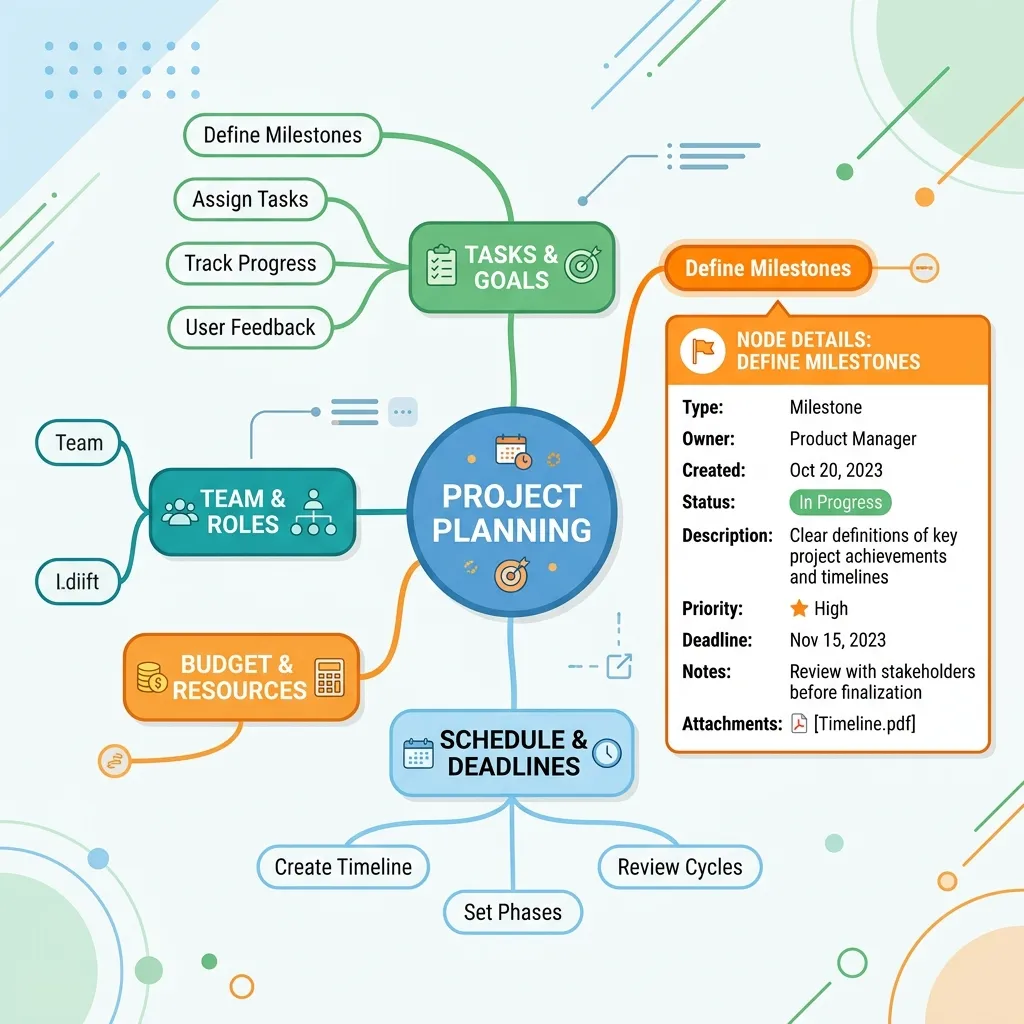
Users can drill down into parent-child nodes generated deterministically from their notebook documents. Clicking any sub-node presents an initial summary metadata card. Clicking the contextual Explain trigger automatically pipes that node’s exact contextual metadata as an auto-submitted explanation prompt directly into the right-side chat container for deep explanation.
Deep Grounding with Web References
Notebook contexts are no longer bound strictly to uploaded static files. Copilot Notebooks now support external web hyperlinks as living knowledge components to expand the grounding semantic layer. By selecting Add References -> Add a Link, users can paste external domains (such as technical documentation or live blogs). Copilot processes and indexes the URL, making it fully searchable alongside your internal tenant files.
Operational Insight: Cross-app document generation agents (such as the Word and PowerPoint agents operating within Notebooks) rely on knowledge grounding via referenced data. They can take 10 to 15 minutes of background processing to thoroughly ingest, ground, and generate complete enterprise artifact multi-artifact output examples (e.g., the Marcus Web Business Portfolio status document or the Project Falcon PowerPoint status report). This asynchronous execution ensures complete data parity across large knowledge repositories.
4. In-App Fluid Upgrades: Excel Plan Mode & PowerPoint Canvas Engineering
The deep integration of Copilot directly within core Microsoft 365 client applications introduces more deterministic control over spreadsheet manipulation and visual presentation design.
Excel: The Pivot to Bottom-Right and the “Plan Mode” Paradigm
In Excel, the Copilot ribbon architecture has undergone a UI Shift: migrating from the classic top-right menu to a permanent icon footprint in the bottom-right corner of the application window.
More importantly, alongside standard editing and chat modes, Microsoft has launched Plan Mode. This feature acts as an algorithmic safety rail before modifying ledger data.
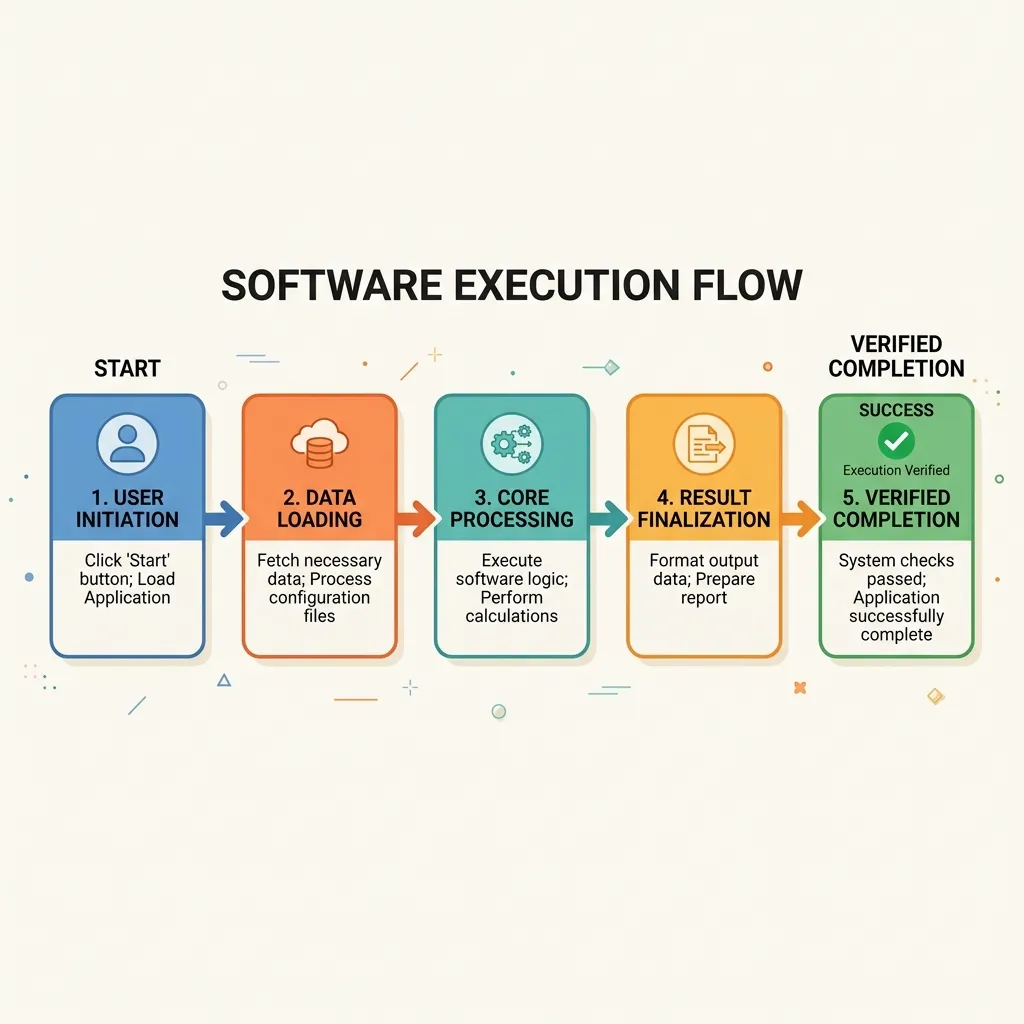
Instead of immediately altering sheets based on a raw prompt, Plan Mode follows an interactive execution pathway:
- Data Overview: Copilot reads the worksheet telemetry and surfaces an initial data overview.
- Requirements Gathering Checklist (Clarifying Q&A): It prompts the user with structural questions (e.g., Where should the dashboard reside? What metrics hold priority? What visual theme is required?).
- Pre-execution Verification Loop: It presents a granular verification checklist of planned structural mutations.
- Layout/Formatting Iteration Loops: Upon hitting Proceed, it constructs the elements (e.g., KPI cards, charts, and bottom-aligned Executive Summary summaries), allowing users to request formatting adjustments iteratively via chat.
PowerPoint: Advanced Generative Image Models & Canvas Layering
PowerPoint’s design automation engine has shifted from template-matching to true canvas engineering by exposing deep image-generation model selection parameters within the app’s editing mode panel.
- Image Model Selection Engine: Users can toggle between cutting-edge visual generation endpoints. Models evaluated include OpenAI’s Image 2 versus Microsoft’s newly optimized MAI Image 2 Efficient model.
- Visual Engineering Capabilities: Depending on prompt engineering strategies, Copilot can output presentation-ready slides in two ways:
- Fully Embedded Raster Text: Rendering highly complex, stylized textual fonts embedded directly into the generated image background.
- Layered UI Objects: Generating high-fidelity backgrounds while outputting text and UI geometry (e.g., editable vector shapes and text layers) as discrete, selectable canvas layers. These can be hand-manipulated, scaled, and re-styled manually by the designer.
5. Future Roadmap: Co-Work Skills & Plugins Framework
As the M365 platform progresses, individual prompt executions are transitioning toward composite operations. The future roadmap includes Cowork Skills and Plugins automation framework coming across M365 apps.
Skills represent modular, declarative automation vectors that give Copilot the capacity to execute multi-tier workflows autonomously across cross-functional applications (including an upcoming integration natively within the PowerPoint app canvas). Adopting these patterns early ensures that enterprise infrastructure remains fully prepared for automated AI orchestration.
What are your initial findings testing the GPT 5.5 “Think Deeper” model against your tenant’s custom agents? Let us know your architectural feedback in the comment section below!
Read next