The Evolution of Automation: Mastering the New Copilot Studio Workflow Designer (May 2026 Preview)

Writer
Quiz available
Take a quick quiz for this article.
The landscape of enterprise automation is shifting rapidly from static, sequence-based logic to dynamic, “Agentic” workflows. With the latest May 2026 preview of the Workflows designer in Microsoft Copilot Studio, developers are equipped with a robust, AI-native environment designed to bridge the gap between traditional, deterministic Power Automate capabilities and the burgeoning world of Agentic Engineering.
By moving away from rigid automation and addressing long-standing “spaghetti logic” issues, Microsoft has created a specialized environment for orchestrating AI agents at scale. This post breaks down the technical architectural changes, the new UI paradigms, and how to leverage these tools for complex enterprise scenarios like research automation and expense management.
1. Architecture: The Trinity of Flows and Licensing Shifts
Understanding where these new Workflows sit within the Microsoft stack is critical for resource planning, licensing, and architecture design. We are now working with a “Trinity of Flows”:
- Cloud Flows (Power Automate): These remain the backbone for background processing and cross-service automation. However, they run on standard per-user or per-flow Power Automate licenses. While they can be attached to agents, they are not natively designed for the new AI-first interface.
- Agent Flows: This is the “classic” way of building conversational logic within Copilot Studio. When you use natural language prompts to generate logic, the system currently defaults to creating these.
- Workflows (The New Preview): Built on a completely redesigned visual canvas, these workflows are deterministic (rule-based) but highly AI-focused.
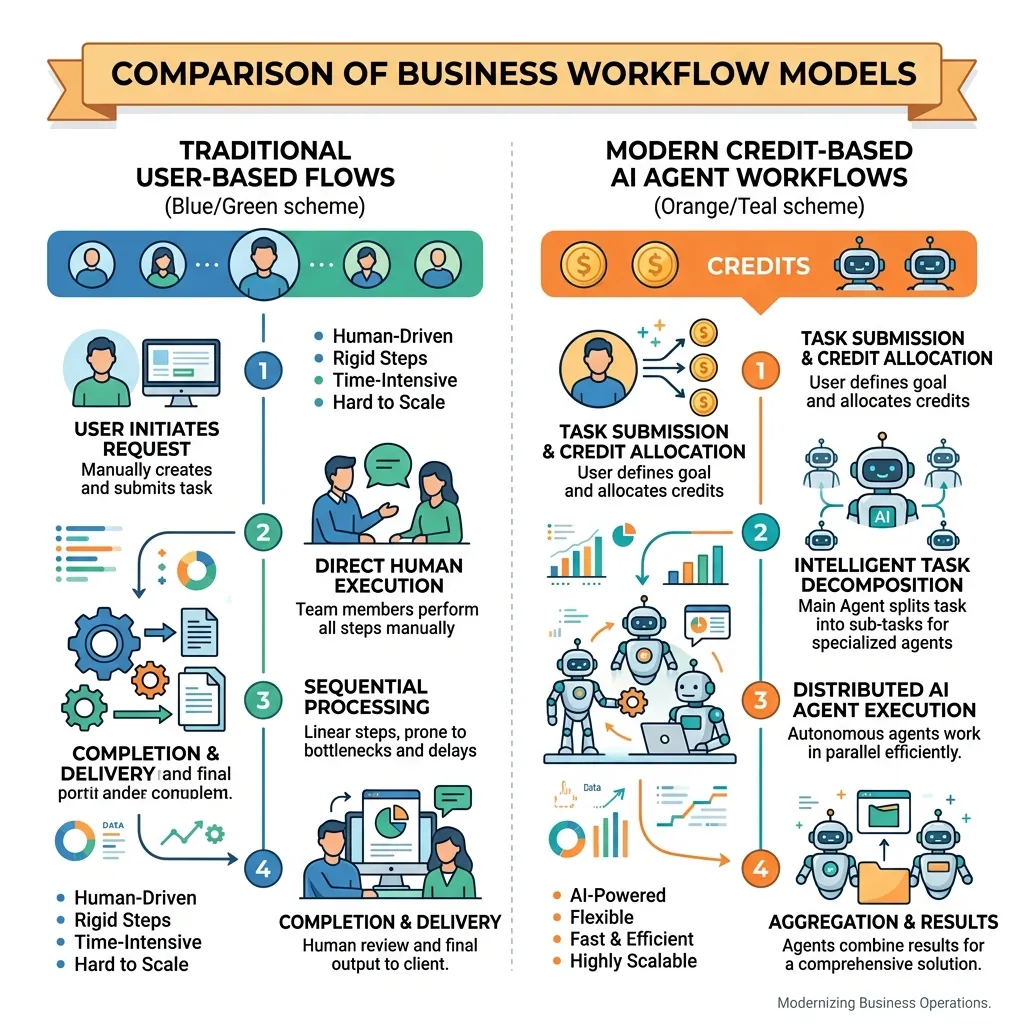
The Licensing Shift: It is critical to understand that the new Workflows are not Cloud Flows. They operate on credit-based execution. Workflows consume Copilot Studio capacity or consumption-based credits tied to M365 Copilot licenses, rather than Power Automate plans. Furthermore, they are built and executed within the context of an agent, allowing for tighter integration with M365 data without standard Power Platform licensing overhead.
Note: As of May 2026, while you can convert a classic Power Automate flow to an Agent Flow via the flow properties, you cannot yet convert them directly into the new Workflow format.
2. A New Design Philosophy: The Flexible Workspace
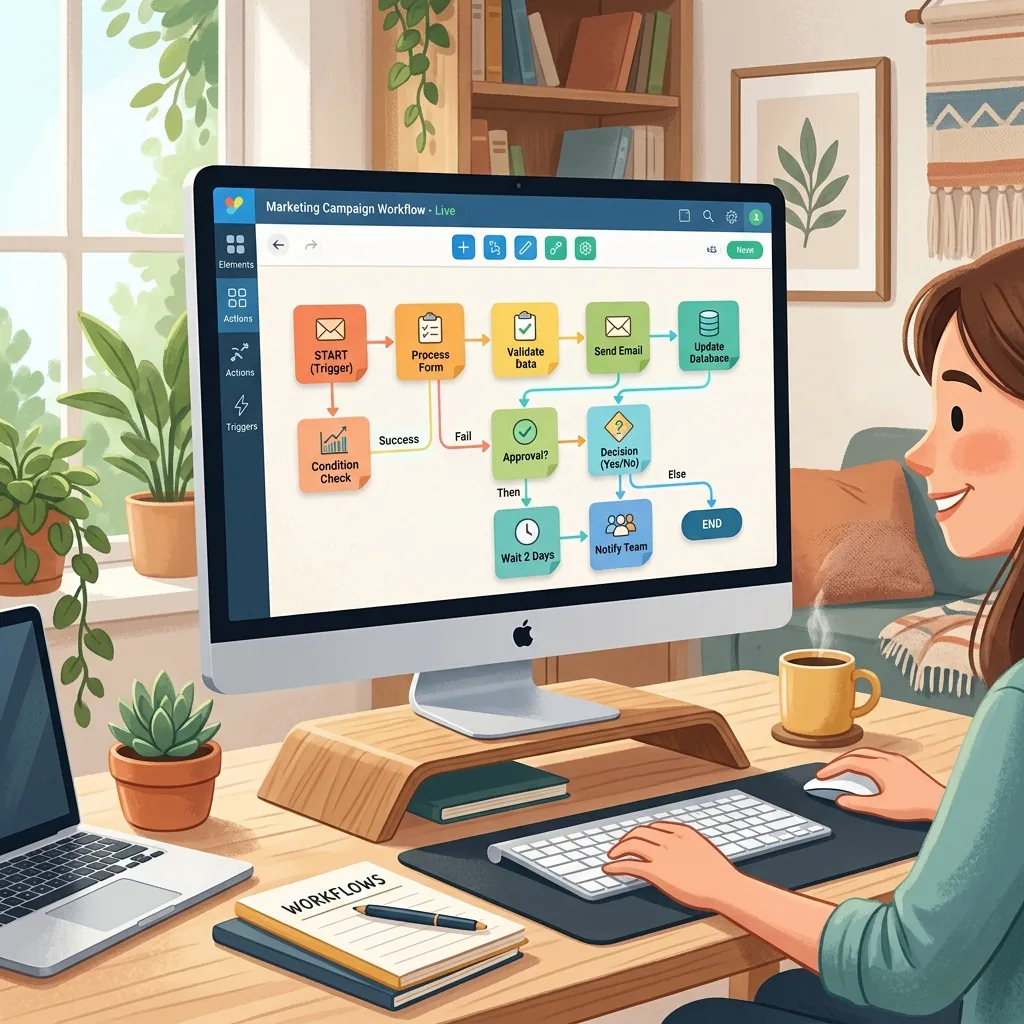
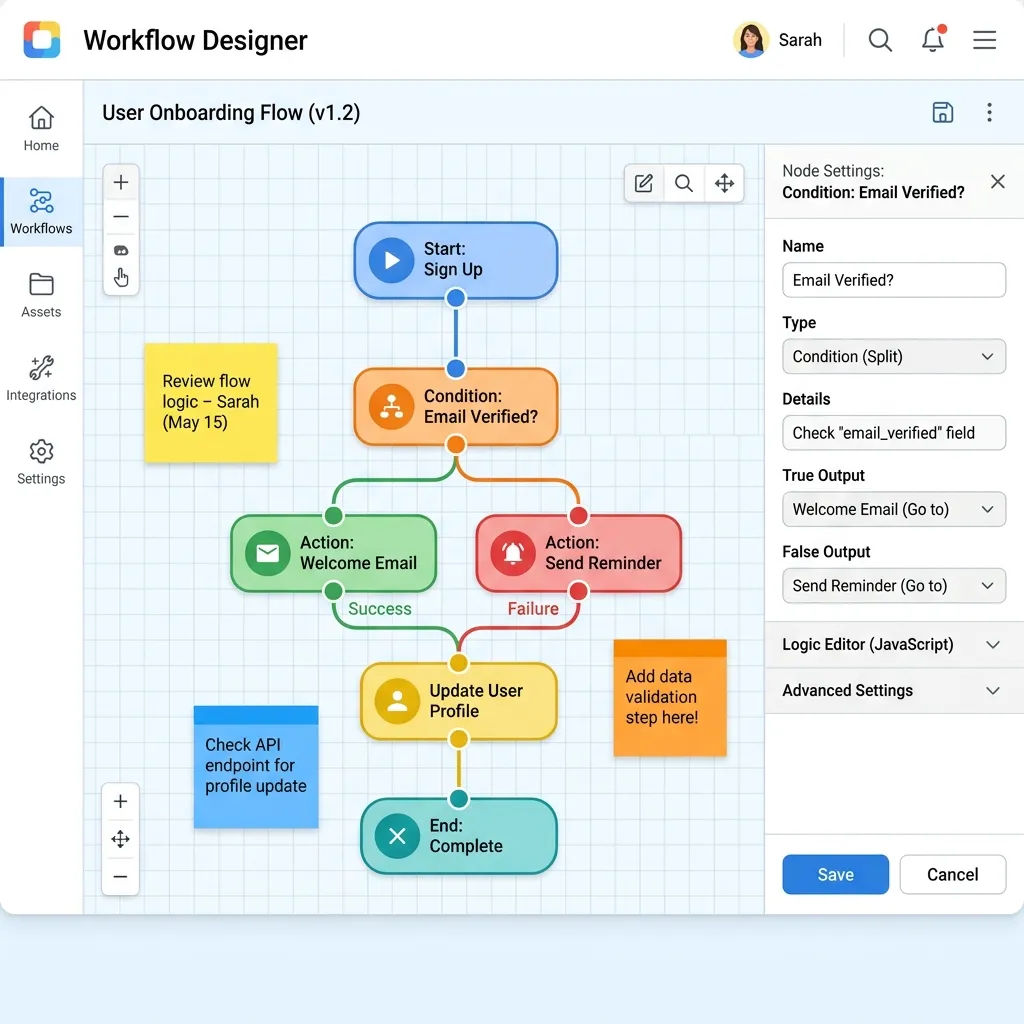
The most immediate change for developers is the departure from the rigid, vertical-only structure of classic Power Automate. The new canvas is designed for speed, clarity, and developer “flow.”
- Spatial Organization: Developers can seamlessly toggle between horizontal and vertical layout modes based on preference. A new “Tidy Up” feature automatically reorganizes messy, complex graphs to maintain readability.
- Contextual Configuration: Clicking a node no longer obscures the entire flow. Configuration parameters now appear in a dedicated right-hand side panel, ensuring your overarching logic remains visible at all times.
- Documentation as You Build: You can now drag and drop Notes directly onto the canvas. These resizeable, color-coded blocks allow teams to document the “why” behind specific triggers, logic branches, or actions directly alongside the code.
- The Health Center: A dedicated real-time diagnostic panel that instantly surfaces syntax errors, missing instructions in prompts, or broken connection issues as you build, vastly reducing deployment errors.
3. The Anatomy of a Workflow: Triggers and Actions
Every workflow operates on a deterministic logic framework: Event (Trigger) → Task (Action).
Triggers
Triggers define how the automation begins. The new interface categorizes them into five primary types:
- Manual: Triggered by a button or direct user input.
- Recurrence: Automated, scheduled tasks (e.g., Daily, Hourly).
- Connector-based: Triggered by events in external apps (e.g., SharePoint file uploads, Outlook emails).
- HTTP Request: For custom REST API integrations.
- Agent Call (“When an Agent calls the flow”): The essential trigger for true integration, allowing a Copilot Agent to invoke the workflow dynamically.
Actions
Actions are the functional building blocks of the flow. They encompass standard data operations (such as Variable initialization and Compose actions), standard M365 connectors, and a powerful new suite of Native AI Actions (e.g., Prompt, Classify).
4. Leveraging Native AI and M365 Integration
While standard connectors remain vital, the true power of the designer lies in the native AI capabilities available on the left-hand rail.
- The “Prompt” Action: You can embed LLM logic directly into a deterministic path. This allows you to pass dynamic variables (like a “Country” input from a manual trigger) directly into an AI prompt. You can meticulously refine these prompts to return specific formats, such as structured bulleted lists.
- Agent Interaction: You can call upon specific agents already deployed to your environment—such as a Chairman Researcher Agent—to perform specialized sub-tasks within a broader workflow. Always check the “Advanced Parameters” on these AI nodes to specify which deployed agent UI to target.
- Machine Learning: Built-in actions for ML classification tasks.
M365 Copilot Integration Toggles: When integrating with M365 Copilot, two breakthrough configuration toggles dictate how the workflow behaves:
- Prefer Async: If enabled, the workflow fires the AI request and continues running without waiting for the LLM response. This is ideal for high-latency, deep-research tasks.
- Conversation Visible: This feature surfaces the “behind-the-scenes” workflow activity and triggered prompts directly in the user’s M365 Copilot chat sidebar, providing transparency into the agent’s thought process.
5. Deployment: Connecting Workflows to Agents
A workflow provides no value if the end-user or agent cannot reach it. Hooking a workflow into a Copilot requires a specific sequence:
- Set the Trigger: Ensure your workflow begins with the “When an Agent calls the flow” trigger.
- Navigate to Tools: Open the Copilot Studio sidebar and navigate to the Tools menu.
- Add to Agent: Locate your deployed workflow (easily identifiable by the “Workflow” tag), click the ellipsis (…), and select “Add to agent.”
- Select Target: Choose the specific agent (e.g., “HR Support Agent” or “Expenses Agent”) to complete the integration.
6. Testing, Monitoring, and Analytics
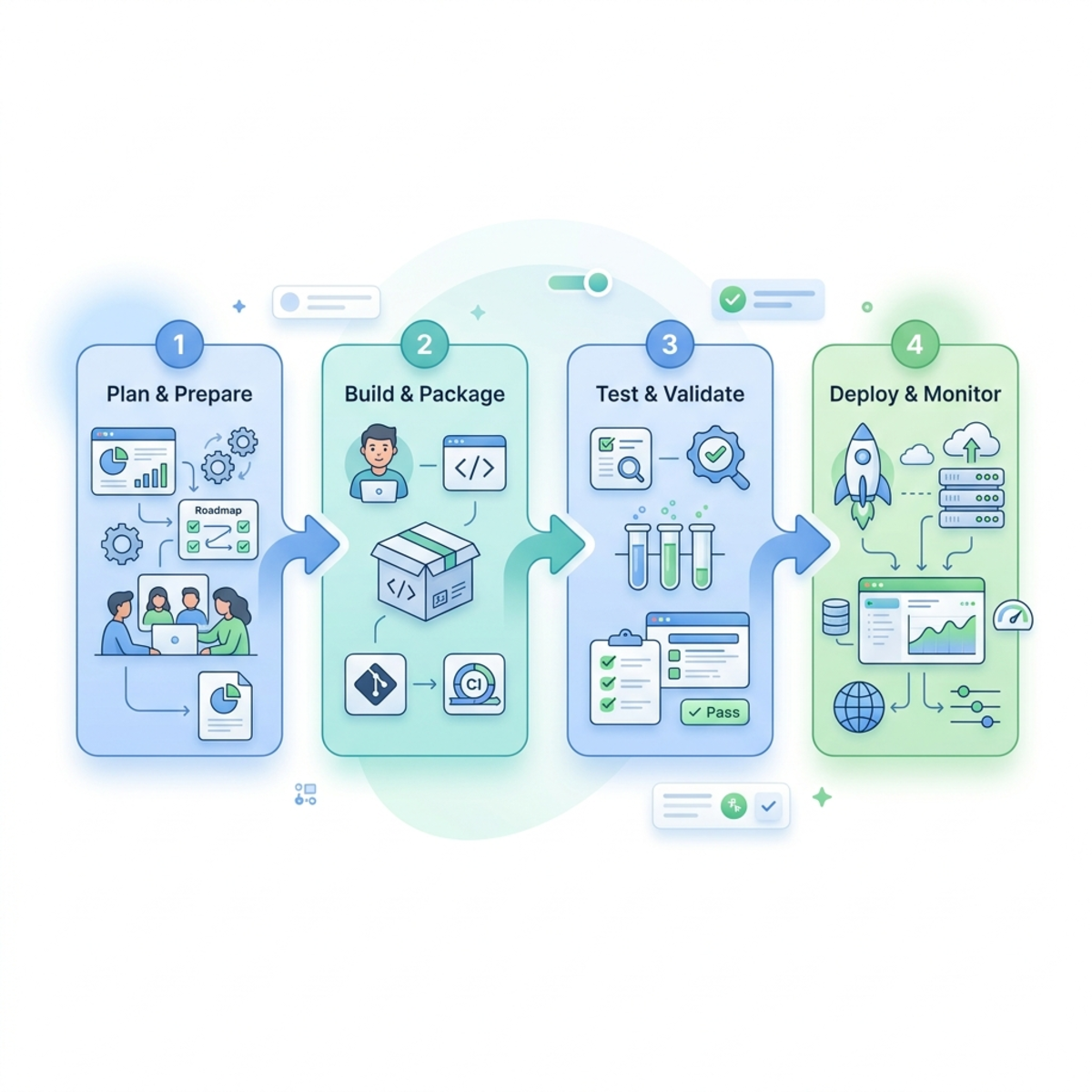
The developer experience has been heavily upgraded to support complex debugging and lifecycle management.
- Atomic Node-Level Testing: The days of running an entire flow from the trigger just to test the final step are over. A new “Play” button on individual nodes allows developers to test a single action—like listing SharePoint rows or calling an isolated prompt—without executing the preceding steps. Crucially, node-level testing of AI prompts allows you to view the output without consuming credits during the testing phase.
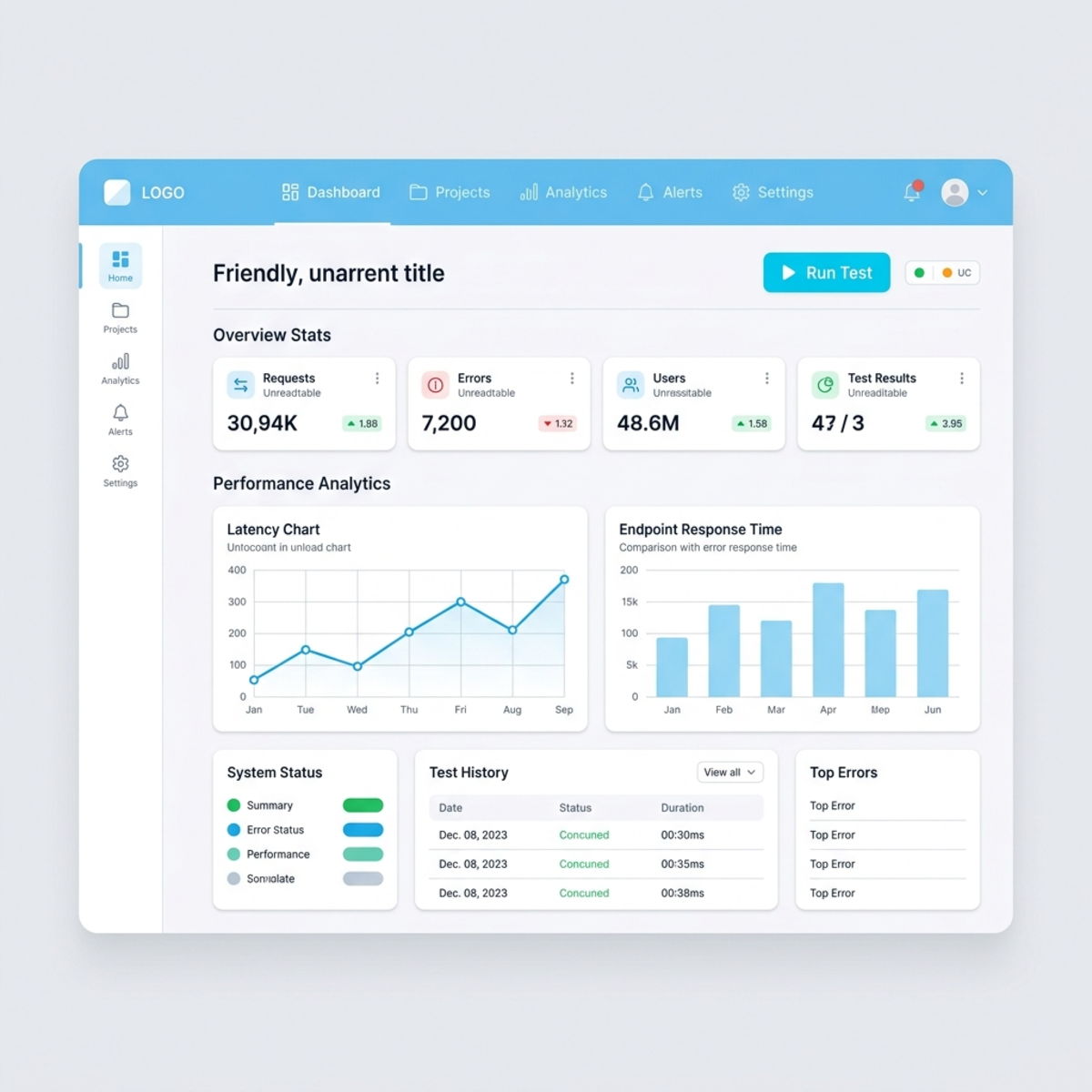
- Analytics & Run Details: Post-deployment, the Analytics tab provides deep visibility. Developers can inspect the full JSON body of an execution, review prediction outputs, monitor retry policies, and track exact latency metrics (e.g., noting that a specific prompt took exactly 2.94 seconds to resolve).
- Performance Trends: The analytics suite allows you to view flow run trends and action performance over a 7 to 28-day window, making it easy to identify bottlenecks or high-consumption nodes.
7. Real-World Implementation: Grounded Expense Processing
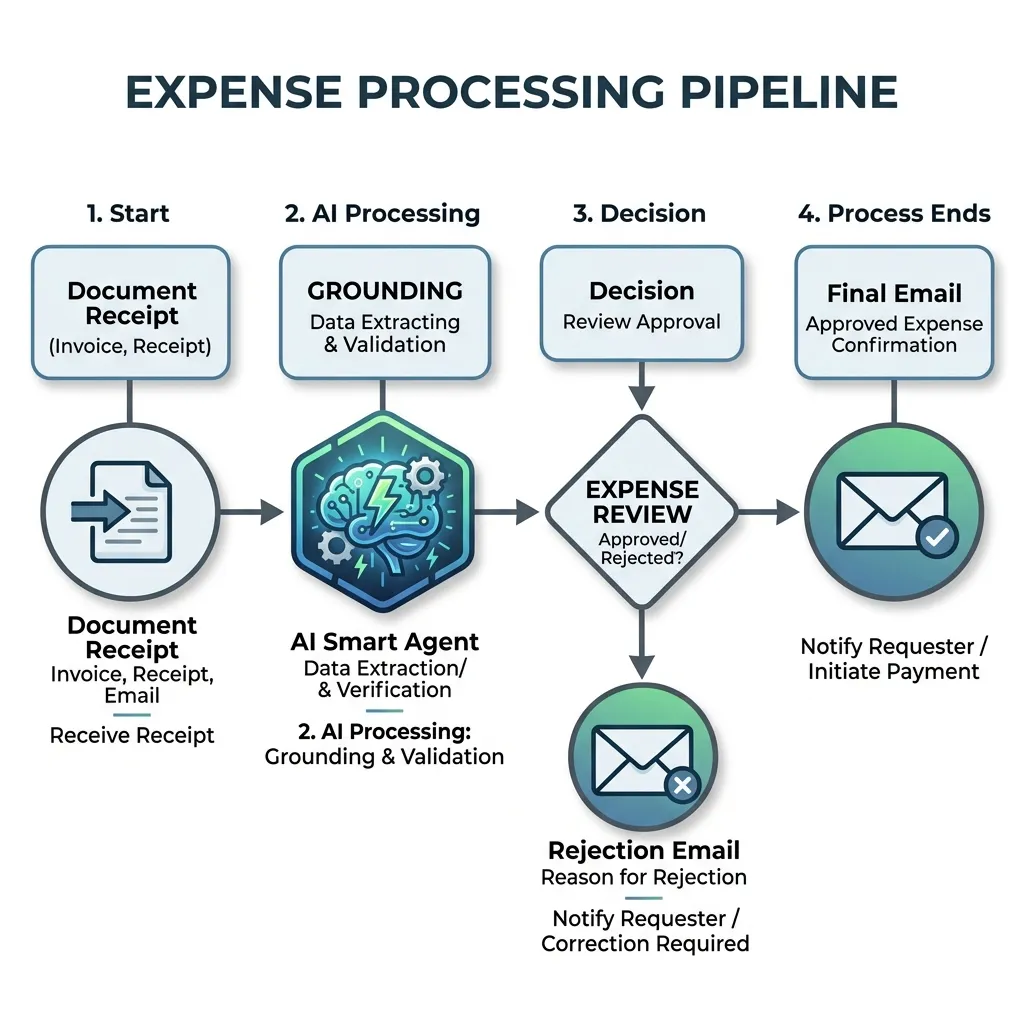
To visualize this paradigm shift, consider a workflow designed to automate policy-heavy expense tasks, triggered by a receipt uploaded to SharePoint.
- The Trigger: A user uploads a receipt to a SharePoint folder. The workflow activates and retrieves the file content.
- The AI Handoff: The workflow passes the data to an integrated Expenses Agent.
- Grounding: The agent is grounded on specific SharePoint policy documents. It isn’t guessing; it is reading the company rules.
- Logic Execution: The AI identifies exceptions within the receipt—flagging a $30 lobster roll or a $10 glass of wine—and automatically subtracts them from the claimable total based on the defined “Expenses Policy.”
- The Output: The workflow captures the agent’s response and generates a detailed, automated email back to the user, providing a complete breakdown of deductions and the final approved total.
8. Tips, Tricks, and Future Gaps
Developer Pro-Maneuvers:
- Rewiring Logic: If a connection routes to the wrong place, you no longer have to delete the action. Simply delete the connecting line and manually redraw it between any two ports.
- Action Duplication: Right-clicking nodes enables quick cut, copy, and duplication—essential for building multi-branch logic or repetitive data operations rapidly.
The Road Ahead (Wishlist): As this is currently in Preview, there are features on the horizon needed to fully unlock enterprise potential:
- Multiple Triggers: The ability to initiate a single workflow from multiple different sources (e.g., multiple shared mailboxes or varied SharePoint sites).
- Breakpoints: While atomic testing is a massive leap forward, the ability to set a hard breakpoint and run a specific sequence of nodes is the final missing piece of the debugging puzzle.
Summary: The Workflow Comparison Table
To quickly reference how the new Workflows stack up against legacy capabilities, use the matrix below:
| Feature | Cloud Flow (Power Automate) | Agent Flow | New Workflow (Preview) |
|---|---|---|---|
| Logic Type | Deterministic | Deterministic/Conversational | Deterministic (Agentic) |
| Licensing | Power Automate Plan | Copilot Studio Capacity | Copilot Studio Capacity |
| Interface | Classic/Modern Designer | Standard Copilot UI | Redesigned AI Canvas |
| AI Focus | Low (Add-on) | Medium | High (Native AI Actions) |
| Best For | Background processing | Conversational logic | Complex, AI-driven automation |
As we move deeper into 2026, these new Copilot Studio Workflows will undoubtedly become the standard for “Actionable AI,” successfully bridging the gap between the unpredictable nature of Large Language Models and the rigid, deterministic requirements of enterprise data systems.
Read next