Enterprise-Grade AI Governance: Securing Copilot and Custom Agents Across the Microsoft Ecosystem

Writer
Quiz available
Take a quick quiz for this article.

⚠️ Important Notice: This document contains only capabilities and configurations verified against official Microsoft documentation as of May 2026. Features marked “Preview” may change before general availability. Always test in a non-production environment first.
Deploying Microsoft 365 Copilot, custom Copilot Studio agents, and external plugins introduces autonomous actors that can access, process, and act upon corporate data at machine speed. To safely scale these solutions, organizations need a layered governance framework across four control planes: Microsoft Entra ID (Identity), Microsoft Purview (Data), Microsoft Defender for Cloud Apps (Runtime), and SharePoint Advanced Management (Content).
This guide provides a verified, operational framework with official Microsoft documentation references for each capability.
Key Outcomes:
- ✅ Prevent unauthorized data exposure via AI agents using verified DLP and access controls
- ✅ Maintain regulatory compliance with documented governance patterns
- ✅ Enable secure external data integration via Model Context Protocol (MCP) with AI Gateway
- ✅ Establish audit trails for all AI-driven actions using native Microsoft logging
- ✅ Reduce risk through defense-in-depth architecture with validated controls
1. Licensing & Prerequisites
Before implementing governance controls, verify your organization has the required licenses. Missing licenses will silently fail to enforce policies.
| Capability | Minimum Requirement | Verified Source |
|---|---|---|
| Microsoft 365 Copilot | Active Copilot license assigned to users | [75] |
| Entra ID Conditional Access for Agents | Entra ID P1 or P2 | [53] |
| Custom Security Attributes | Entra ID P1 or P2 | [56] |
| Purview DLP for Copilot | Microsoft 365 E3/A3 (GA features); E5/A5 for advanced SITs | [12] |
| Purview Audit (Premium) | Microsoft 365 E5 or Audit (Premium) add-on | [12] |
| Defender for Cloud Apps AI Agent Protection | Defender for Cloud Apps license (Preview feature) | [25] |
| SharePoint Advanced Management (SAM) | SAM license + at least one Copilot license in tenant | [93] |
| MCP Governance via AI Gateway | Azure API Management + Microsoft Foundry access (Preview) | [41] |
Prerequisite Checklist:
- Global Admin or Security Admin role assigned
- Microsoft 365 Copilot licenses assigned to pilot users [[75]]
- Entra ID P2 trial enabled if not licensed (for advanced CA features) [[53]]
- Purview compliance portal access granted to compliance team [[12]]
- SharePoint Admin Center access for SAM configuration [[28]]
- Azure API Management instance provisioned for MCP governance (if using external connectors) [[41]]
2. Microsoft Entra ID: Identity-Centric Agent Governance
Before an agent can act, it must be authenticated and authorized. Entra ID treats AI agents as first-class identities, separate from standard user or application identities, allowing for highly granular access control.
2.1 Verified Capabilities
| Capability | Status | Description | Source |
|---|---|---|---|
| Conditional Access for Agent Identities | Generally Available (May 2026) | Policies can target agent identities using custom security attributes for scalable governance | [53] |
| Custom Security Attributes | GA (Entra ID P1/P2) | Business-specific key-value attributes (e.g., PluginTier: Production) for attribute-based policy targeting | [56] |
| Agent Identity Blueprints | GA | Policies applied at blueprint level automatically inherit to all derived agent instances | [53] |
| Three Access Patterns | GA | 1) On-behalf-of user, 2) Application-only, 3) Agent’s user account — each with distinct security considerations | [53] |
| Identity Protection Signals | GA | Entra monitors for anomalous agent behavior (unusual API call patterns) and generates risk signals that feed directly into Conditional Access policies | [53] |
| Sign-in Log Investigation | GA | Filter Entra sign-in logs by agentType property to audit agent activity | [53] |
2.2 Verified Configuration Steps
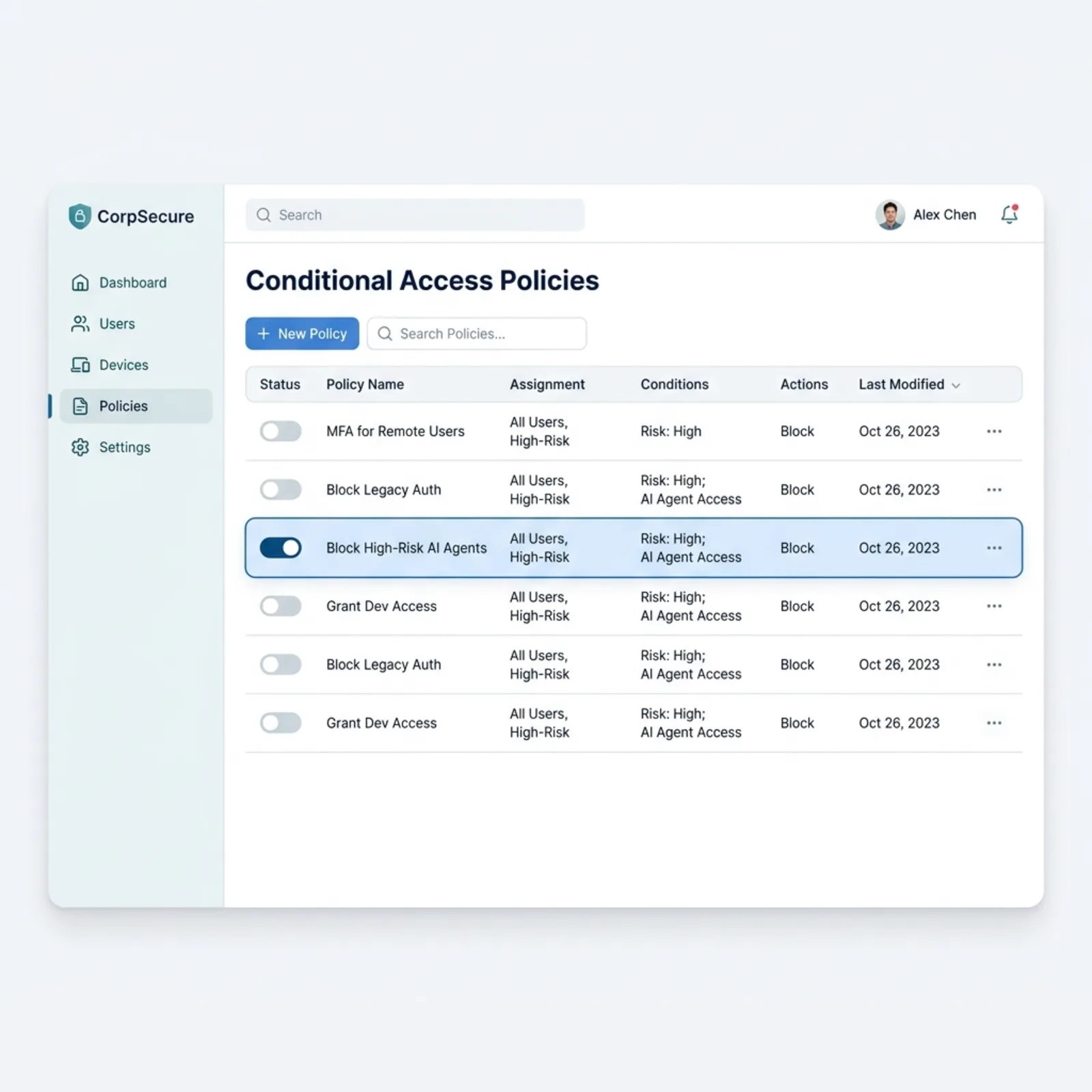
Create Conditional Access Policy for Agent Identities [[53]]
Navigate to Policies
Entra Admin Center → Conditional Access → Policies → New policy
Define Policy Name
Name: "Restrict High-Risk AI Agent Access"
Configure Assignments
- Users, agents (Preview) or workload identities: * Include: All agent
identities (Preview) * OR filter by custom security attributes (e.g.,
PluginTier = Production) * Cloud apps or actions: * Select target resources (Office 365, SharePoint Online, custom apps)
Set Conditions (optional but recommended)
- Agent risk level: Block if High, require MFA if Medium * Network location: Block if not from trusted corporate networks
Configure Access Controls
- Grant: Require MFA for user-delegated flows * Session: Sign-in frequency = 1 hour (optional)
Enable Policy
- Start in
"Report-only"mode for 2 weeks to assess impact * Change to"On"after validation
Finalize Setup
Click “Create”
Apply Custom Security Attributes for Scalable Targeting [[56]]
Navigate to Attributes
Entra Admin Center → Custom security attributes
Publish Schema
Ensure schema is published (requires Global Admin privilege)
Assign Attributes to Blueprints
When registering agent blueprint, assign custom security attributes: * Key: PluginTier, Value: Production * Key: DataClassification, Value: Internal
Key: RequiresExternalAccess, Value: SEC_EDGAR
Reference in Policies
Reference these attributes in Conditional Access policy assignments for granular security scoping
Audit Agent Activity via Sign-in Logs [[53]]
Pro Tip: Block restricted agents from accessing external MCP servers based on network compliance. Use the
RequiresExternalAccesscustom attribute to build a Conditional Access policy that only permits outbound connections to approved MCP endpoints when that specific attribute is present.
2.3 Known Limitations
| Limitation | Impact | Mitigation |
|---|---|---|
| Agent identity targeting shows “(Preview)” in UI | May cause confusion about GA status | Underlying enforcement is GA; UI label reflects assignment interface preview [[53]] |
| Custom attributes require schema publication | Delay in attribute availability | Publish schema early in deployment planning [[56]] |
| Policy propagation time | Changes may take time to reflect | Test in report-only mode first; allow 1-2 hours for propagation |
2.4 Compliance Mapping
| Control | GDPR | HIPAA | SOC 2 |
|---|---|---|---|
| Conditional Access for Agents | Article 32 (Security of Processing) | §164.312(a)(1) Access Control | CC6.1 Logical Access |
| Custom Security Attributes | Article 25 (Data Protection by Design) | §164.308(a)(1) Risk Analysis | CC2.1 Policies & Procedures |
| Agent Sign-in Logging | Article 30 (Records of Processing) | §164.312(b) Audit Controls | CC7.2 System Monitoring |
3. Microsoft Purview: Context-Aware Data Protection
While Entra controls who (or what) gets in, Purview controls what data is allowed to leave or be processed. Copilot interactions require specialized Data Loss Prevention (DLP) logic.
3.1 Verified Capabilities
| Capability | Status | Description | Source |
|---|---|---|---|
| Block sensitive info types in prompts | Preview | Detects SITs (SSN, credit cards) in user prompts; blocks Copilot response | [12] |
| Block files/emails with sensitivity labels | Generally Available | Prevents labeled items from being used in response summaries; items may still appear in citations | [12] |
| Block external web search when prompt contains sensitive data | Preview | Prevents Copilot from using external grounding sources when SITs detected | [12] |
| Simulation/Test mode | GA | Test policies before enforcement to tune false positives | [78] |
3.2 Critical Limitations (Verified)
| Limitation | Verified Source |
|---|---|
| ❌ Cannot combine “Content contains SITs” AND “Content contains sensitivity labels” in the same rule — must create separate rules within one policy | [12] |
| Policy updates can take up to 4 hours to reflect in Copilot experience | [12] |
| DLP for Copilot location supports custom policy templates only (no built-in templates) | [12] |
| Items blocked by label-based DLP may still appear in citations (but not in summary content) | [12] |
3.3 Verified Configuration Steps
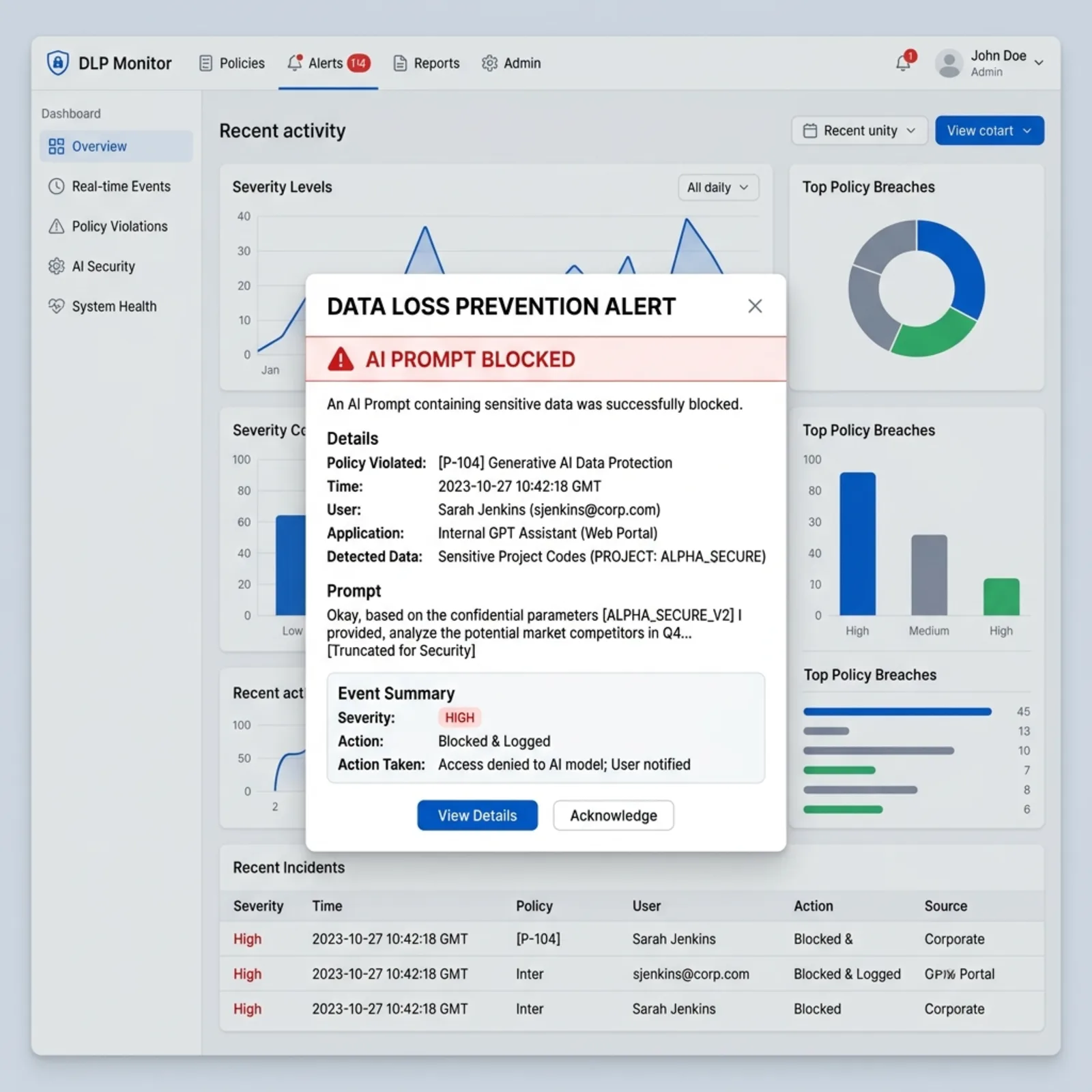
Create DLP Policy for Copilot Prompts [[12]]
Testing: Always deploy in simulation mode first to capture matches and tune out false positives before activating.
3.4 Compliance Mapping
| Control | GDPR | HIPAA | SOC 2 |
|---|---|---|---|
| Prompt-Level DLP | Article 5 (Data Minimization) | §164.514(e) De-identification | CC6.7 Transmission Security |
| Label Enforcement | Article 32 (Security of Processing) | §164.312(a)(1) Access Control | CC6.1 Logical Access |
| Web Search Grounding Control | Article 44 (International Transfers) | §164.312(e)(1) Transmission Security | CC6.6 External Threats |
4. Microsoft Defender for Cloud Apps: Runtime Threat Intelligence
Governance does not stop at access. You must monitor what agents are doing in real-time. Defender for Cloud Apps acts as the runtime security layer for your Copilot Studio agents and OAuth plugins.
4.1 Verified Capabilities
| Capability | Status | Description | Source |
|---|---|---|---|
| AI Agent Inventory | Preview | Discovers Copilot Studio agents; integrates with Advanced Hunting | [25] |
| Real-time runtime protection | Preview | Blocks suspicious actions during agent execution; triggers alerts | [26] |
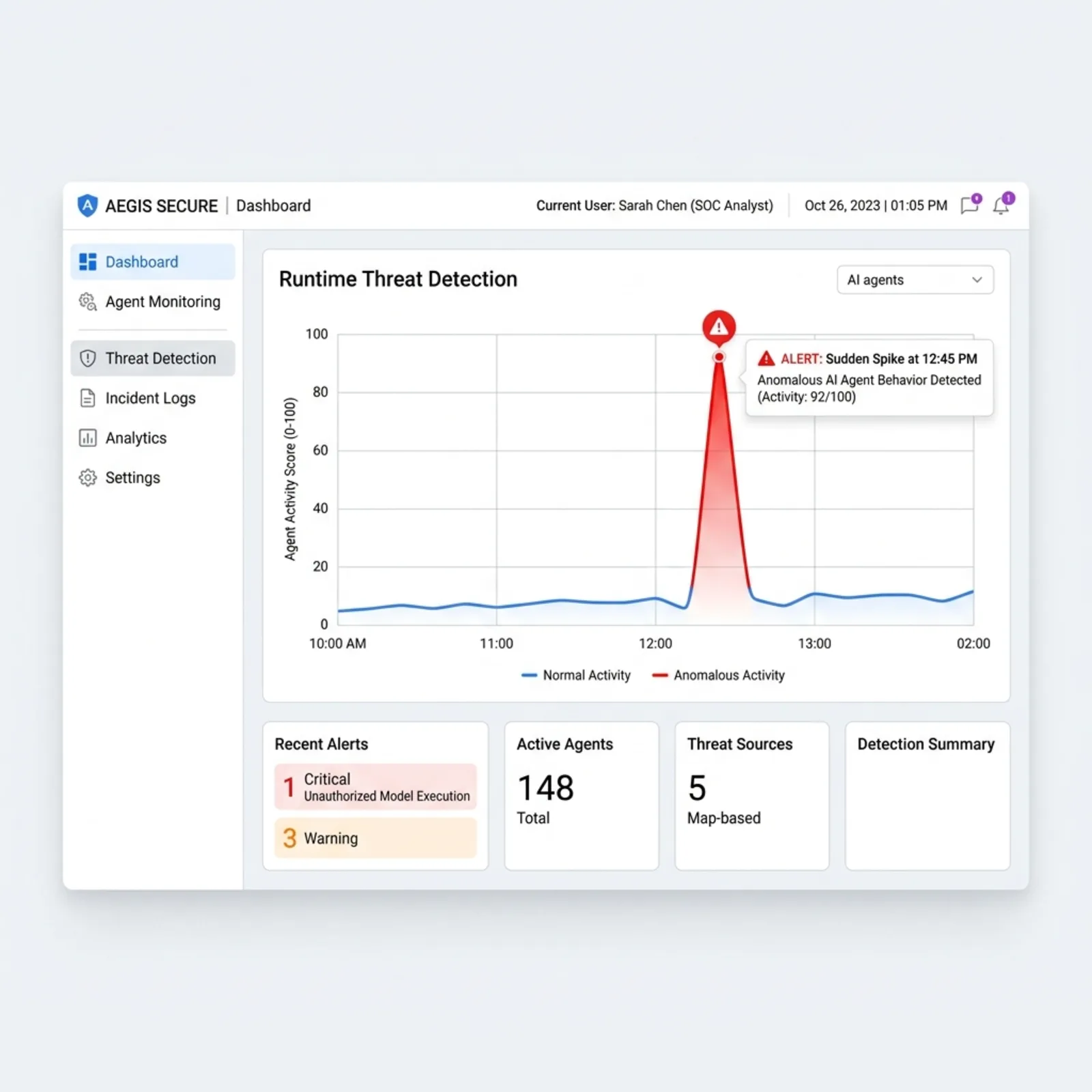
| Anomalous Behavior Detection | Preview | Baseline normal plugin/agent activity; flag sudden API call spikes to external endpoints (e.g., SEC EDGAR data pulls) | [26] |
| Shadow AI Discovery | Preview | Detect unauthorized or “shadow” AI plugins operating under the radar in your tenant | [25] |
| Audit log collection | Preview | Continuously monitors agents for suspicious activity | [25] |
| OAuth app governance | GA | Audit OAuth permissions granted to plugins connecting your tenant to external API surfaces | [25] |
4.2 Verified Configuration Steps
Enable AI Agent Protection (Preview) [[26]]
Navigate to settings
Microsoft Defender Portal → System → Settings → Cloud Apps
Find Copilot Studio settings
Scroll to the “Copilot Studio AI Agents” section
Enable Real-Time Protection
Toggle “Real-time protection” to ON
Configure Detection Rules
- Set thresholds for anomalous behavior (e.g., unusual API call volume) * Define automated responses (alert, suspend session)
Save Configuration
Save and apply the settings to your tenant
Configure Anomaly Detection Rules [[26]]
Navigate to Policy Management
Defender Portal → Cloud Apps → Control → Policy Management
Create New Activity Policy
Click ”+ Create policy” and select “Activity policy” under “Anomaly detection”
Configure Activity Conditions
- Activity: Select activities like
CallExternalAPI,DownloadFile, etc. * Actor type: Filter specifically for AI agents
Establish Severity & Alerts
Set severity to High. Configure automated response to suspend agent session and trigger playbooks to notify the SOC.
Least Privilege Revocation
Schedule reviews to revoke unused OAuth scopes quarterly to prevent privilege creep.
Create Policy
Click “Create” to activate the rule
Integrate with Microsoft Sentinel (Optional)
Navigate to Sentinel Connectors
Microsoft Sentinel → Configuration → Data connectors
Locate Connector
Search for “Microsoft Defender for Cloud Apps”
Follow Setup Wizard
Follow the connector setup wizard to stream alerts directly into Sentinel
Verify Data Flow
Verify data ingestion by running a simple test query in Sentinel: kql MicrosoftCloudAppSecurityAlert | take 5
Pro Tip: Integrate Defender alerts directly with Microsoft Sentinel for centralized incident response and automated playbook execution.
4.3 Known Limitations
| Limitation | Impact | Mitigation |
|---|---|---|
| AI Agent Protection is in Preview | Features may change; not for production-critical scenarios | Test thoroughly; monitor Microsoft Learn for GA announcements [[25]] |
| Baseline period required for anomaly detection | Initial false positives possible | Allow 30-day baseline period before enforcing strict thresholds |
| OAuth app governance requires manual review | Privilege creep risk if not monitored | Schedule quarterly permission reviews |
4.4 Compliance Mapping
| Control | GDPR | HIPAA | SOC 2 |
|---|---|---|---|
| Runtime Protection | Article 32 (Security of Processing) | §164.312(b) Audit Controls | CC6.1 Logical Access |
| OAuth Governance | Article 28 (Processor Obligations) | §164.308(a)(3) Workforce Security | CC6.6 External Threats |
| Audit Log Collection | Article 30 (Records of Processing) | §164.312(b) Audit Controls | CC7.2 System Monitoring |
5. SharePoint Advanced Management: Proactive Content Governance
AI does not bypass your permissions — it amplifies them. If a site is overshared, Copilot will find it and surface it. SharePoint Advanced Management (SAM) is essential for fixing the root cause before Copilot deployment amplifies the risk.
5.1 Verified Capabilities
| Capability | Status | Description | Source |
|---|---|---|---|
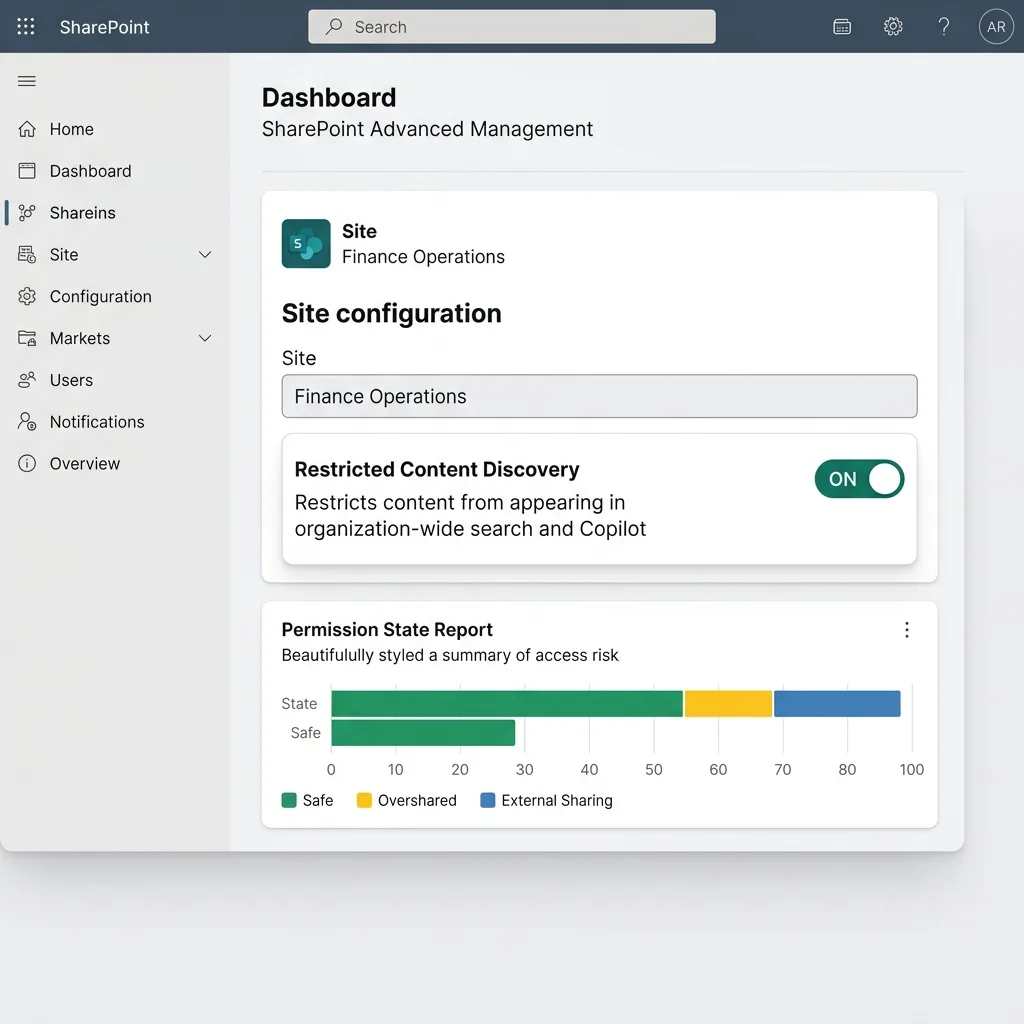
| Restricted Content Discovery (RCD) | GA (requires SAM license) | Prevents overshared sites from appearing in Copilot/unified search unless user had recent interaction | [28] |
| Block Download Policies | GA | Prevent users from downloading sensitive files accessed via Copilot interfaces; enforced at the site or library level | [93] |
| Conditional Access Contexts | GA | Tie site access to Entra CA contexts (e.g., requiring a compliant device to view the site) — directly bridges Entra and SharePoint governance | [93] |
| Site-level RCD toggle | GA | Must be enabled per site via SharePoint Admin Center or PowerShell | [28] |
| Does NOT change permissions | Critical | Users with existing access can still open files; RCD only affects discovery | [28] |
| Permission State Reports | GA | Identify sites with excessive external sharing or orphaned permissions | [93] |
| Site Access Reviews | GA | Delegate attestation workflows to site owners | [93] |
Crucial Reality: Copilot respects existing permissions. SAM tools are absolutely necessary to remediate oversharing before Copilot deployment amplifies the risk. Schedule attestation workflows by tying quarterly site reviews directly to your plugin recertification cycles.
5.2 Critical Limitations (Verified)
| Limitation | Verified Source |
|---|---|
| RCD propagation can take over 1 week for sites with 500k+ items | [28] |
| RCD requires SharePoint Advanced Management license + at least one Copilot license in tenant | [93] |
| RCD does not prevent access if user has direct permission — only affects discovery via search/Copilot | [28] |
PowerShell cmdlet Set-SPOSite -RestrictContentOrgWideSearch is the only programmatic method | [28] |
5.3 Verified Configuration Steps
Enable Restricted Content Discovery (RCD) [[28]]
Option A: SharePoint Admin Center (UI)
Navigate to Active Sites
SharePoint Admin Center → Active sites
Select Settings Tab
Select target site → Click “Settings” tab
Find Restricted Content Discovery
Scroll to the “Restricted content discovery” section
Toggle Setting
Toggle “Restrict content from appearing in org-wide search and Copilot” to ON
Save Changes
Click “Save” (Note: Propagation may take up to 1 week for large sites containing 500k+ items)
Option B: PowerShell
Run Permission State Report (Pre-Copilot Remediation) [[93]]
Navigate to Advanced Management
SharePoint Admin Center → Advanced Management → Permission state
Generate Report
Click “Generate report”
Review High-Risk Sharing Indicators
Review the generated report specifically looking for: * Sites with anonymous links enabled * Sites with external guests invited * Sites with no designated owner in the last 90 days * Sites with over 50 unique item permissions
Export & Prioritize
Export the data as CSV → Prioritize remediation of highly exposed or high-risk repositories
Remediate Before Copilot
Remediate overshared permissions before enabling broad Copilot access to prevent automatic data exposure
5.4 Compliance Mapping
| Control | GDPR | HIPAA | SOC 2 |
|---|---|---|---|
| Restricted Content Discovery | Article 25 (Data Protection by Design) | §164.312(a)(1) Access Control | CC6.1 Logical Access |
| Block Download Policies | Article 32 (Security of Processing) | §164.312(a)(1) Access Control | CC6.7 Transmission Security |
| Permission State Reports | Article 30 (Records of Processing) | §164.308(a)(1) Risk Analysis | CC2.1 Policies & Procedures |
| Site Access Reviews | Article 5 (Accuracy) | §164.308(a)(4) Information Access Management | CC2.2 Roles & Responsibilities |
6. MCP Governance via AI Gateway: Securing External Data Connectors
6.1 Verified Capabilities
| Capability | Status | Description | Source |
|---|---|---|---|
| AI Gateway for MCP tools | Preview | Routes MCP traffic through Azure API Management for policy enforcement | [41] |
| Policy application | Preview | Policies configured in Azure API Management portal, not Foundry portal | [41] |
| Eligibility | Limitation | Only new MCP tools created after gateway connection are routed through it | [41] |
| Authentication support | GA | Managed identity, API key, custom OAuth passthrough, or unauthenticated | [41] |
| Unsupported scenarios | Limitation | Does not support tools with managed OAuth or non-MCP tools | [41] |
6.2 Verified Configuration Steps
Connect AI Gateway to Microsoft Foundry [[41]]
Navigate to API Management
Azure Portal → API Management → Your instance
Enable AI Gateway
Enable “AI Gateway” feature (Preview)
Establish Connection to Foundry
Connect to Microsoft Foundry resource: * Provide Foundry resource ID * Grant required permissions
Verify Connection Status
Verify connection status shows “Connected”
Create New MCP Tool with Governance [[41]]
Navigate to Agent Tools
Microsoft Foundry portal → Agents → Tools
Initialize Creation
Click ”+ Create new tool” (⚠️ Must be a new tool; existing tools are not retroactively auto-routed)
Configure Connector Details
Configure tool parameters: * Name: "SEC EDGAR MCP Connector" *
Endpoint: https://mcp.sec.gov/api/v1 * Authentication: Select
supported method (API key, managed identity, or custom OAuth passthrough)
Automatic Routing
The new tool automatically routes outbound requests through the connected AI Gateway (APIM)
Locate Gateway API
In Azure Portal → API Management → APIs → Locate your new MCP API
Apply Security Policies
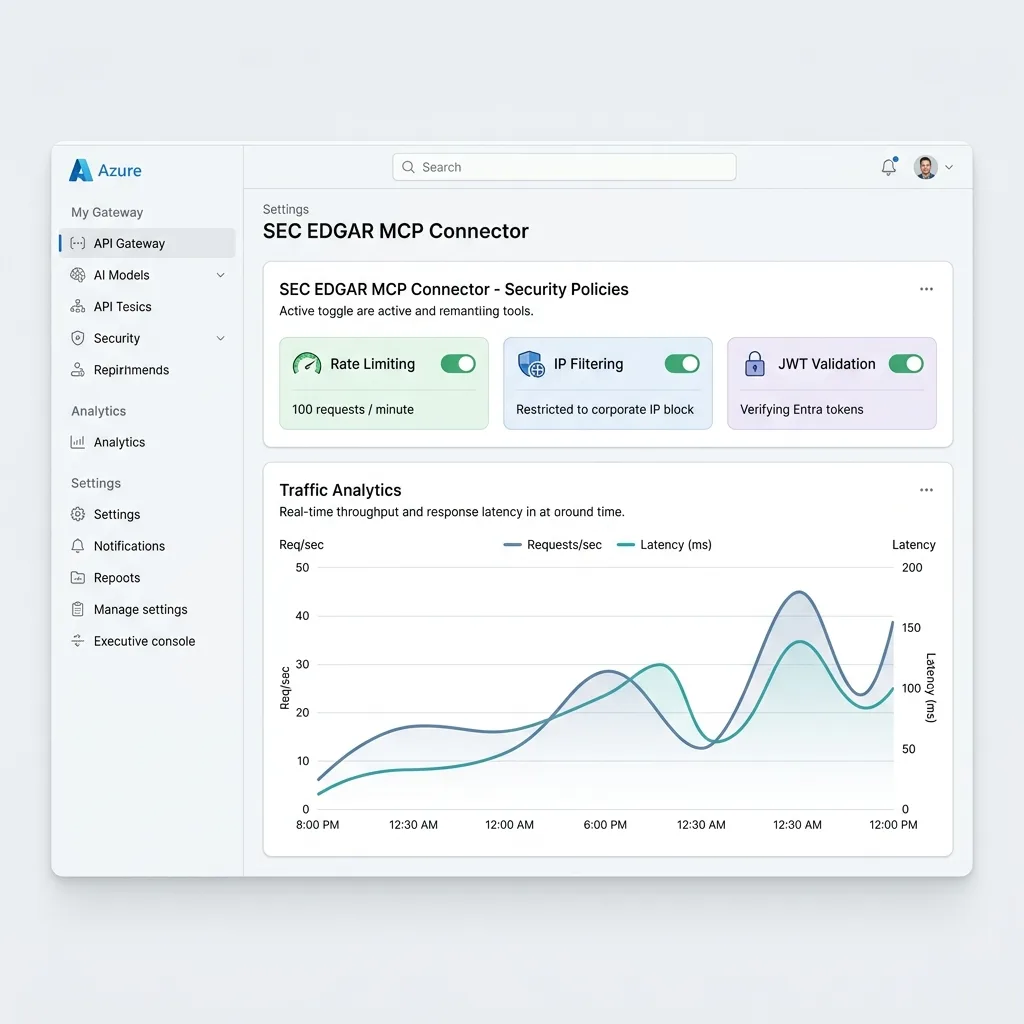
Configure gateway policies inside APIM: * Rate limiting: Prevent connector abuse * IP filtering: Restrict traffic to approved corporate networks * JWT validation: Enforce Token requirements and payload validations
Test & Audit
Test tool invocation → Verify that all logs and metrics correctly stream to API Management dashboard
Advanced Cross-Pillar Pattern: Combine Entra Agent IDs with MCP Governance for precise endpoint routing. Tag a plugin blueprint in Entra with
RequiresExternalAccess: SEC_EDGAR(custom security attribute), then build a Conditional Access policy that only permits outbound connections to approved MCP endpoints when that specific attribute is present. This prevents any agent without the explicit attribute from reaching external data connectors — even if they discover the endpoint URL.
6.3 Known Limitations
| Limitation | Impact | Mitigation |
|---|---|---|
| Only new MCP tools are auto-routed through gateway | Existing tools require recreation | Plan gateway connection before deploying MCP tools |
| Does not support managed OAuth authentication | Limits authentication options | Use API key or custom OAuth passthrough instead |
| Policy configuration in APIM portal, not Foundry | Additional management overhead | Document APIM policy management process |
6.4 Compliance Mapping
| Control | GDPR | HIPAA | SOC 2 |
|---|---|---|---|
| AI Gateway Traffic Routing | Article 28 (Processor Obligations) | §164.308(b)(1) BA Agreements | CC6.6 External Threats |
| IP Filtering / Rate Limiting | Article 32 (Security of Processing) | §164.312(e)(1) Transmission Security | CC6.7 Transmission Security |
| Traffic Analytics | Article 30 (Records of Processing) | §164.312(b) Audit Controls | CC7.2 System Monitoring |
7. Cross-Platform Orchestration Architecture
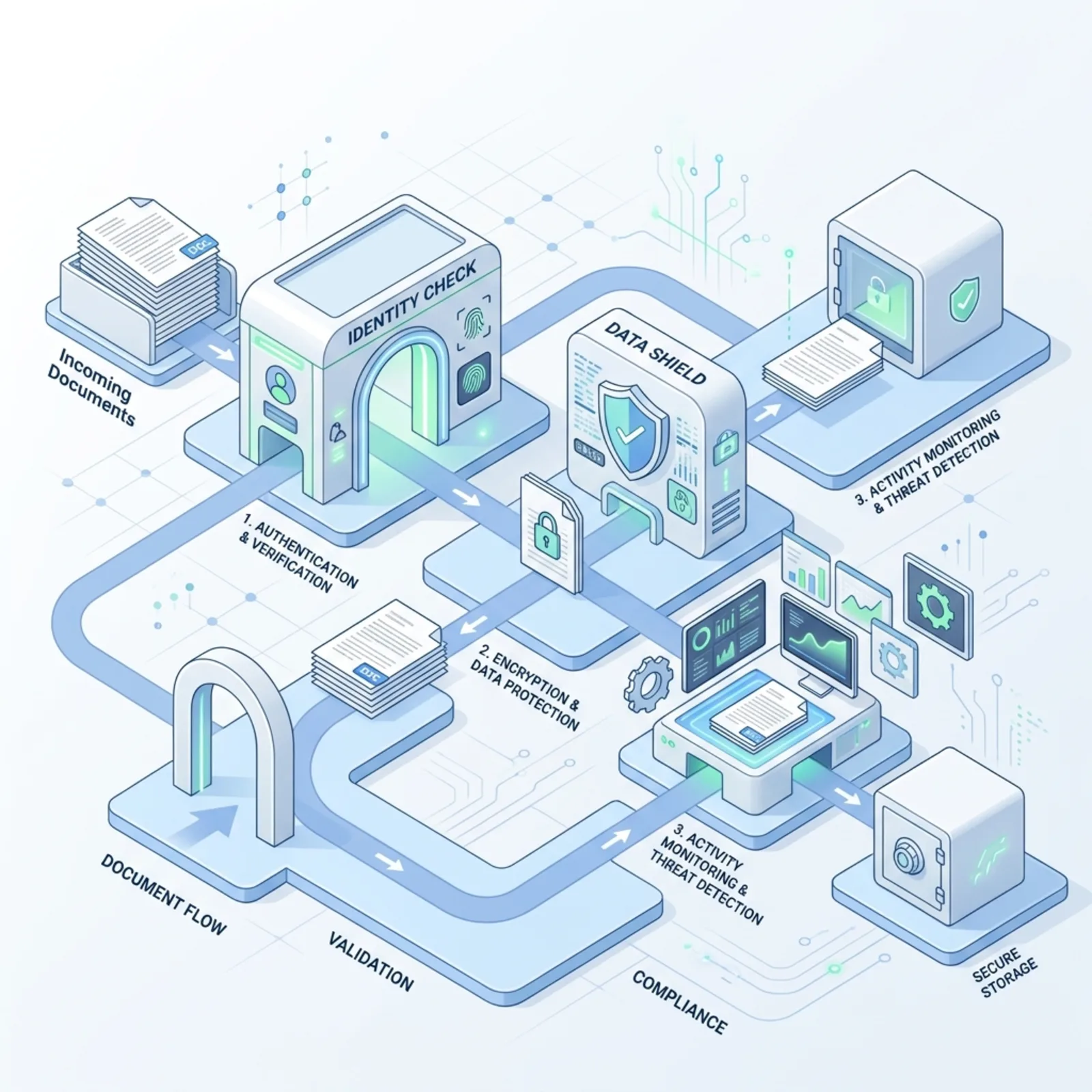
To visualize how these four control planes interact during a single user request, consider this cross-platform orchestration flow from invocation to execution:
Key Architectural Takeaways
- Fix Data Governance First: Implement SharePoint Advanced Management to resolve oversharing before enabling broad AI access.
- Layer Your Defenses: Relying on a single platform is a failure point. Entra ID dictates who, Purview restricts what, Defender monitors how, and SharePoint protects where.
- Test in Simulation: Always test policies in simulation/report-only mode to prevent user disruption and tune false positives.
- Schedule Continuous Reviews: AI plugins will evolve rapidly. Governance is an iterative lifecycle, not a one-time deployment task.
- Document Elevated Exceptions: Maintain rigorous documentation for any agents requiring elevated exceptions — including business justification, approver, and expiry date.
- Combine Entra Agent IDs with Purview DLP: Combine signals for precise MCP endpoint routing. Tag a plugin blueprint with
RequiresMCP: SEC_EDGAR, and build a CA policy that only permits outbound connections to approved MCP endpoints when that specific attribute is present.
8. Implementation Checklist: Verified Steps
Phase 1: Prerequisites Verification (Week 1)
-
Licensing Confirmation
- Microsoft 365 Copilot licenses assigned to pilot users [[75]]
- Entra ID P1/P2 confirmed for Conditional Access features [[53]]
- SharePoint Advanced Management license verified for RCD [[93]]
- Purview compliance portal access granted [[12]]
- Azure API Management instance provisioned (if using MCP) [[41]]
-
Access & Permissions
- Global Admin or Security Admin role assigned
- Purview compliance admin role for DLP policy creation [[12]]
- SharePoint Admin Center access for SAM configuration [[28]]
Phase 2: Core Controls Deployment (Weeks 2-3)
PURVIEW DLP [[12]]
- Create policy → Location: “Microsoft 365 Copilot and Copilot Chat”
- Rule 1: Block SITs in prompts (Preview) – separate rule
- Rule 2: Block sensitivity-labeled files (GA) – separate rule
- Start in “Test with policy tips” mode → Review matches → Activate
- Note: Allow up to 4 hours for policy propagation
SHAREPOINT RCD [[28]]
- Identify high-risk sites via Permission State reports
- Enable RCD per site via UI or PowerShell:
Set-SPOSite -identity <site-url> -RestrictContentOrgWideSearch $true - Note: Propagation may take >1 week for large sites containing 500k+ items
ENTRA CONDITIONAL ACCESS [[53]]
- Create policy targeting “Agents (Preview)” in assignments
- Use custom security attributes for scalable targeting
- Start in
"Report-only"mode → Validate impact → Enable
DEFENDER AI AGENT PROTECTION [[26]]
- Enable preview feature: Defender Portal → Settings → Cloud Apps
- Configure anomaly detection thresholds based on baseline activity
- Integrate alerts with existing SOC workflows
Phase 3: Validation & Testing (Week 4)
-
DLP Policy Validation [[12]]
- Test prompt with synthetic SSN: “My SSN is 123-45-6789, summarize this”
- Expected: Copilot blocked from processing; policy tip shown
- Verify event in Purview audit logs
-
RCD Validation [[28]]
- Search for restricted site content in Copilot
- Expected: Content hidden unless user had recent interaction
- Verify direct access still works for authorized users
-
Conditional Access Validation [[53]]
- Review Entra sign-in logs filtered by
agentType - Verify policy blocks/highlights as configured
- Test with pilot user group first
- Review Entra sign-in logs filtered by
-
MCP Gateway Validation (if applicable) [[41]]
- Invoke agent using new MCP tool
- Verify traffic appears in Azure API Management analytics
- Confirm applied policies (rate limiting, etc.) are enforced
Phase 4: Go-Live & Monitoring (Week 5+)
-
Policy Activation
- Change Purview DLP mode: Test → On
- Change Entra CA mode: Report-only → On
- Document activation timestamp for audit
-
Monitoring Setup
- Review native logs: Entra sign-in logs, Purview audit, Defender alerts
- Optional: Stream to Sentinel for centralized monitoring
- Set up alerts for critical events (e.g., high-risk agent sign-ins)
-
User Communication
- Notify pilot users of active governance policies
- Provide examples of DLP policy tips they may see
- Share escalation path for false positives
-
Ongoing Maintenance
- Quarterly: Review OAuth permissions via Defender [[25]]
- Quarterly: Run SharePoint Permission State reports [[93]]
- Monthly: Review DLP policy matches and tune false positives [[12]]
- As needed: Update Conditional Access policies for new agent types [[53]]
-
Documentation
- Document all agents requiring elevated exceptions (business justification, approver, expiry)
- Maintain change log for policy modifications
- Schedule next review aligned with plugin recertification cycle
9. Compliance Mapping Framework
9.1 GDPR Compliance
| GDPR Article | Requirement | Microsoft Control | Verified Source |
|---|---|---|---|
| Article 5 | Data minimization | Purview DLP blocking excessive data in prompts | [12] |
| Article 22 | Automated decision-making | Human-in-the-loop via CA policies requiring MFA | [53] |
| Article 25 | Data protection by design | SharePoint RCD preventing overshared content discovery | [28] |
| Article 28 | Processor obligations | MCP governance via AI Gateway with BA agreements | [41] |
| Article 30 | Records of processing | Native audit logs in Entra, Purview, Defender | [[53]][[12]][[25]] |
| Article 32 | Security of processing | Defense-in-depth across all four control planes | All sections |
| Article 44 | International transfers | MCP traffic restrictions via AI Gateway policies | [41] |
9.2 HIPAA Compliance
| HIPAA Safeguard | Requirement | Microsoft Control | Verified Source |
|---|---|---|---|
| §164.308(a) | Risk analysis | Defender anomaly detection for agent behavior | [26] |
| §164.308(a) | Workforce security | OAuth app governance via Defender | [25] |
| §164.312(a) | Access control | Entra Conditional Access for agent identities | [53] |
| §164.312(b) | Audit controls | Purview Audit (Premium) + native logging | [12] |
| §164.312(e) | Transmission security | MCP TLS enforcement via AI Gateway | [41] |
9.3 SOC 2 Type II
| Trust Service Criteria | Requirement | Microsoft Control | Verified Source |
|---|---|---|---|
| CC2.1 | Policies & procedures | Documented governance framework with phased checklist | This document |
| CC6.1 | Logical access | Entra CA + SharePoint permissions | [[53]][[28]] |
| CC6.6 | External threats | Defender runtime protection + MCP governance | [[26]][[41]] |
| CC6.7 | Transmission security | MCP TLS + Purview DLP for data in transit | [[41]][[12]] |
| CC7.2 | System monitoring | Native logging + optional Sentinel integration | [[53]][[12]][[25]] |
10. Monitoring, Validation & Troubleshooting
10.1 Verified Monitoring Approaches
| Control Plane | Native Logging Location | Verified Query/Method | Source |
|---|---|---|---|
| Entra ID | Sign-in logs | Filter by agentType property | [53] |
| Purview | Audit logs (Premium) | Search “Copilot” in audit log search | [12] |
| Defender | Cloud Apps alerts | Review AI Agent Protection alerts | [26] |
| SharePoint | Unified Audit Log | Filter by SharePoint activities + RCD events | [28] |
| MCP Gateway | Azure API Management analytics | Review API metrics and logs | [41] |
10.2 Verified Troubleshooting Guide
| Issue | Verified Symptoms | Root Cause | Verified Resolution | Source |
|---|---|---|---|---|
| DLP policy not blocking prompts | Policy shows “On” but prompts still processed | Policy still in propagation; up to 4 hours required | Wait up to 4 hours; verify policy mode is “On” not “Test” | [12] |
| RCD not hiding overshared sites | Copilot still surfaces restricted content | Propagation delay for large sites (>500k items) | Wait up to 1 week; verify site has RCD enabled via PowerShell | [28] |
| Agent sign-in logs not showing agentType | Logs visible but agentType property null | Agent using access pattern not logged with agentType | Verify agent identity registration; check access pattern type | [53] |
| MCP tool not routed through gateway | Traffic not appearing in APIM analytics | Tool created before gateway connection | Recreate MCP tool after connecting AI Gateway | [41] |
| Defender alerts not firing | Anomalous activity not detected | Baseline period not complete (30 days recommended) | Allow baseline period; adjust sensitivity settings | [26] |
10.3 Validation Checklist
-
DLP Testing [[12]]
- Prompt with synthetic SSN blocked as expected
- Prompt with credit card number blocked as expected
- Policy tip displayed to user (if configured)
- Event appears in Purview audit logs
- Prompt Injection Pentesting: Attempt prompt injection attacks using synthetic sensitive data (e.g., fake SSNs, mock PII) to validate Purview DLP triggers and confirm no bypass vectors exist
-
RCD Testing [[28]]
- Restricted site content hidden from Copilot search
- Same content accessible via direct URL for authorized users
- Recent interaction (within 30 days) bypasses RCD as expected
-
Conditional Access Testing [[53]]
- Agent sign-in logs show policy evaluation
- High-risk agent blocked or challenged per policy
- Custom attributes correctly filter policy application
-
MCP Gateway Testing (if applicable) [[41]]
- New MCP tool traffic appears in APIM analytics
- Applied policies (rate limiting, etc.) enforced
- Authentication method working as configured
-
Security Exercises
- Tabletop Exercise: Run a SOC scenario based on a compromised plugin. Walk through the exact containment steps: How does the team isolate the tenant, suspend the agent session, revoke OAuth tokens, and notify stakeholders? Document the runbook outcome.
- SIEM Validation: Confirm that Purview Audit (Premium) logs and Entra Agent ID sign-ins are successfully flowing into Sentinel (or your SIEM of choice)
11. Appendix: Official Documentation References
Primary Sources
-
Microsoft 365 Copilot Foundational Deployment Guidance https://learn.microsoft.com/en-us/microsoft-365/copilot/secure-govern-copilot-foundational-deployment-guidance [[75]]
-
Purview DLP for Microsoft 365 Copilot https://learn.microsoft.com/en-us/purview/dlp-microsoft365-copilot-location-learn-about [[12]]
-
Defender for Cloud Apps: AI Agent Protection https://learn.microsoft.com/en-us/defender-cloud-apps/ai-agent-protection [[25]] https://learn.microsoft.com/en-us/defender-cloud-apps/ai-agent-protection-configure [[26]]
-
SharePoint Restricted Content Discovery https://learn.microsoft.com/en-us/sharepoint/restricted-content-discovery [[28]]
-
SharePoint Advanced Management Overview https://learn.microsoft.com/en-us/sharepoint/advanced-management [[93]]
-
Entra ID: Conditional Access for Agent Identities https://learn.microsoft.com/en-us/entra/identity/conditional-access/agent-id [[53]]
-
Entra ID: Custom Security Attributes Overview https://learn.microsoft.com/en-us/entra/fundamentals/custom-security-attributes-overview [[56]]
-
Azure AI Foundry: MCP Tool Governance via AI Gateway https://learn.microsoft.com/en-us/azure/foundry/agents/how-to/tools/governance [[41]]
Supporting Documentation
-
Purview DLP General Concepts https://learn.microsoft.com/en-us/purview/dlp-learn-about-dlp [[78]]
-
Entra ID Sign-in Logs Reference https://learn.microsoft.com/en-us/entra/identity/monitoring-health/reference-sign-ins-schema
-
Azure API Management Policies https://learn.microsoft.com/en-us/azure/api-management/api-management-howto-policies
Read next