Copilot Studio in VS Code: Bridging Cloud Agents with Local Workflows

Writer
Quiz available
Take a quick quiz for this article.
Microsoft Copilot Studio is a robust platform for building sophisticated, production-ready AI agents at an enterprise scale. However, as agent complexity scales, developers often need a more powerful environment than a browser tab can provide. This is where the Microsoft Copilot Studio extension for Visual Studio Code comes in, bridging the gap between cloud-based authoring and local development workflows.
By bringing the full agent definition directly into your favorite editor, the extension enables standard development practices—version control, peer reviews, and automated deployments—across the entire agent lifecycle.
The Local Development Lifecycle: Clone, Edit, Sync
The core value of the extension is its ability to bring Enterprise Agent Authoring directly into your local environment. It transforms the cloud-based configurations into a set of tangible files that you can manage using familiar local tools and workflows.
The workflow starts with Agent Cloning. After signing in via the VS Code activity bar, you can download existing agents from Copilot Studio to your local workspace. The extension downloads the full agent definition—including topics, triggers, tools, knowledge sources, and skills—as structured YAML files.
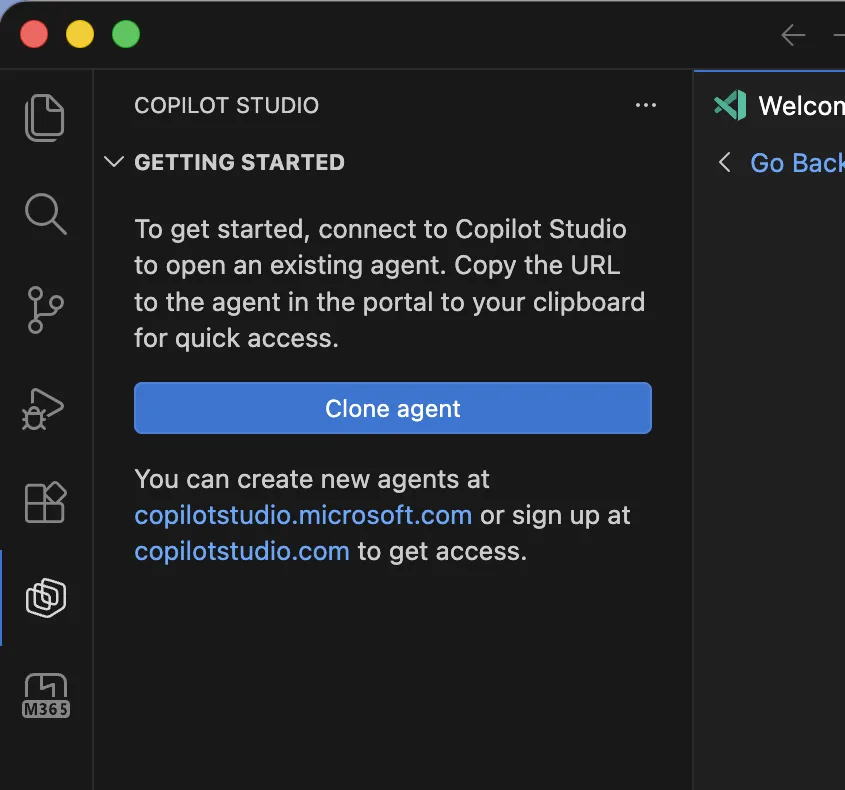 The seamless connection process from VS Code to your Copilot Studio environments.
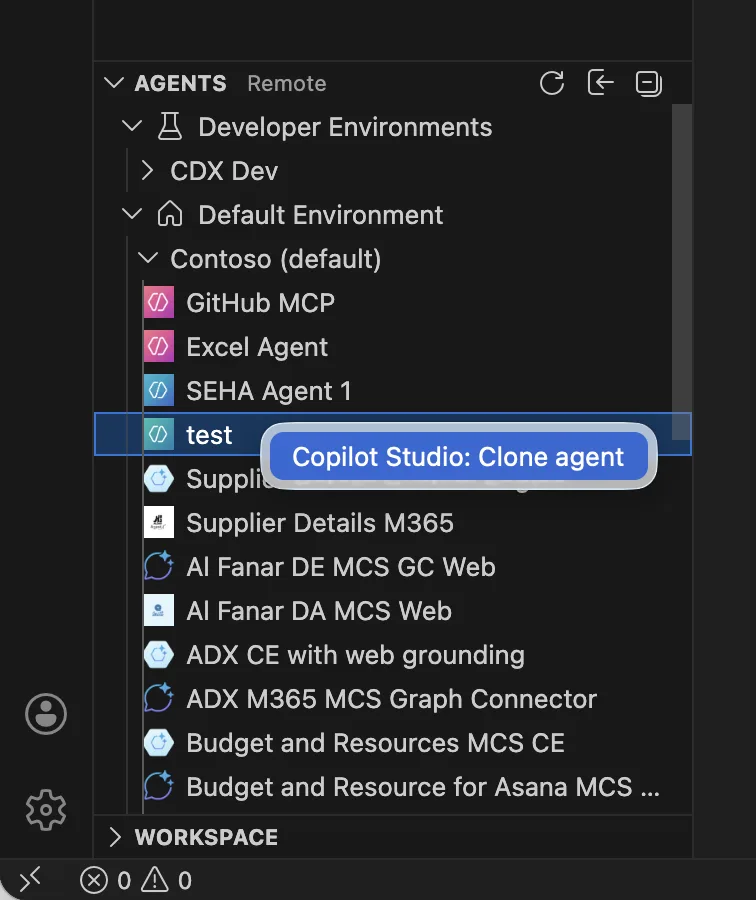 Cloning your cloud agents into a local directory for version-controlled development.
The Local Workspace
Once cloned, the agent appears in your VS Code Explorer. You can now use all your favorite tools:
- Global Search: Find every instance of a specific keyword across all topics.
- Git Integration: Track every change, create branches, and perform proper peer reviews.
- Bulk Refactoring: Use multiple cursors or regex to update logic across dozens of files in seconds.
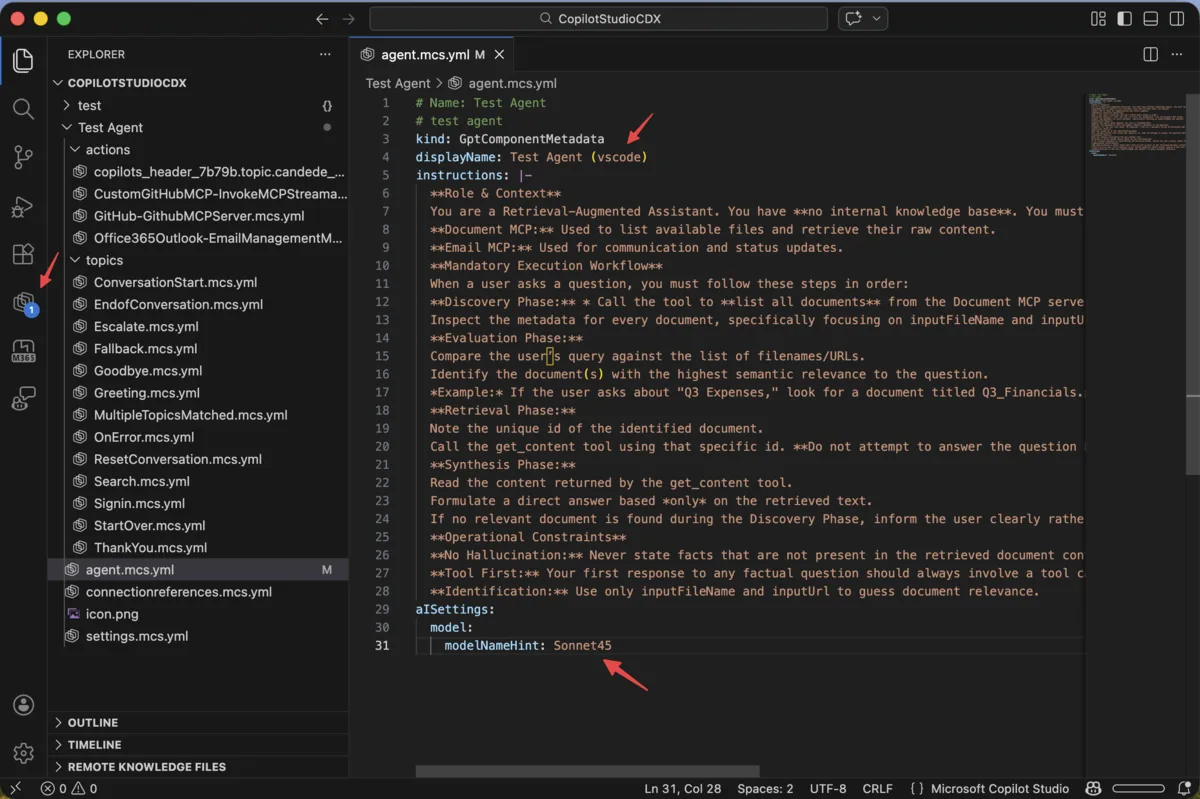 Full IntelliSense and schema validation for agent YAML files.
After refining your agent locally, you need to synchronize.
- Push & Apply: Upload your local YAML modifications to the cloud to preview and test them directly in the product.
- Pull/Sync: View and apply changes between your local workspace and the cloud to stay in sync with team members.
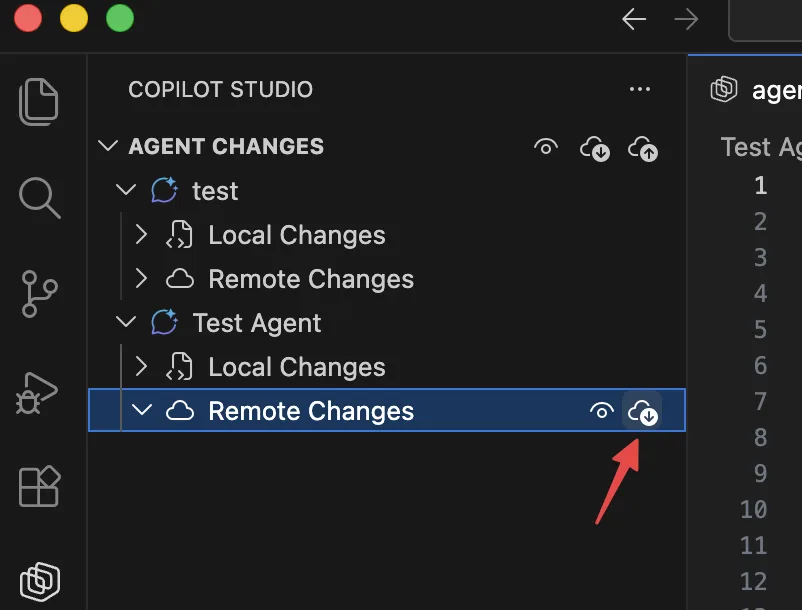 Staying in sync with the cloud version and team modifications.
This bidirectional flow ensures that your local development and the cloud runtime are always aligned, mimicking standard industry practices.
Agent-Driven Development: AI Building AI
One of the most powerful scenarios enabled by this extension is Agent-Driven Development. Since the agent is now represented as YAML, you can use your favorite AI assistants, like GitHub Copilot or Claude Code, to help you author the agent itself.
- Rapid Iteration: Ask your AI assistant to “add a search tool to this topic” or “update the tone of all triggers in this folder.”
- Schema-Aware Editing: The extension provides full IntelliSense support and syntax highlighting for YAML agent definitions, meaning you get real-time validation and code completion as you work.
- Bulk Management: Large-scale development becomes trivial when you can use full-text search and replace or AI-powered refactoring across dozens of topics and tools simultaneously.
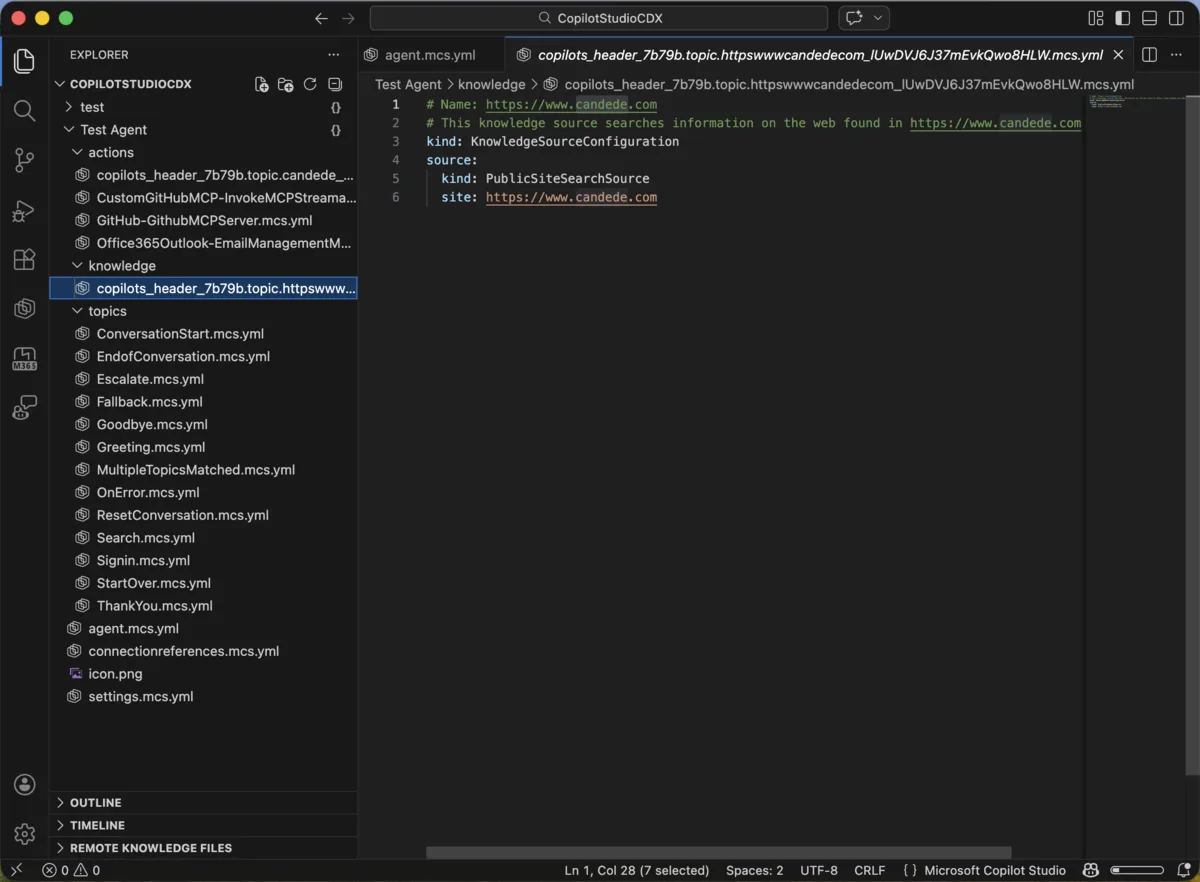 Leveraging code-based management for agent knowledge sources.
Collaboration and Governance
Working locally allows your team to use existing source control practices:
- Git Integration: Version control every part of your agent definition.
- Pull Requests: Review logic changes before they ever hit production.
- Audit Trails: Track exactly who modified which topic and why over time.
Capabilities vs. Limitations
It’s important to set expectations. This extension is a configuration management tool, not a replacement for the Copilot Studio portal.
| Feature / Capability | Status | Description |
|---|---|---|
| Agent Cloning | ✅ Supported | Download cloud agents to local workspaces. |
| Sync & Apply | ✅ Supported | Bidirectional sync and real-time testing. |
| Source Control | ✅ Supported | Full Git integration and PR workflows. |
| IntelliSense | ✅ Supported | Syntax highlighting and code completion for YAML. |
| Component Mgmt | ✅ Supported | Manage knowledge, tools, topics, and skills as code. |
| Agent Creation | ✅ Supported | Deploy new agents directly to Dataverse environments. |
| AI Authoring | ✅ Supported | Use GitHub Copilot/Claude to generate agent logic. |
| Local Debugging | ❌ Not Supported | Testing still occurs in the cloud-based preview. |
Where It Fits in the Ecosystem
The Copilot Studio extension occupies a unique niche. It isn’t a competitor to GitHub Copilot. While GitHub Copilot acts as your pair programmer, the Copilot Studio extension acts as your deployment bridge.
It bridges the gap between the “low-code” world of visual designers and the “pro-code” world of developers who need granular control. By bringing the agent’s definition into VS Code, Microsoft is acknowledging that enterprise AI isn’t just about clicking buttons—it’s about rigorous, reproducible engineering.
The Copilot Studio extension for VS Code is now Generally Available (GA), with monthly releases bringing fresh capabilities to the agent building lifecycle. It is no longer just a “pro-code” alternative; it is the essential bridge for developers who require granular control, rigorous engineering, and the ability to leverage AI-on-AI development.
Whether you’re building a simple internal Q&A agent or a complex autonomous orchestrator, bringing your workflow into VS Code is the definitive step toward professional, enterprise-grade AI development.
Read next