Optimizing SharePoint Knowledge Retrieval in Copilot Studio: The Dataverse Architecture

Writer
Quiz available
Take a quick quiz for this article.
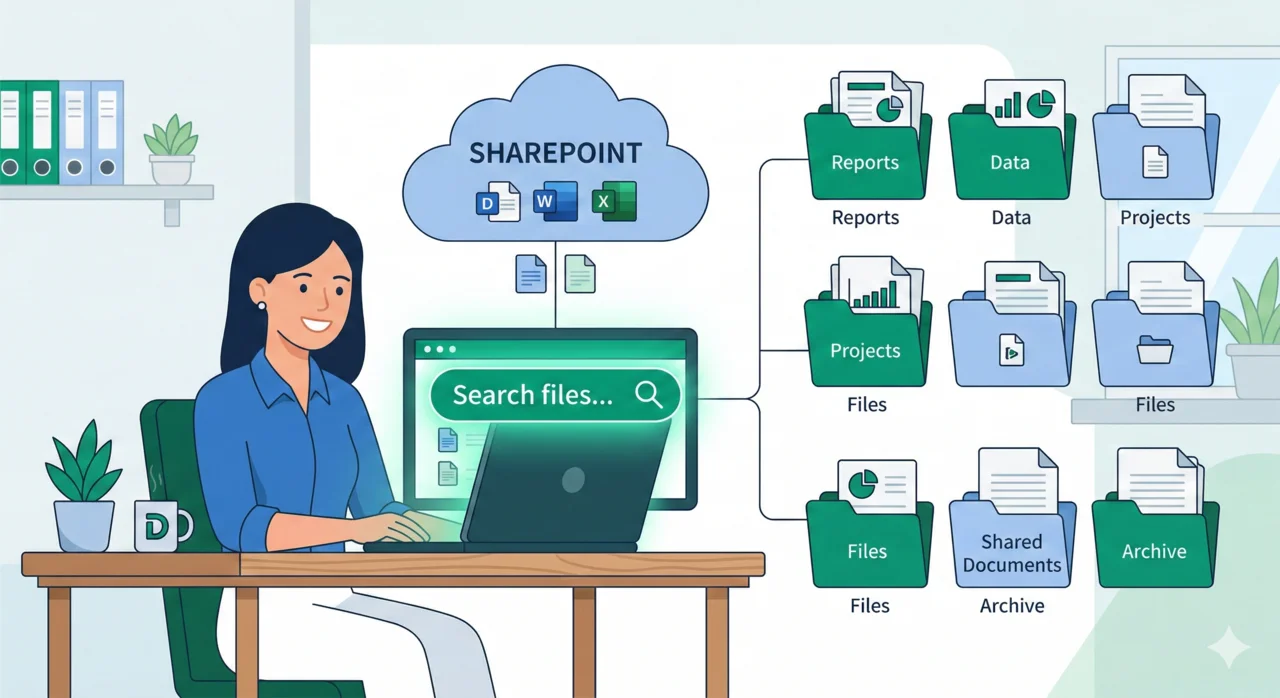
When building intelligent agents in Microsoft Copilot Studio, grounding your assistant in enterprise data is a core requirement. However, simply pointing your Copilot at a SharePoint document library doesn’t always yield the high-fidelity answers your users expect, especially when dealing with large files or visual data.
In this post, we will look under the hood of Copilot Studio’s knowledge retrieval lifecycle, debunk a common misconception about data ingestion, and explore an advanced architectural trick using Dataverse to significantly upgrade your SharePoint search results.
🔄 The Knowledge Retrieval Lifecycle
To improve search results, you first need to understand how Copilot Studio processes a user’s prompt. When a user asks a question, the request moves through several distinct stages:
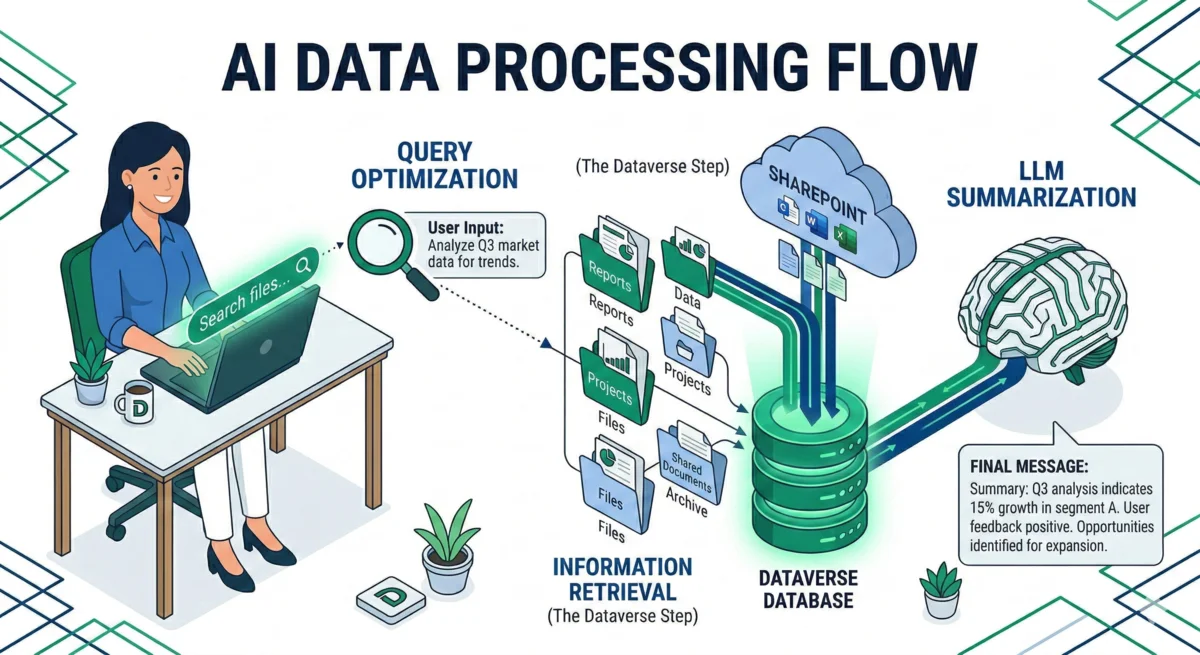
Figure 1: The Knowledge Retrieval Lifecycle — Tracking the transformation from user prompt to final AI response.
When a user asks a question, the request moves through several distinct stages:
- Moderation: Initial filtering of the user’s prompt for safety and compliance.
- Query Optimization: Copilot Studio analyzes the prompt (and conversation history) to generate a precise search query. For example, resolving pronouns like “how long is it” to the actual subject being discussed.
- Information Retrieval: The optimized query is executed against the configured data source’s index.
- Summarization: The search results are handed over to the LLM to generate a coherent answer.
- Providence Validation: Citations and source links are mapped to the generated summary to ensure accuracy.
- Summary Moderation: Final safety checks on the generated output before it reaches the user.
- Delivery: The response is sent to the user.
Information Retrieval is the most vital step in this lifecycle. The quality of the search results directly dictates the quality—and ultimately the accuracy—of the final summary generated by the AI.
🛑 Correcting the “Ingestion” Misconception
A very common misunderstanding is that when you connect SharePoint to Copilot Studio, the platform “ingests” your entire document library.
This is false. Copilot Studio does not ingest your SharePoint environment. Instead, during the Information Retrieval stage, it runs a search against the index of that SharePoint location. Therefore, the quality of the final answer is entirely dependent on what that index can “see” and return.
📉 The Default Setup: SharePoint Graph Connector
By default, when you add SharePoint knowledge to Copilot Studio, you are utilizing the Office Graph indexer. While this works for standard text documents, it introduces rigid limitations that can cripple enterprise-grade agents:
- File Size Limits: The Graph index caps out at files up to 200MB.
- Poor Visual Indexing: It struggles to index images embedded within documents or extract complex tabular data from Excel files.
If your SharePoint library relies heavily on visual data—such as architectural diagrams, floor plans, or image-heavy sales charts—the default Graph indexer will likely fail to surface that information during retrieval.
🚀 The Solution: Dataverse as a Caching Layer
To bypass the limitations of the standard Office Graph indexer, you can alter the architecture by placing Dataverse as an indexing and caching layer between SharePoint and Copilot Studio.
Instead of querying SharePoint directly, Copilot Studio queries a cached copy of your SharePoint data residing in Dataverse. This unlocks several powerful indexing enhancements.
💎 The Advantages of Dataverse Indexing
Maximum Data Capacity: By architectural design, Dataverse allows for files up to 512MB to be fully indexed. Typical SharePoint connectors cap out at 200MB, making Dataverse the only viable path for large enterprise handbooks or technical manuals.
- Larger File Support: Dataverse can index files up to 512MB, more than double the standard SharePoint limit.
- Image and Visual Indexing: Dataverse effectively indexes images embedded within documents. If you have a deck plan or a sales chart stored as an image, Dataverse can process and surface that data.
- Enhanced Excel Processing: Dataverse handles the indexing of Excel data much more effectively than native SharePoint.
- Security Compliance: Syncing to Dataverse does not break your security posture. It honors and inherits the security rights, access controls, and file permissions configured on the source data in SharePoint.
| Feature / Aspect | Default SharePoint (Graph Connector) | Dataverse Caching Layer |
|---|---|---|
| Primary Mechanism | Direct query via Office Graph Indexer | Queries a cached index stored in Dataverse |
| Max File Size | 200 MB | 512 MB |
| Image Indexing | Struggles to index images within documents | Successfully indexes embedded images and diagrams |
| Excel Data Handling | Basic | Enhanced extraction and indexing |
| Data Freshness | Real-time (queries the live index) | Cached (syncs every 4 hours by default) |
| Storage Costs | Included (uses SharePoint storage) | Additional (consumes Dataverse storage capacity) |
| Security & Rights | Honors SharePoint permissions | Honors SharePoint permissions (syncs rights seamlessly) |
⚠️ The Trade-offs
Before implementing this, architecture teams must weigh two specific constraints:
- Sync Latency: This is a cached approach. By default, Dataverse syncs with SharePoint every 4 hours. It is not real-time.
- Storage Costs: Because you are pulling a copy of your SharePoint data into Dataverse, you will consume Dataverse storage capacity, which may incur additional licensing costs.
🛠️ Step-by-Step Configuration Guide
If the benefits of high-fidelity search outweigh the storage costs for your use case, follow these steps to configure the Dataverse layer.
1. Initiate Knowledge Addition
Open your agent in Copilot Studio and navigate to the Knowledge section. Click to add new knowledge.
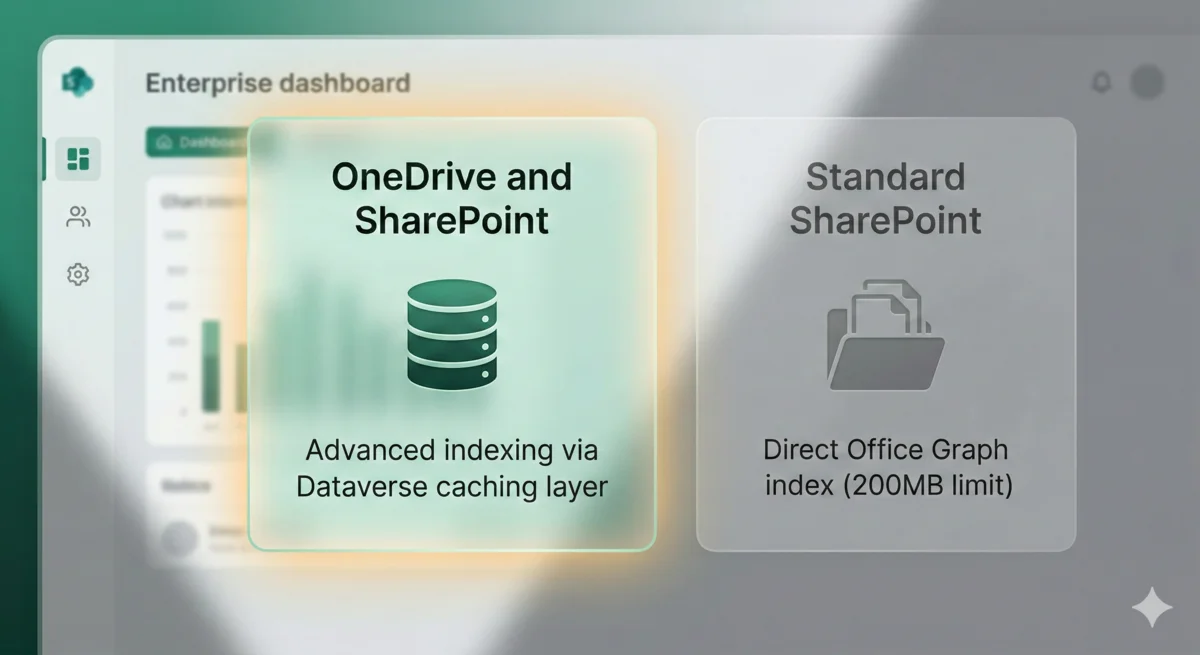
Figure 2: Selecting the advanced indexing option to enable Dataverse caching.
2. Select the Dataverse Option
You will be presented with multiple SharePoint options. Do not select the standard Graph connector at the bottom. Instead, click the new option at the top specifically designed to use Dataverse for uploading OneDrive and SharePoint data.
3. Map the Directory
Browse your environment to locate the specific SharePoint document library or folder (e.g., your Sales and Marketing site) and save the configuration to add it to your agent.
4. Wait for Indexing
Unlike the standard SharePoint connector, you will notice the status changes to “In Progress.” This indicates that Dataverse is actively pulling a copy of the files, evaluating user permissions, and running its advanced indexing process. Wait until this status changes to “Completed.”
🧪 Testing Your Configuration
Once the indexing is complete, open the Copilot Studio test pane to validate the results.

Figure 3: Testing visual retrieval — The agent correctly processes an image to answer a specific spatial query.
Proving the Value: Ask a question that relies heavily on visual data (e.g., “What deck is the casino on?” when your source file is an image of a floor plan). You will see the system succeed where standard SharePoint indexing would fail.
Note on Authentication
The very first time you test this, you will receive an “Allow” prompt. This is expected behavior. The system must authenticate your identity against Dataverse to ensure that your specific access rights are being honored before returning any cached information.
📚 Summary Checklist
When pre-drafting your implementation, keep these technical concepts in mind:
- Lifecycle Awareness: Know that Retrieval quality is your bottleneck.
- Indexer Choice: Use Dataverse if you have files >200MB or need visual indexing.
- Security: Rest easy knowing SharePoint permissions are maintained.
- Storage: Monitor your Dataverse capacity usage.
For more hands-on tutorials, visit aka.ms/trycopilotstudio.
Read next