Architecting a Multi-Model Resume Matching Agent in Copilot Studio

Writer
Quiz available
Take a quick quiz for this article.
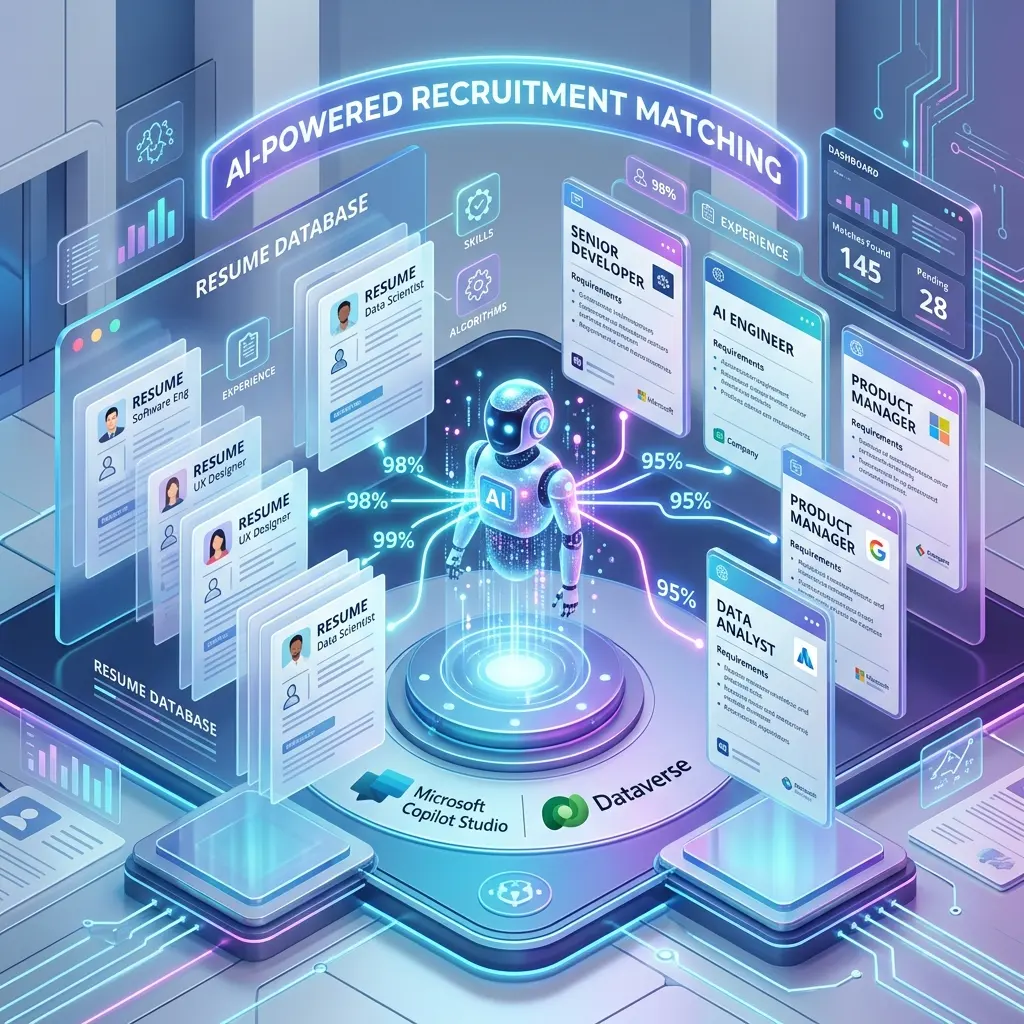
Evaluating candidate resumes against a high volume of open job postings is a notoriously slow, manual process. But with the right architectural approach in Microsoft Copilot Studio, you can automate this workflow securely and efficiently.
This technical deep-dive explores how to build a highly intelligent, conversational resume-matching assistant. Rather than relying on a single monolithic prompt, we will construct a robust system using a Parent-Child Agent architecture, a multi-model routing strategy, and Microsoft Dataverse for high-performance data retrieval.
1. The System Workflow: Moving Pieces at a Glance
Before configuring nodes and variables, it is critical to understand how data moves through this system. The architecture relies on ephemeral file uploads from the user mapped against persistent database records.
Here is the exact execution flow:
2. Data Strategy & Ingestion
To support the workflow above, we must strictly separate how we handle our two primary data types: Resumes (Dynamic) and Job Listings (Static/Persistent).
The Dynamic Data: Handling Uploaded CVs
We do not store candidate CVs in our database for this workflow. Instead, the Parent Agent dynamically processes them via file upload.
When a user drags and drops a PDF or DOCX into the chat, Copilot Studio stores it in the system variable System.Activity.Attachments. Your orchestration logic must explicitly capture this variable and pass its parsed contents as the context payload when invoking the Child Agent.
Note on Spreadsheets: While standard text documents are handled natively by the LLM, evaluating candidates via Excel spreadsheets requires pre-processing scripts or direct Dataverse ingestion, which is outside the scope of this real-time chat build.
The Persistent Data: Microsoft Dataverse Job Schema
We cache our open job listings into a Microsoft Dataverse table. Dataverse provides the Relevance Search engine (fuzzy-matching) and predictable JSON schemas required to prevent agent hallucinations.
To make the search tool work effectively, your Dataverse table (Job Postings) must follow a strict schema. The required columns are:
- Job Title (Text)
- Department (Text)
- City (Text)
- State (Text - Abbreviated, e.g., “TX”)
- Employment Type (Choice: Full-time, Part-time, Contract)
- Experience Level (Choice: Entry, Mid, Senior, Lead)
- Minimum Salary (Currency)
- Maximum Salary (Currency)
- Date Posted (Date)
- Job Status (Choice: Open, Closed, Paused)
Managing the Dataverse Lifecycle: The HR Backoffice
A critical architectural distinction to make is the separation of data consumption and data management. Our Copilot Studio agent is designed for high-performance reading and reasoning. It should not be used to create, edit, or delete the job listings. Managing complex schema via a chat interface is tedious and error-prone.
So, how do the job listings actually get into Dataverse?
For a production environment, you should implement one of two patterns:
- The Model-Driven App (Standalone): Generate a native Model-Driven Power App directly on top of your Job Postings Dataverse table. This provides your HR team with a secure, traditional web-form UI to add, pause, or edit job vacancies with proper role-based access control (RBAC).
- The ATS Integration (Enterprise): If your organization uses an Applicant Tracking System (ATS) like Workday or Greenhouse, Dataverse should act as a high-performance query cache. You utilize Power Automate to run a scheduled sync that pulls active requisitions from the ATS API and upserts them into your Dataverse table automatically.
By offloading the CRUD (Create, Read, Update, Delete) operations to a Model-Driven App or Power Automate, your AI Agent remains lean, secure, and entirely focused on its primary objective: complex reasoning and resume matching.
3. The Multi-Model Architectural Pattern
Cramming document extraction, database querying, and complex deductive reasoning into a single prompt inevitably leads to tool confusion and hallucinations. To solve this, we utilize a Multi-Model Parent-Child Pattern:
- The Parent Agent (The Parser): Acts as the conversational front-door. We utilize GPT-4.1 here because it is highly cost-efficient and exceptionally capable at native document extraction (pulling structured text from messy PDFs, DOCX, or RTF files).
- The Child Agent (The Brains): Dedicated entirely to the job-matching logic. Matching nuanced candidate experience against the rigid Dataverse schema requires multi-variable deductive reasoning. By routing this task to a more advanced reasoning model, the Child Agent can weigh overlapping skills, location proximity, and salary thresholds without the cognitive overhead of parsing the initial documents.
Orchestration Tip (CRITICAL): Copilot Studio relies heavily on naming conventions to route user requests between agents. The engine weighs the Name of the tool/agent significantly higher than the Description. Ensure your naming is literal and highly descriptive (e.g., JobFinderAgent and FindJobOpeningsTool).
1. The Parent Agent Instructions (ResumeParser_Main)
Model Assignment: GPT-4.1 (Optimized for document extraction)
Primary Goal: Handle the user interface, parse uploaded files securely, and delegate the matching logic.
Copy and paste this into the Parent Agent’s Instructions:
2. The Child Agent Instructions (JobFinderAgent)
Model Assignment: GPT-5 Series / Advanced Reasoning Model
Primary Goal: Formulate the database query, execute the tool, and perform complex multi-variable reasoning to match the candidate to the right job.
Copy and paste this into the Child Agent’s Instructions:
By structuring the prompts this way, you explicitly lock the models into their designated lanes. The Parent Agent knows it is purely a data-extraction layer, and the Child Agent is primed to handle the exact tool payloads and edge cases (like the soft stop) without breaking the orchestration.
4. Configuring the Dataverse Search Tool
The engine of this operation is a single tool attached to the Child Agent, utilizing the Dataverse “Perform an unbound action” connector.
Utilizing the searchQuery Action
When setting up the Unbound Action in Copilot Studio:
- Authentication: Set the connection to Maker Provided Credentials. This allows the tool to authenticate against the Dataverse table seamlessly as a system account, keeping everything neatly within the Power Platform boundary without requiring the end-user to authenticate just to run a search.
- Action Name: Set this to Enter custom value and explicitly type in
searchQuery. - Entity / Table: Target your specific Dataverse table (e.g.,
Job Postings).
Mapping the Search Payload
You must carefully define two sets of columns in the tool parameters to prevent overloading the Child Agent’s context window:
| Mapping Type | Columns Included | Purpose |
|---|---|---|
| Search Across | Experience level, job title, city, state, employment type, job status | Limits where the Dataverse engine actually searches, drastically improving query latency. |
| Return Columns | Job title, department, city, state, experience level, min/max salary | The specific payload passed back to the reasoning model to evaluate against the parsed resume. |
Defining the Schema & Variables
Mapping out the exact input and output schema is exactly what separates a brittle demo from a resilient, production-ready system. If the JobFinderAgent doesn’t know exactly what to pass into the Dataverse searchQuery action—or how to read what comes back—the orchestration will break.
When configuring the Find Job Openings Tool inside Copilot Studio, the secret to making it work flawlessly is restricting what the LLM is allowed to generate. You do not want the LLM trying to construct complex OData queries or JSON arrays on the fly.
Here is the exact schema breakdown and how to map the variables.
1. The Input Schema (What the Tool Requires)
The Dataverse searchQuery unbound action accepts several parameters, but to keep the LLM focused and prevent hallucinated queries, you only need to expose the search parameter to the AI. The rest should be hardcoded as default values or formulas in the tool node.
search (Type: String)
- Expose to LLM: Yes.
- Description for LLM: “The dynamic search string containing the candidate’s top skills, job titles, and location (e.g., ‘Python Backend Austin TX’). Do not use commas or JSON.”
entities (Type: String)
- Expose to LLM: No. Hardcode this value in the tool configuration.
- Purpose: This tells the Dataverse Relevance Search exactly which table to query and which columns to return, preventing massive data payloads that blow up the context window.
- Hardcoded Value: You must provide a stringified JSON array mapping your specific schema (replace
crXXX_with your actual Dataverse publisher prefix):
filter (Type: String)
- Expose to LLM: No. Hardcode this to ensure the agent only ever retrieves active jobs.
- Hardcoded Value:
crXXX_jobstatus eq 1(Assuming ‘1’ is the integer value for ‘Open’ in your Dataverse choice column).
Crucial Debugging Note: If the agent fails to execute this tool during testing, do not assume it is due to a missing input parameter. The failure is almost always because the data type being passed is incorrect. For example, the LLM might try to pass the search query as a JSON object {"query": "Python"} instead of a raw string "Python". Strictly defining the input type as a String in the tool description prevents this.
2. The Output Schema (What the Tool Returns)
When the searchQuery action fires successfully, Dataverse returns a structured JSON object. You need to ensure the JobFinderAgent understands the shape of this data so it can extract the right values for cross-evaluation.
The output variable that Copilot Studio receives from this action will be an object containing a value array.
value (Type: Array of Objects)
- Description: This is the core payload containing the matching job records.
- Schema Structure:
3. Tying It Together in the Node
When you add this tool to your JobFinderAgent, the configuration should look like this:
- Action:
searchQuery - Input
search: Set to “Get from agent” (This allows the LLM to dynamically inject the candidate’s skills). - Input
entities: Set to “Set as value” and paste your stringified JSON schema. - Input
filter: Set to “Set as value” and paste your status filter. - Output: Map the result to a variable (e.g.,
JobSearchResults). The agent will use the “Write the response with generative AI” node to digest this variable and format the final answer.
Dataverse Search Payload Example (dataverse_response.json)
When the Child Agent triggers the searchQuery tool, the Dataverse Relevance Search engine returns a JSON payload. Including this snippet in your repository shows developers exactly what kind of data the reasoning model (GPT-5.2/Claude) is parsing to make its decisions.
5. Output Generation & Guardrails
How the Child Agent processes and returns the Dataverse payload dictates the final user experience.
Formulating the Response
When configuring the node that delivers the final evaluated job matches, do not use the unsupported “Respond to user” action. That action will fail when trying to parse the complex object returned by the database. Instead, ensure you select “Write the response with generative AI”. This option instructs Copilot Studio to take the raw JSON array returned from the searchQuery tool and dynamically format it into the natural, conversational response defined by your Child Agent’s system prompt.
Implementing the “Soft Stop” for Zero Matches
What happens when a candidate’s background is entirely irrelevant to your open roles? The Dataverse query will return an empty array.
You must engineer the conversation flow to handle these rejections gracefully. Configure a “soft stop”—rather than a hard stop that abruptly terminates the session or triggers a generic error. A soft stop allows the agent to acknowledge that no jobs match the provided skills, explain why based on the context, and prompt the user to upload a different resume. This keeps the workflow active and user-friendly.
6. Testing the Conversational Power
Once configured with these precise nodes, variables, and multi-model routing, the agent can execute complex reasoning tasks seamlessly:
- Batch Processing: Upload multiple resumes simultaneously. The Parent Agent parses them all, and the Child Agent iteratively runs the search tool for each candidate, returning tailored recommendations.
- Conversational Memory: You can reply, “Remove the marine biologist from the list. For the remaining two, what is the absolute maximum salary we can offer them?” The reasoning model extracts the max salary columns purely from contextual memory.
- Explainability: Ask, “Why are these jobs the best fit for these candidates?” and the Child Agent will break down its logical deductions based on the mapped skills and locations.
- Mid-Stream Injections: Upload a brand-new resume later in the chat. The Parent Agent seamlessly intercepts the new
System.Activity.Attachments, loops back to the Child Agent, and processes the new match. - Complex Cross-Evaluation: Ask the agent to “Analyze overlapping skills and recommend the optimal distribution of job offers so no two candidates are offered the same role.” The advanced LLM will level the candidates and strategically pair them with distinct open positions to optimize headcount.
7. The Multi-Model Advantage at Enterprise Scale
At an enterprise scale, monolithic AI agents become a liability. Cramming UI management, document extraction, and deep logical deduction into a single LLM prompt creates brittle workflows prone to hallucination and tool failure.
By adopting a Multi-Model Parent-Child architecture, you unlock several distinct advantages:
- Cost Efficiency: You only invoke your most expensive, heavy-duty reasoning models when explicit database evaluation is required. The cheaper GPT-4.1 model handles the heavy lifting of unstructured document parsing at the front door.
- Security & Scoping: By isolating the Dataverse tool call to the Child Agent, you drastically reduce the attack surface. The Parent Agent, which handles unpredictable user file uploads, has absolutely no direct access to your HR database.
- Resiliency: Granular system prompts ensure that when edge cases arise—like an empty array returned by the
searchQueryaction—the agent relies on a pre-programmed soft stop rather than panicking and generating a false match.
Summary
Building high-value AI assistants doesn’t require convoluted, hundred-node dialogue trees. By leveraging a multi-model routing strategy, the Dataverse searchQuery unbound action, and native Power Platform architecture, a single well-architected Copilot Studio solution can process enterprise-grade reasoning tasks securely, dynamically, and at scale.
Read next