Beyond Hard-Coding: Mastering AI Orchestration in Copilot Studio

Writer
Quiz available
Take a quick quiz for this article.
When building conversational agents in Copilot Studio, makers often default to traditional programming habits—trying to hard-code every possible execution path. However, Copilot Studio thrives on a different paradigm: orchestration through natural language.
By mastering Instructions and Descriptions, you can step away from rigid logic trees and instead teach the AI how to intelligently route queries, utilize tools, and format data. Here is a comprehensive technical guide on the best practices to follow—and the critical anti-patterns to avoid.
Instructions vs. Descriptions: Understanding the Difference
To build a reliable agent, you must understand the distinction between giving a command and defining a capability.
Instructions: The Rules of Engagement
Instructions dictate behavior. They are the rules of engagement. You use instructions to command action (“do this”), format outputs (“respond in a bulleted list”), and establish guardrails.
✅ What to Do: Use instructions to fix known, tested anomalies. For example, if your database has a quirk, write: “If the word ‘sample’ is present, always append it during entity extraction.”
❌ What NOT to Do: Do not write overly verbose, exhaustive lists of “IF/THEN” logic. If you try to code every possible scenario into the instructions, you will confuse the orchestrator.
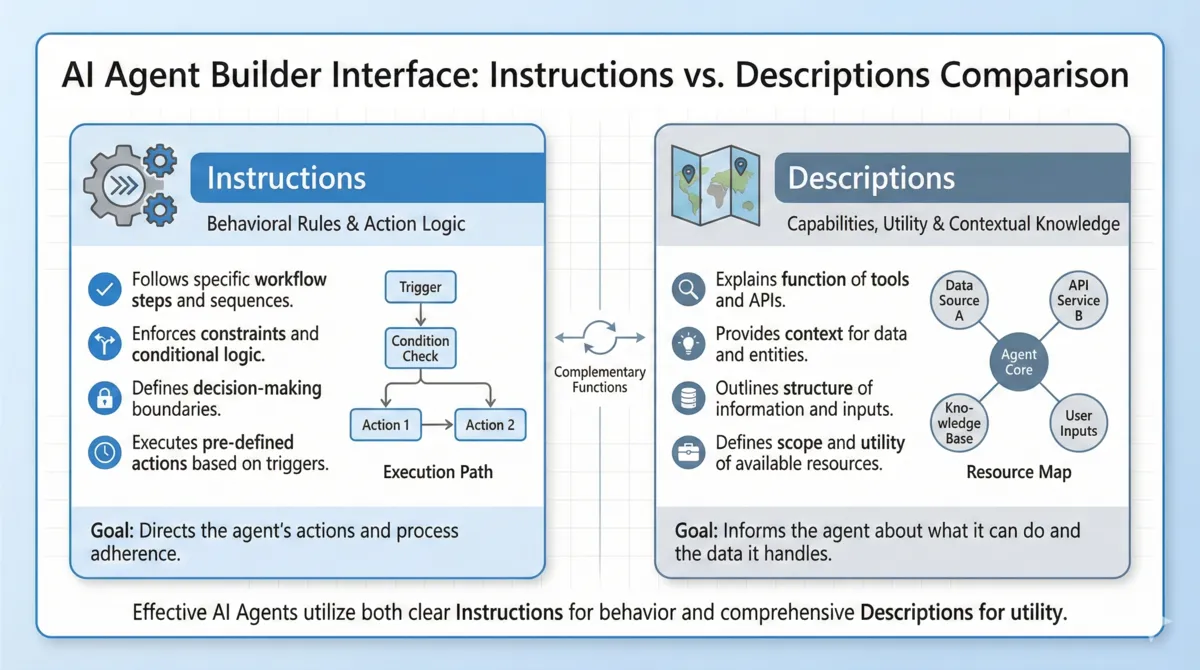 Figure 1: Instructions define behavior, while descriptions define utility and context.
Descriptions: The Utility Map
Descriptions define utility and context. They explain what a specific component is capable of, saving you from cramming all your logic into your instructions.
✅ What to Do: Define strict boundaries and formatting natively in the tool description. For example: “Collect the state as a two-digit uppercase code, and the zip code as a five-digit number.”
❌ What NOT to Do: Do not leave descriptions vague. If you have two similar tools (e.g., “Find Account” and “Get Account Details”), failing to explicitly define the difference in their descriptions will cause the AI to guess which one to use, leading to failed executions.
The “Developer Mindset” Trap & Instruction Anti-Patterns
The most common mistake makers commit in Copilot Studio is thinking like a traditional developer. Because developers are used to strict logic paths, they often write prompts that are too rigid.
Anti-Pattern 1: The “Kitchen Sink” Overview Instruction
Overview instructions are injected into the context window on every single turn of the conversation.
❌ What NOT to Do: Do not put all your guardrails, tool rules, and formatting logic into the global overview instructions. If you write massive paragraphs of restrictions globally, you dilute the AI’s focus and waste tokens on rules that don’t apply to the user’s current query.
✅ The Fix: Push instructions down the hierarchy. Use Child Agents (e.g., an “Account Agent” vs. a “Contact Agent”) and store domain-specific instructions inside those agents so they only trigger when relevant.
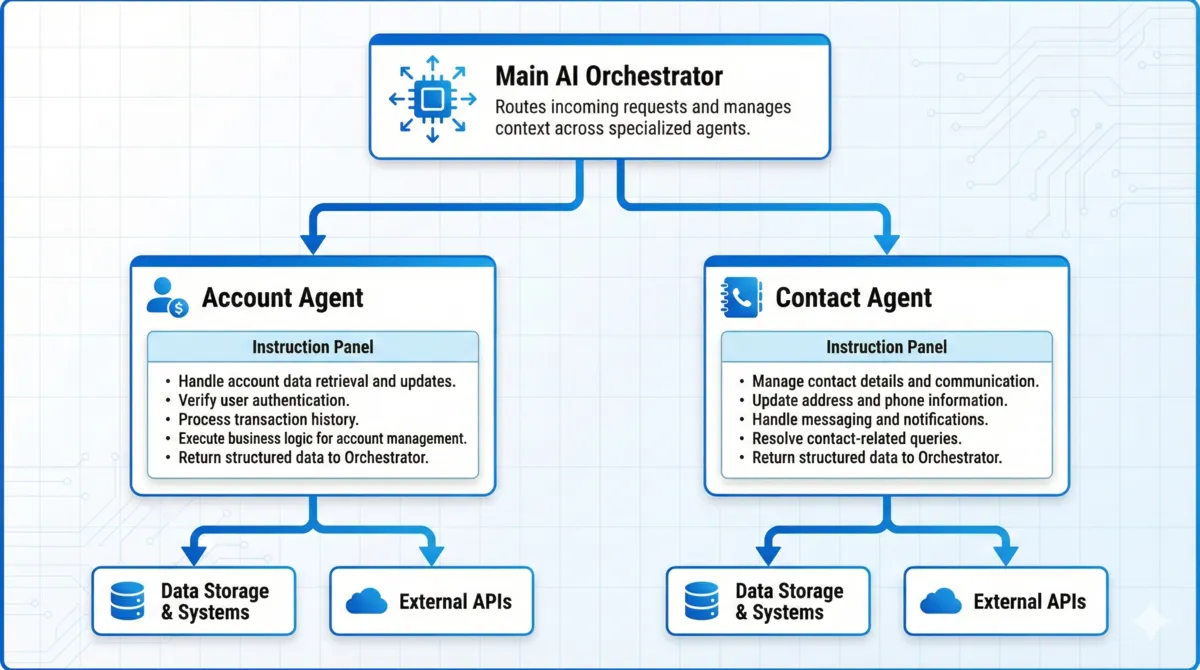 Figure 2: Pushing instructions down the hierarchy using specialized Child Agents.
Anti-Pattern 2: Preemptive “Do Nots” (Over-Instructing)
It is incredibly common for makers to write a massive list of things the agent should never do before they even test the baseline behavior.
❌ What NOT to Do: Do not tell the agent to avoid behaviors it isn’t even attempting. Providing too many negative constraints (“Never do X, Never do Y, Never do Z”) actually increases the likelihood of hallucination. You end up forcing the agent to process scenarios it would have naturally ignored, resulting in unclear goals and unexpected outputs.
✅ The Fix: The “Empty Instruction” Strategy. Start with completely empty instructions. Build your tools, write solid descriptions, and test the agent. Only add a targeted instruction or “nudge” if the agent actually makes a mistake during testing.
Architecting for Scale: Dynamic Chaining and Data Mapping
To keep your context windows clean, your tools must be modular. However, modular tools require perfect hand-offs.
Dynamic Chaining is the ability of Copilot Studio to take the output of one tool and seamlessly pass it as the input to another tool. For this to work flawlessly, you must avoid the naming anti-pattern.
❌ What NOT to Do: Do not use inconsistent variable names across your ecosystem. If Tool A outputs an “Account ID”, but Tool B’s description asks for a “Customer Number”, dynamic chaining will break. The AI will fail to connect the dots.
✅ The Fix: Be mathematically consistent with your terminology across all descriptions and instructions. If your backend database uses a confusing schema, map it directly in the description using synonyms: “The account name, also known as the parent customer ID.”
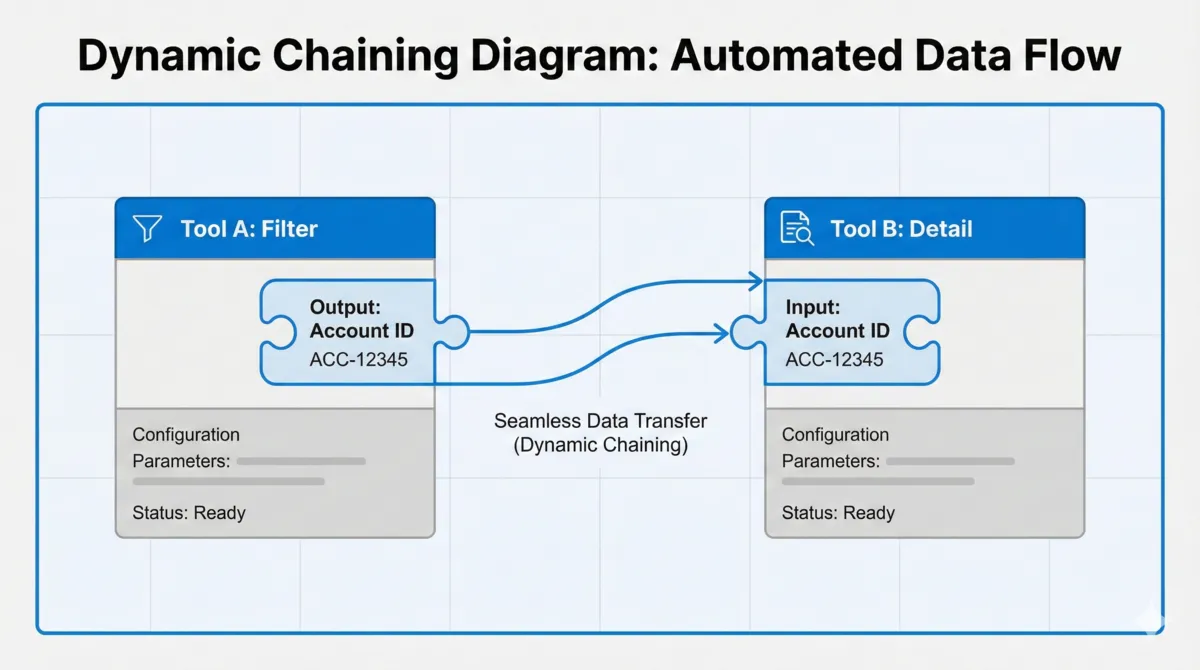 Figure 3: Dynamic Chaining maps tool outputs seamlessly as inputs to downstream components.
Solving Prompt Overload
Large Language Models have limits.
❌ What NOT to Do: Never build a single tool that dumps a massive array of database records directly into the LLM for sorting. You will overload the prompt window.
✅ The Fix: Use modular tools. Build one tool to filter (e.g., “Find Accounts in Texas” returns just IDs) and a second tool to fetch specifics. Copilot Studio will dynamically chain these, looping through the IDs behind the scenes and serializing the final data into one clean chat response.
Debugging with “Show Rationale”
When tuning your instructions and descriptions to fix these anti-patterns, you don’t have to guess what the AI is thinking.
Inside the Copilot Studio testing pane, click the checkmark next to an executed action and select Show Rationale. This debug view provides the exact reasoning the orchestrator used to select a specific child agent or tool, giving you immediate feedback on which descriptions are working and which instructions are causing confusion.
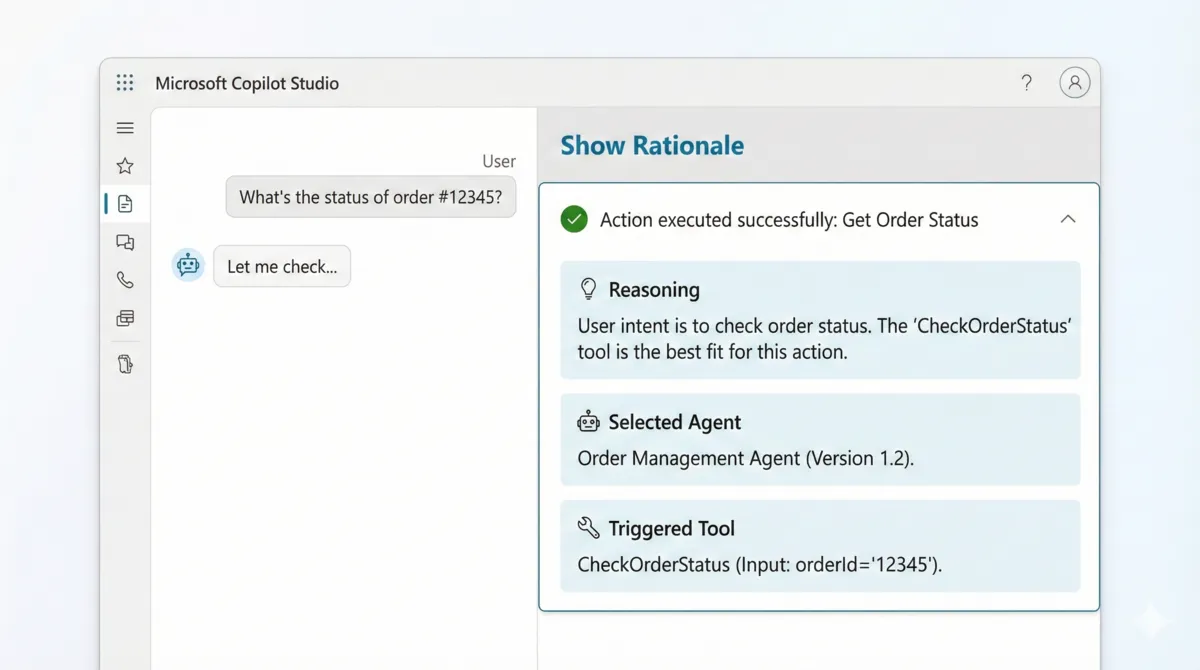 Figure 4: Using “Show Rationale” to dive into Copilot Studio’s AI orchestrator trace.
Read next