How to Call an Uploaded File in Copilot Studio from a Prompt

Writer
Quiz available
Take a quick quiz for this article.

With the introduction of new capabilities in Microsoft Copilot Studio, you can now allow users to upload files directly into your agent experience. But how do you actually take that uploaded file and pass it into a prompt for processing?
Whether you want to summarize a PDF or extract data from a document, you need to seamlessly pass the uploaded file data into a prompt tool. In this post, we’ll dive deep into exactly how to call an uploaded file from a prompt and explore a few crucial configuration tricks you won’t want to miss.
The Core Concept: While Copilot Studio agents can accept file uploads, knowing how to explicitly reference the file’s content in a Power Fx formula and pass it as an input to a prompt enables far richer custom handling like custom summarization, data extraction, and more.
🛠️ Structuring the Prompt
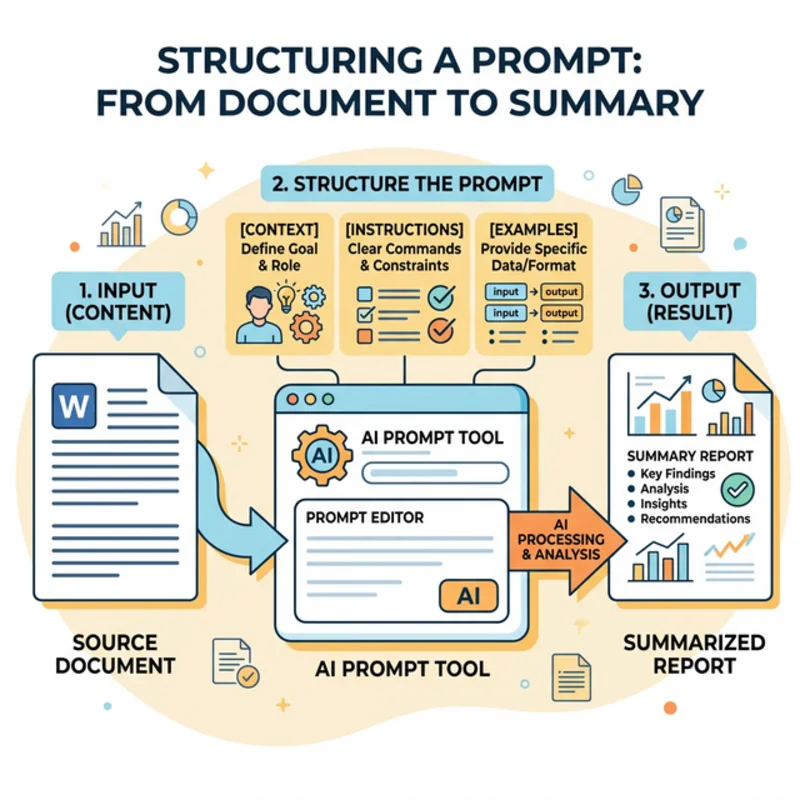
To process documents effectively, we use Prompts as tools. In Copilot Studio, creating a prompt is straightforward: click Add Tool and select Prompt. Let’s say we build a simple “Process Document” prompt designed to summarize the provided file.
While Copilot Studio can use a model like GPT-4 to do automatic summarization when a file is uploaded, building a dedicated prompt allows us to customize instructions—for example, doing data extraction from Excel files instead of just summarizing.
Tip: Controlling the Orchestrator
When configuring your prompt tool, you have the option to dictate how it is triggered. A great practice for document processing prompts.
Configure the prompt to only be referenced when you explicitly go through a topic. This tells the Copilot orchestrator: “I don’t want you to be in control of this.” Instead, it will only trigger when you specifically call the tool from your conversational logic, giving you complete control over the workflow.
📊 Handling Excel Files and the Code Interpreter
It’s common to want to extract data from an Excel file, but there’s a catch: natively, Large Language Models do not support Excel file formats directly. So, if you just pass an .xlsx file to your prompt, it won’t be able to decipher it.
The Solution: You need to give the prompt instructions to convert the Excel file into a CSV format, which LLMs can easily parse.
But for the prompt to perform this, it needs the capability to run that transformation.
Enabling Code Interpreter
To allow this conversion (along with other complex operations like generating code, writing into Dataverse tables, or calculating values), you must enable the Code Interpreter.
- Navigate to your Agent’s Settings.
- Locate and enable the Code Interpreter feature.
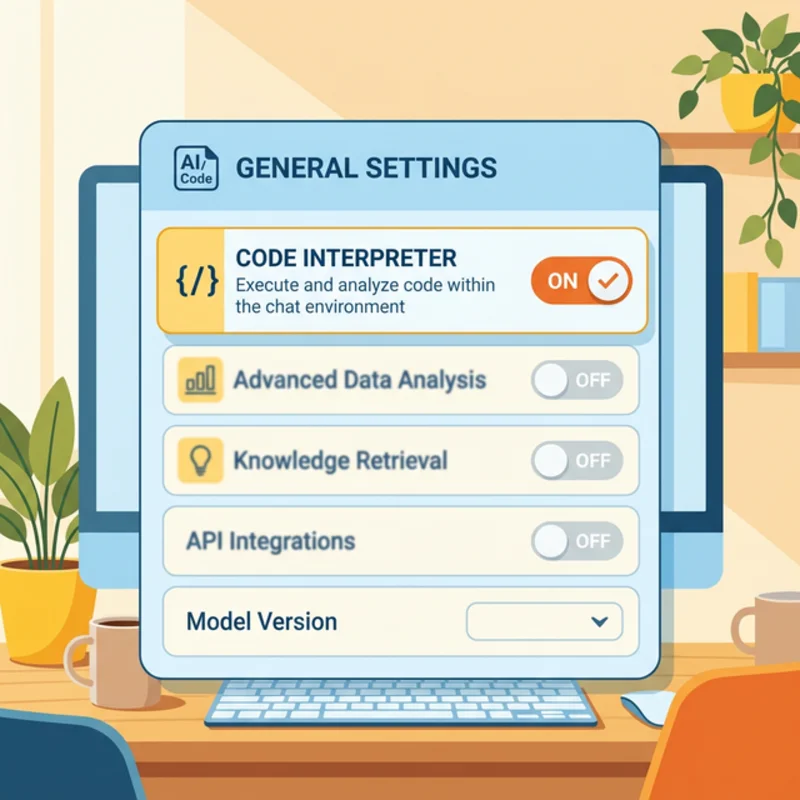
By enabling the Code Interpreter, Copilot Studio is granted the computational environment necessary to mutate file formats from Excel to CSV before passing the text representation to the underlying LLM.

🪝 Capturing the Uploaded File
How do you get the document from the chat interface into the prompt’s input? When setting up your prompt inputs, you can select Add Content and choose Image or Document. But you have to pass the correct variable.
When a user uploads a file, Copilot Studio stores it within the system activity. Here is the magic formula to grab that file using Power Fx:
Because users might continue uploading multiple files as they interact with your agent, you need to isolate the specific file you want to process. If you want to grab the most recently uploaded file, wrap it in a Last() function:
(Note: Depending on your logic, you might use First() or other array functions to get the specific file you need from the attachments collection).
By passing this formula into the document input on your prompt tool, Copilot Studio will dynamically inject the file content and execute your prompt instructions against it.
🛑 Pro-Tip: Custom Error Handling for Missing Files
What happens if a user types “Summarize this file” but forgets to actually attach a document?
By default, Copilot Studio doesn’t elegantly prompt the user to attach the file unless you configure it to. If you don’t build error handling, the prompt might just fail or give a confusing response.
To build a robust agent, you should add explicit error-handling logic:
- Check the Error Response: Set up a condition to evaluate the error message string returned by the prompt failure.
- Handle the Text: If the error message string contains the expected failure text (as provided by the model when no file is present), intercept the flow.
- Notify the User: Output a message explicitly telling the user: “Please ensure that you upload the file directly with your request.”
- End the Topic: Conclude the topic gracefully so the user can try again with the attachment.
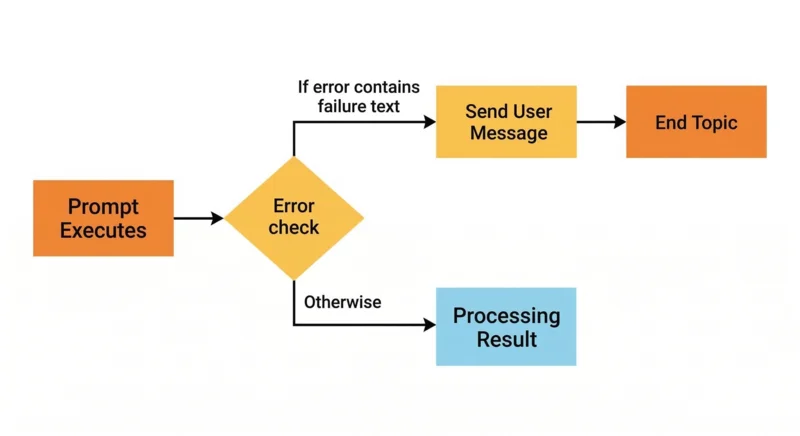
Always implement custom error handling when expecting user attachments. Intercepting the error string ensures your users get actionable guidance instead of a broken conversational loop.
By mastering the combination of Prompts, the Code Interpreter, the System.Activity.Attachments.Content variable, and custom error handling, you can easily build incredibly powerful file-processing workflows in Microsoft Copilot Studio.
Read next
Related articles

Mastering System.Activity in Microsoft Copilot Studio: Telemetry, File Uploads, and Context

Bypassing Limitations: How to Build Custom RAG Knowledge in Microsoft Copilot Studio