Copilot in Excel Beyond the Prompt: Preferences, Workbook Rules, Skills, and Connected Data

Writer

The frustrating part of using AI in a spreadsheet is often not the first answer. It is the fifth correction: use meaningful field names, preserve the source sheet, calculate the percentage against the right total, and stop changing the formatting.
A longer prompt can help. But repeating the same instructions every month is a poor operating model.
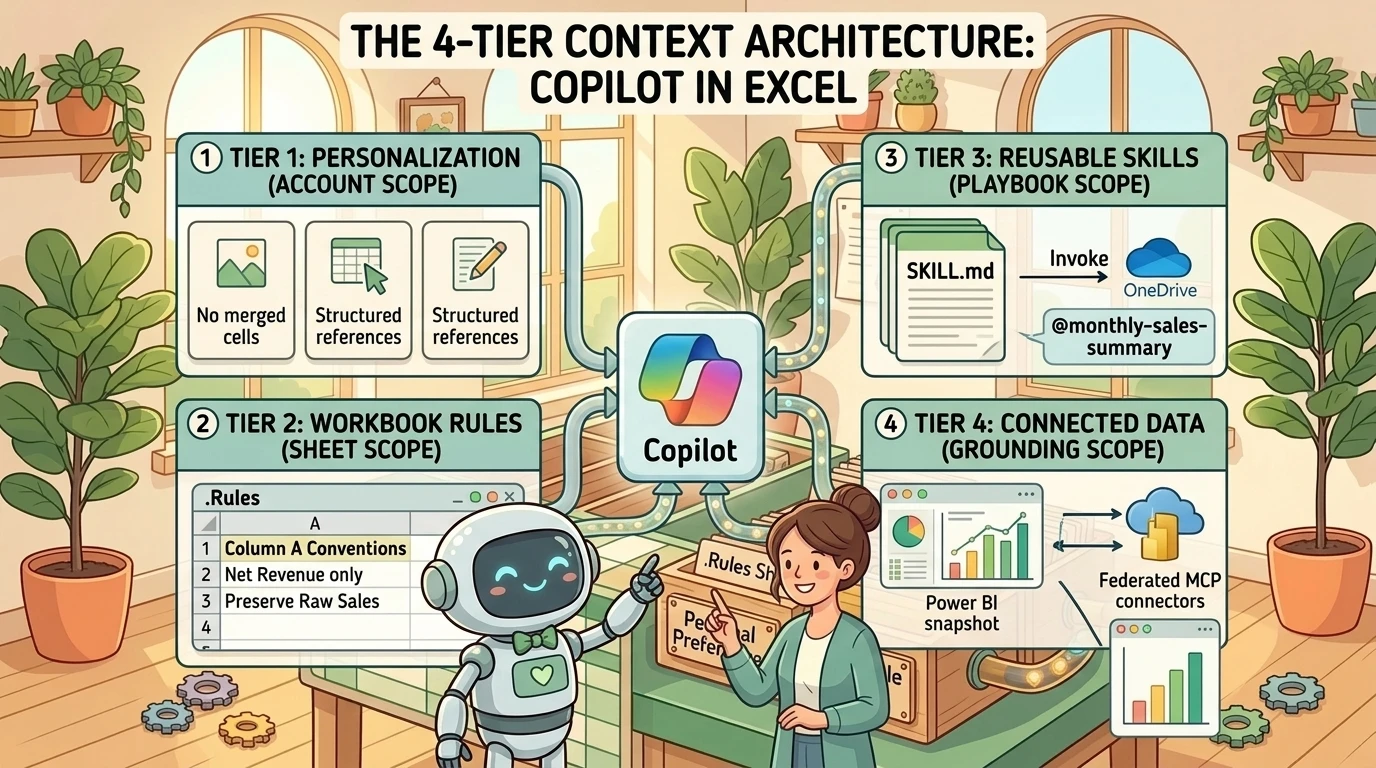
Copilot in Excel now provides several ways to separate enduring context from the immediate request: account-level personalization, workbook-specific rules, reusable skills, and additional data sources. Together with chat, planning, and editing modes, these capabilities offer a more structured way to build and review spreadsheet work. Microsoft documents these features in its getting-started guide and customization guidance.
The useful question is no longer simply, “What should I type?” It is: Which instructions belong to me, which belong to this workbook, which describe a repeatable process, and which sources should inform the result?
A mental model: working style, file conventions, and a playbook
Think of Copilot as a colleague helping prepare a recurring report. That colleague needs three different kinds of guidance:
| Layer | Question it answers | Where it belongs |
|---|---|---|
| Personalization | How do I prefer to work? | Your signed-in account |
| Workbook rules | What conventions apply to this file? | A visible .Rules worksheet |
| Skills | How should this recurring task be performed? | A reusable skill, with custom skills stored in OneDrive |
These scopes are documented separately in Microsoft’s guidance on personalization, workbook rules, and skills.
The analogy has a limit. A written playbook can improve consistency, but it does not make an AI system deterministic or guarantee correct calculations. Microsoft explicitly warns that Copilot can misinterpret information and produce inaccurate results, and that workbook-rule behavior can vary across models and over time. See the Excel FAQ and rules documentation.
Use these layers to reduce repeated explanation, not to eliminate review.
First, choose whether Copilot should answer, plan, or edit
Before configuring reusable instructions, establish what Copilot is allowed to do in the current interaction.
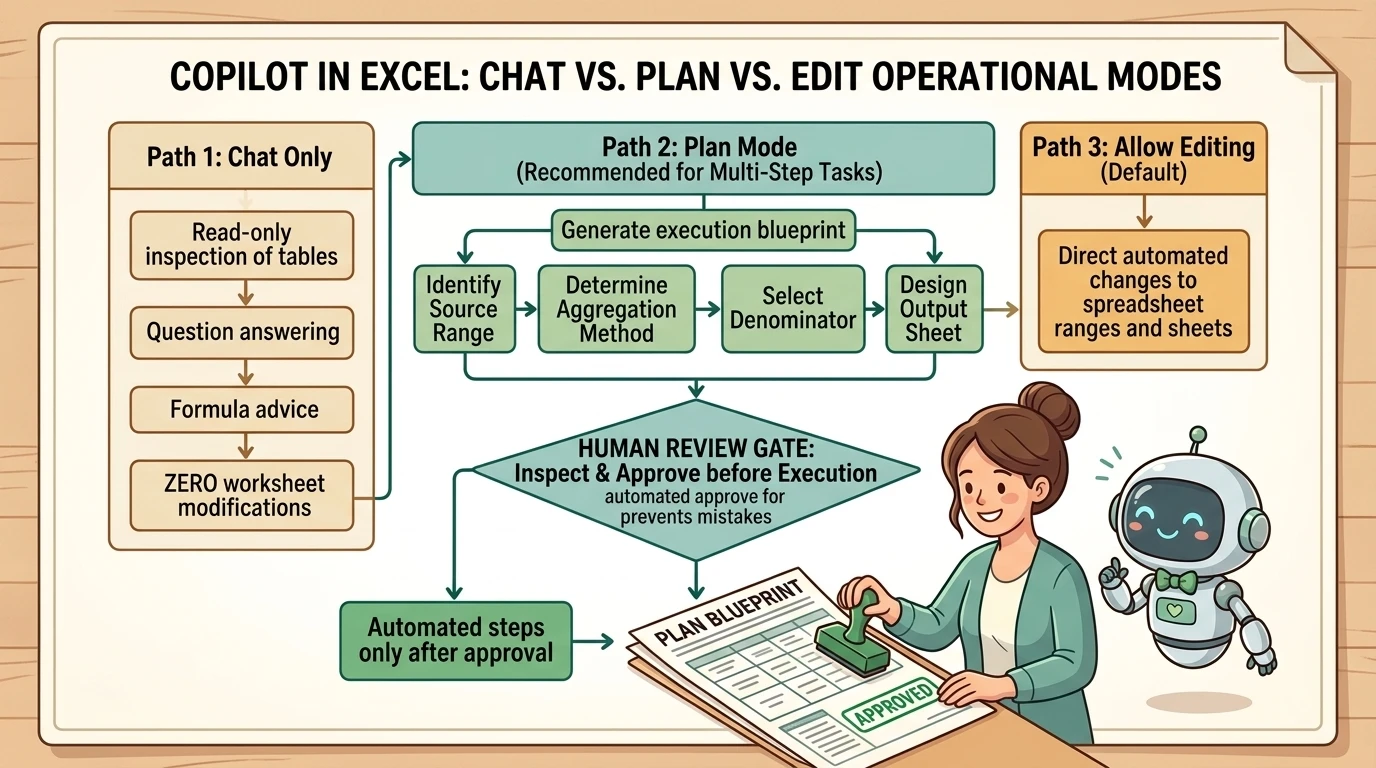
Microsoft documents three modes on Excel for Windows, Mac, and the web:
- Chat only: Analyze workbook data and answer questions without changing the workbook.
- Plan: Propose a structured approach for review and confirmation before execution.
- Allow editing: Make changes directly, including multi-step tasks such as reshaping data, merging sheets, and building reports.
Copilot opens in editing mode by default. These distinctions matter more than the wording of a prompt: a request for a report can mean a discussion in chat or actual changes to cells and worksheets. See Get started with Copilot in Excel.
For a substantial change, my recommendation is to start in Plan mode. An illustrative request might be:
Plan a monthly revenue summary by region. Identify the source range, the aggregation method, the percentage denominator, and the output worksheet. Explain how you will handle missing regions and an existing summary sheet before making changes.
This is a suggested review pattern, not a claim that every generated plan will automatically cover those points. Inspect the plan and resolve omissions before approving it.
The button moved, but the important controls are in the pane
The Dynamic Action Button, or DAB, provides the corner entry point into Copilot. Right-click it and choose Dock to tuck it to the side, or Move to ribbon to keep the workbook canvas clear. Docking lasts for the working session; the ribbon preference is remembered across sessions on supported Windows and Mac builds, while the web preference currently applies to the session. Microsoft lists the supported builds in its DAB documentation.
Model selection is also session-scoped. Auto lets Copilot choose a model; an explicit selection returns to the default when the session ends. The model switcher requires an eligible commercial Copilot or Microsoft 365 Premium subscription, and enterprise access to Anthropic models requires administrator enablement. Avoid building a workflow around a particular model name without checking the current options. See Copilot in Excel tips and the model-selection FAQ.
Local storage is not offline AI
Local-file support removes a practical obstacle: a workbook does not necessarily need to be moved to OneDrive or SharePoint before using Copilot. A documented desktop walkthrough demonstrates editing a local workbook, and Microsoft’s current getting-started guide also lists importing data from workbooks on your computer.
Do not confuse the file’s storage location with the AI service’s processing location. Local-file support is not a promise of offline or device-only inference. Microsoft’s FAQ still identifies network, application-version, licensing, and privacy requirements. Its tips page confirms that AutoSave can be enabled or disabled; the FAQ separately requires Automatic calculation for Copilot editing.
Personalization: stop repeating your working preferences
Personalization is the right home for preferences that should follow you from workbook to workbook.
Open the Copilot pane, select Settings (…) → Personalization, enter short, specific preferences, and select Save. They take effect on the next prompt and apply across Excel sessions and devices signed in to that account. They are not stored in the workbook or shared with its recipients. A specific instruction in a prompt supersedes a saved preference. See Personalize Copilot in Excel.
Good candidates are recurring presentation and working-style choices. For example:
- Avoid merged cells in report layouts.
- Use descriptive PivotTable value-field names.
- Prefer structured references when creating formulas.
- Start explanations with a concise summary.
- Apply currency formatting only to columns that represent monetary amounts.
These are illustrative preferences, not universal spreadsheet standards. “Make it look professional” leaves too much undefined. “Use descriptive field names instead of default aggregation labels” gives Copilot a concrete target.
A useful starting exercise is to identify the last three corrections you repeatedly made. Save the ones that describe your general working style. Keep file-specific definitions out of this layer.
Workbook rules: put the file’s conventions inside the file
A workbook may have conventions that are irrelevant elsewhere: a particular revenue definition, a source sheet that should remain unchanged, or a required summary layout.
Workbook rules put that guidance in a dedicated worksheet that travels with the file. Microsoft documents four important requirements and limitations:
- Name the worksheet
.Rules. - Put rules in column A.
- Keep the worksheet visible. Copilot does not use hidden rules worksheets.
- Rules are only fully supported in English; other-language behavior is inconsistent.
Create the sheet manually, copy one from another workbook, ask Copilot to create it, or use Add work content → Create workbook rules for a starter template. See Create guidelines for a workbook with Copilot in Excel rules.
Write rules as a concise handover
For an illustrative sales workbook, individual cells in column A could contain:
- Revenue analysis uses the Net Revenue column, not Gross Revenue.
- Do not modify the Raw Sales worksheet.
- Regional revenue share uses total net revenue for the selected reporting period as its denominator.
- Put generated summaries on a separate worksheet.
- Flag missing region values rather than assigning them to a region.
Place one idea in each cell. For longer lists, heading cells such as ## DEFINITIONS and ## OUTPUT make the guidance easier to maintain. Microsoft recommends short, specific rules, concise examples, and workbook-focused content in its rules guidance.
A rule saying “do not modify this sheet” is guidance to Copilot, not a substitute for an independently configured protection mechanism. Treat the rules sheet as a documented convention, not an enforcement boundary.
The portability is useful: a colleague receives the rules with the workbook, without separate setup. Your private personalization does not travel with it. That is why shared calculation definitions belong in the workbook rather than only in one person’s preferences.
Rules can respond to workbook state
Rules do not have to be static text. Microsoft supports formulas in the rules sheet whose output changes with workbook state. A dropdown can select a concise executive view or a detailed working view; a formula can choose between forecast-only analysis and comparison with actuals. Copilot reads the recalculated formula output on the next prompt, rather than continuously rerunning the task. See formula-driven rules.
This is a useful distinction: dynamic guidance changes what the next request sees. It is not a background automation trigger.
Skills: turn a recurring request into a reusable process
Rules describe the workbook. A skill describes the task.
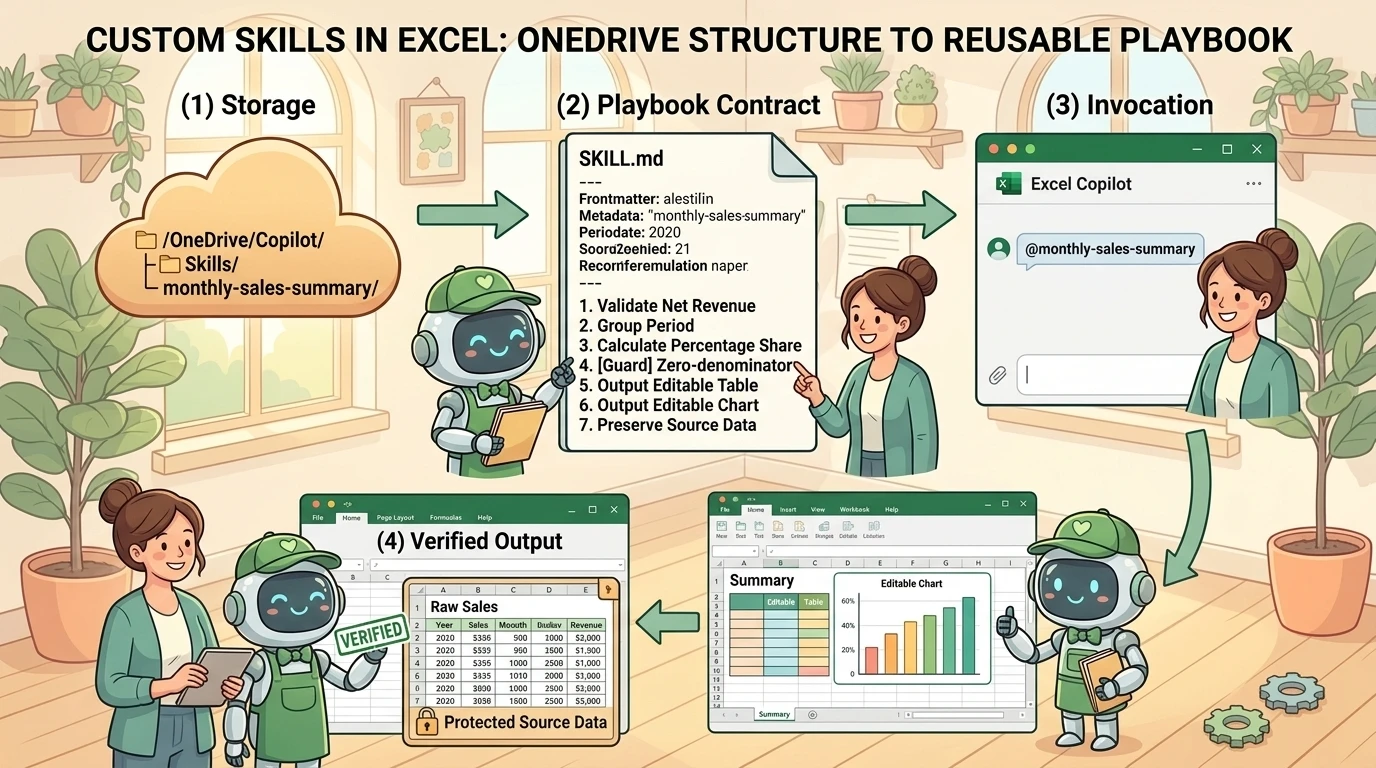
A monthly reporting skill can package the steps for grouping revenue, calculating regional shares, creating a table, and adding a chart. Instead of reconstructing a long prompt, you invoke the saved process and supply the current task context.
Use Add → Choose plugins and skills, or type an explicit @mention, such as @monthly-sales-summary. Manage automatic selection through Settings (…) → Manage plugins & skills. Turning a skill off prevents automatic use, but does not block an explicit @mention. Skills currently require the Microsoft Office display language to be English. See Use skills with Copilot in Excel.
Built-in skills: choose the right kind of help
Microsoft’s current catalog includes:
| Skill | Intended use |
|---|---|
@brandkit | Apply brand guidance, including styles and logos from a configured brand kit |
@theme-design | Apply a coordinated Excel theme across charts, tables, and cells |
@chart-design | Create or improve charts and their explanatory elements |
@clean-data | Identify data-quality issues and propose corrections for review |
@skill-builder | Capture a recurring workflow as a custom skill |
The documented theme skill is @theme-design, with a hyphen. Brand-kit use depends on the relevant kit being created and available; it is not automatic discovery of an organization’s approved identity. Microsoft also flags brandkit, theme-design, clean-data, and skill-builder as rolling out to production and potentially unavailable to some customers. See the built-in skills catalog.
The catalog also includes finance-oriented skills such as 3-statements, which completes an existing three-statement model template, and comps-analysis, which creates comparable-company analyses. Their presence does not validate a financial methodology or replace professional review. The catalog defines their scope, while the FAQ warns against relying on AI-generated output for sensitive decisions.
Python-related skill options may appear in some experiences, but the public catalog reviewed for this article does not establish the source demonstration’s specific “Python skills” menu as a generally available capability. Do not assume that menu will exist. More broadly, Microsoft states that skills do not introduce a new code-execution mechanism or capabilities beyond Copilot’s authorized tools. See the skills security FAQ.
Create a custom skill without building an application
A basic custom skill can consist of written instructions. The manual setup documented by Microsoft is:
- Open Settings (…) → Manage plugins & skills.
- Select Custom skills → Create OneDrive folder.
- Select Open skills folder.
- Create an individual subfolder for the skill.
- Place a
SKILL.mdfile in that subfolder. - Ensure the folder name matches the skill name declared in the file.
- Select Refresh after adding or renaming it.
The file requires a frontmatter section containing its name and a description of when to use it, followed by a Markdown body containing the task instructions. Use the documented filename SKILL.md rather than relying on the lowercase spelling shown in some demonstrations. Microsoft provides the complete format and example in its custom-skill documentation.
Where available, @skill-builder offers a simpler route: describe the workflow, preview and refine the generated skill, and approve saving it to OneDrive. This capability remains subject to the rollout caveat in the built-in catalog.
Example: a monthly sales-summary playbook
For an illustrative skill named monthly-sales-summary, the body could specify:
- Identify the sales table and confirm the reporting period.
- Check that Region and Net Revenue are present; ask for clarification if they are not.
- Group net revenue by region for the selected period.
- Calculate each region’s share of that period’s total, and flag a zero denominator rather than producing a misleading percentage.
- Create a separate summary worksheet containing an editable table and chart.
- Preserve source data and ask before replacing an existing summary.
- Report exclusions, assumptions, and reconciliation differences.
A corresponding illustrative prompt is:
@monthly-sales-summary Build the summary for the selected reporting month from the Sales table. Create the output on a new worksheet and preserve the source data.
The skill saves the process, not the result. Reusing it gives Copilot the same written guidance, but different data, ambiguous inputs, and model behavior can still produce different outcomes. Test it on a copy before making it part of a recurring reporting routine.
Connected data: extend the context without confusing the source types
A workbook rarely contains everything needed to explain its numbers. Copilot can use web information, work content, Power BI reports, and external connector content, but these routes have different access and freshness characteristics.
The current English documentation uses Add → Change data sources to enable or disable sources. Other documented interfaces use Select sources, so labels can differ. See Excel data sources and the alternate regional documentation.
Web and work content
Web search grounds responses in retrieved pages and includes citations. Administrators can control its availability.
Work search is available with an eligible commercial Copilot subscription and can retrieve work documents and conversations. Microsoft documents explicit approval of the specific work sources used; approvals and denials apply to the current chat and reset in a new conversation. See Copilot in Excel data sources.
Work grounding respects existing access permissions, as described in Microsoft’s data and privacy guidance. Still, permission to read a source is not the same as a decision to include its contents in a broadly shared workbook. Review the selected context with the destination audience in mind.
Power BI: attach a report, not an assumed live connection
To add Power BI context, Microsoft documents Add → Add content → More → Power BI. Exit the automatically activated search view if necessary, then select a report. If the recent list is empty, search for a report you can access. Copilot can answer questions or insert editable tables, charts, and other Excel elements. See Analyze Power BI reports with Copilot in Excel.
The important correction is about freshness:
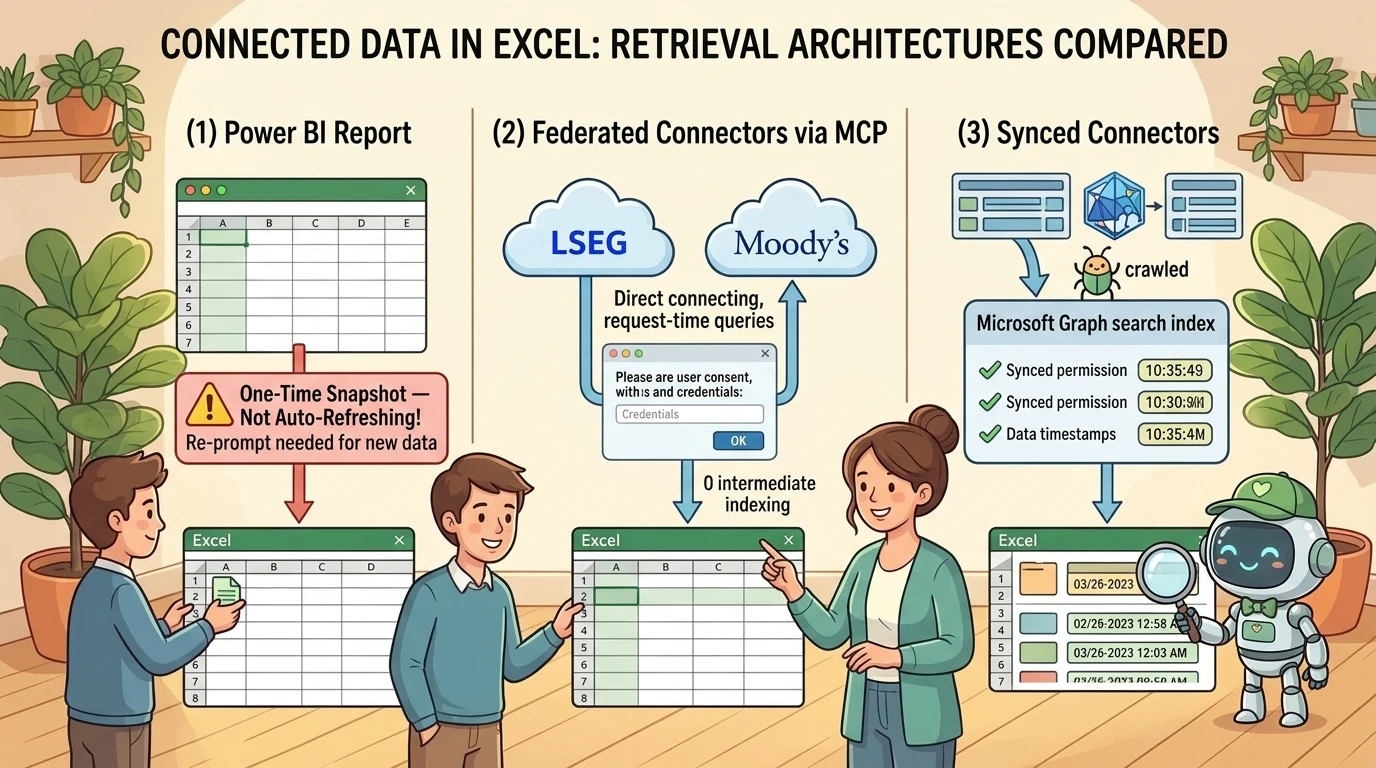
Attaching a Power BI report imports a one-time snapshot. The resulting Excel content does not remain connected for automatic refresh. Attach the report again and submit a new prompt to reflect newer data.
That behavior is explicitly documented in the Excel Power BI guide. The attachment picker is described in terms of reports, not a general semantic-model or dataset picker.
Power BI availability depends on the Fabric data in Microsoft Copilot setting. Administrators can allow no users, all users, or specific groups; a separate Fabric metadata-sharing setting supports discovery and recent-item visibility. See Use Power BI data in Microsoft Copilot.
The underlying Power BI answering experience respects existing permissions, including row-level security (RLS) and object-level security (OLS). Its answers are also bounded by the semantic model’s last successful refresh. These details are documented for Fabric IQ in Microsoft 365 Copilot Chat; they should not be mistaken for a promise that an Excel snapshot will subsequently refresh itself.
Federated and synced connectors are different retrieval models
Federated connectors retrieve information from the external service at request time without first indexing its content into Microsoft 365. They use Model Context Protocol (MCP), a protocol for connecting AI experiences to external tools and context. Examples in Excel’s documented catalog include LSEG and Moody’s. Access uses the user’s credentials and source permissions, requires consent before data is sent to the service, and is subject to administrator controls. See Excel data sources and the connector overview.
Synced connectors crawl and index external content into Microsoft Graph for search and Copilot. Tenant-configured connections are administered centrally; self-serve variants are enabled by administrators and authenticated by individual users. Indexed items include access controls, and synchronization updates the index as source content changes. See Copilot connectors overview.
The practical distinction is straightforward: federated retrieval asks the source now; synced retrieval searches an index maintained from that source. Neither description, by itself, promises a continuously refreshing table in your workbook. Third-party providers may also require their own subscriptions, as Microsoft’s June 2026 announcement notes.
Make the workflow repeatable, then make the result defensible
The easiest mistake is to treat a polished table as evidence of a correct analysis. Microsoft explicitly requires users to review, edit, and verify generated formulas, tables, and insights before relying on them. See the Excel FAQ.
For the illustrative monthly sales workflow, I recommend checking:
- Scope: Does the report include the intended period and source rows?
- Definitions: Did it use net revenue and the agreed treatment of missing regions?
- Reconciliation: Do regional totals reconcile to the selected source total?
- Percentages: Is the denominator correct, including zero-total cases?
- Formulas and charts: Do references cover the intended ranges, and do chart labels match the data?
- Freshness: Does externally sourced data represent the intended retrieval or refresh point?
- Preservation: Were source sheets and existing outputs handled as agreed?
These are suggested validation checks, not a claim that Copilot performs them reliably without oversight. Plan mode makes the intended approach reviewable; it does not certify the final result.
If features are missing, check the app version, signed-in account, license, tenant settings, and rollout status. For skills, check the Office display language as well. Microsoft’s FAQ and skills guide provide the relevant prerequisites. Microsoft’s June announcement described broad availability for several capabilities and a subsequent custom-skills rollout; the current support pages still carry individual rollout caveats. Do not read an earlier announcement as proof that every skill is present in every tenant today.
The real upgrade is putting context in the right place
A better prompt helps with one task. A better arrangement of context helps with the next task too.
Put personal working preferences in personalization. Put shared definitions and file conventions in .Rules. Put recurring steps in a skill. Select external sources deliberately, and distinguish a retrieved answer from a refreshable data connection.
Start with one important workbook and one recurring report. Document its conventions, review the proposed process, and validate the resulting numbers. The goal is not to remove spreadsheet judgment. It is to spend less time repeating instructions and more time checking the decisions that matter.
Read next