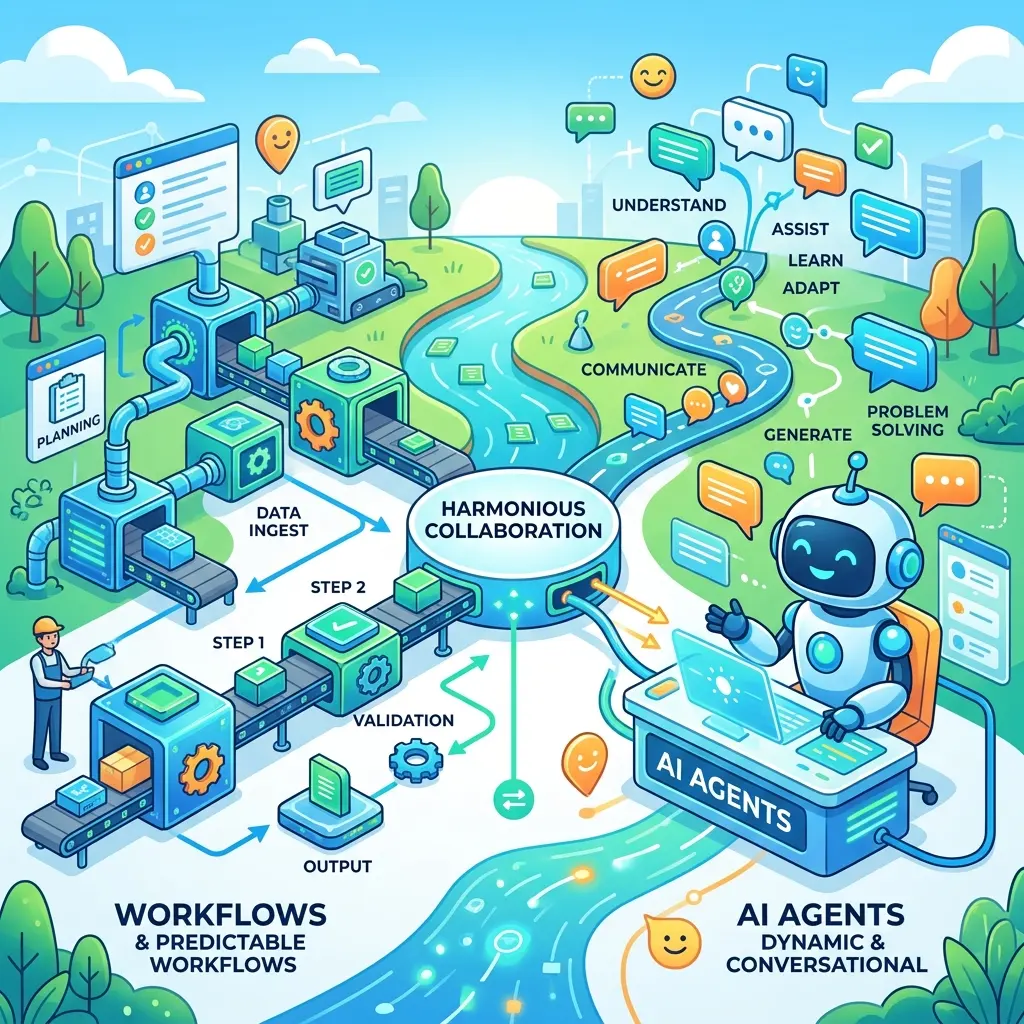
Deconstructing Copilot's Newest Tools: A Deep Dive into the App Builder and Workflows Agents

Writer
Quiz available
Take a quick quiz for this article.

Microsoft has officially rolled out two highly anticipated additions to the Microsoft 365 Copilot ecosystem: the App Builder Agent and the Workflows Agent. For developers and IT professionals familiar with Copilot Studio or the Power Platform, the introduction of these tools brings up an immediate question: Where do these fit into the architecture?
This post strips away the “shiny demo” veneer to deconstruct exactly what these agents do, how their underlying architecture operates, and the precise use cases they are built to serve.
1. Prerequisites and Deployment
Before diving into the architecture, it is important to clarify access. Both agents require a paid Microsoft 365 Copilot license. They are located in the Copilot interface under the All Agents > Built by Microsoft directory.
- Setup: Users must explicitly click “Add” to enable them. Once added, they can be pinned to the persistent side menu alongside the existing Researcher and Analyst agents for easy access.
- Governance: Just like custom agent creation, access to the App Builder and Workflows agents is fully controlled by your organization’s IT administrators.
2. The App Builder Agent: Lightweight UI Generation
The word “app” carries a lot of baggage. In the context of the App Builder Agent, we are not talking about enterprise-grade applications. If you need to connect to existing enterprise data sources, enforce complex permissions, and publish across multiple surfaces, you are looking for Power Apps and the wider Power Platform.
The App Builder Agent is defined purely for personal productivity. It allows individual information workers to use natural language to spin up a lightweight, personalized, interactive user interface (UI)—such as a form or a dashboard—to manage personal tasks like tracking a reading list or organizing a conference agenda. It is not for enterprise-wide deployment.
How It Works: Chain of Thought Reasoning
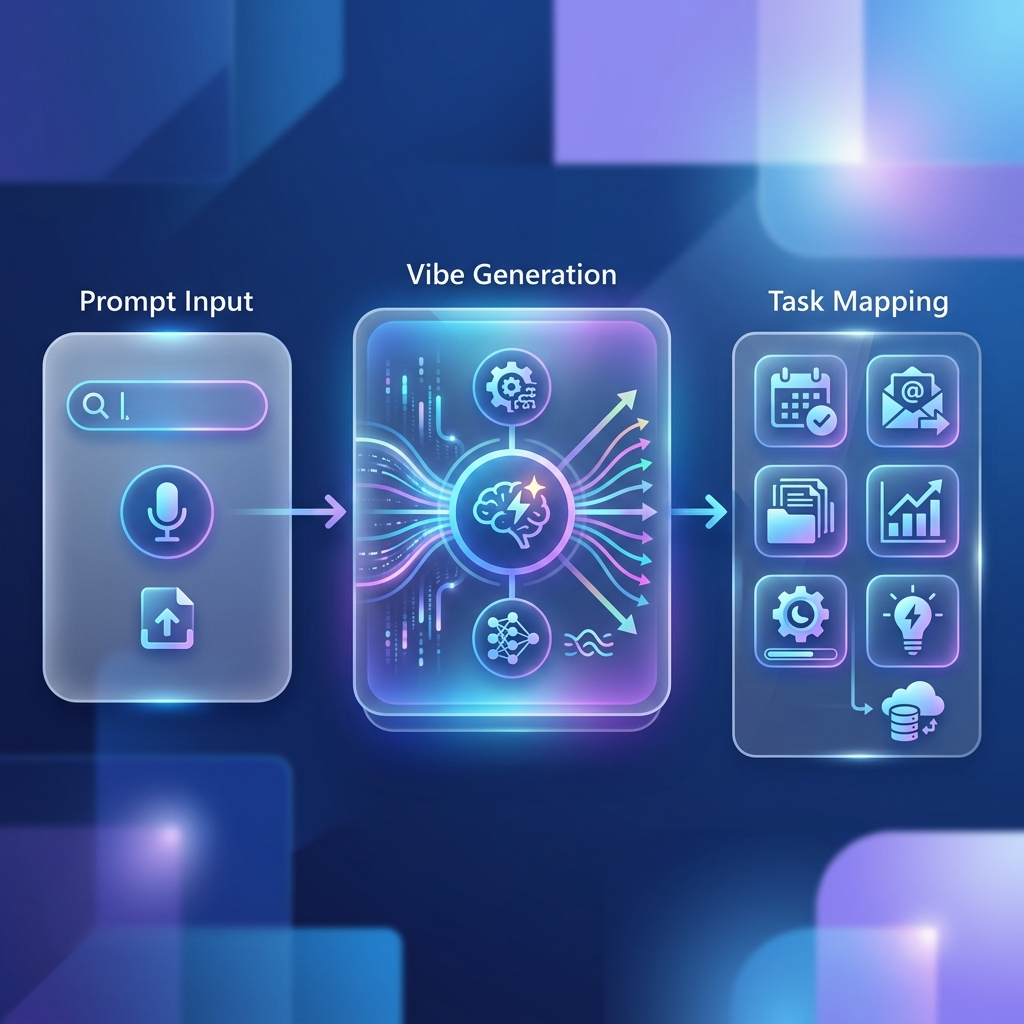
When a prompt is submitted, the App Builder utilizes “Chain of Thought” reasoning to generate the UI. It takes approximately 3 to 5 minutes to complete, and crucially, it can run in the background. It moves through a visible sequence:
- Vibe Generation: It dreams the “vibe” and determines the conceptual theme of the app based on your prompts.
- Task Mapping: It builds out a task list (often around 13 background tasks) required to execute the user’s vision, determining page layouts and defining data parameters.
Prompt Engineering: Tips and Tricks
To get the most out of the App Builder, strict prompt engineering is required to avoid frustrating roadblocks:
- Explicitly Name the App (Naming): Always declare the exact name of your app directly in your prompt (e.g., “The app should be called My Media Tracker”). If you don’t define it, the AI generates an automatic name that is notoriously very difficult to change later.
- Defer Visual Styling (Styling): Do not specify colors or visual themes in your initial prompt. Let the AI generate its default theme and layout first, then tweak the interface using follow-up natural language commands (e.g., “Change this to a light background”).
The Architectural Reality: The SharePoint Backend
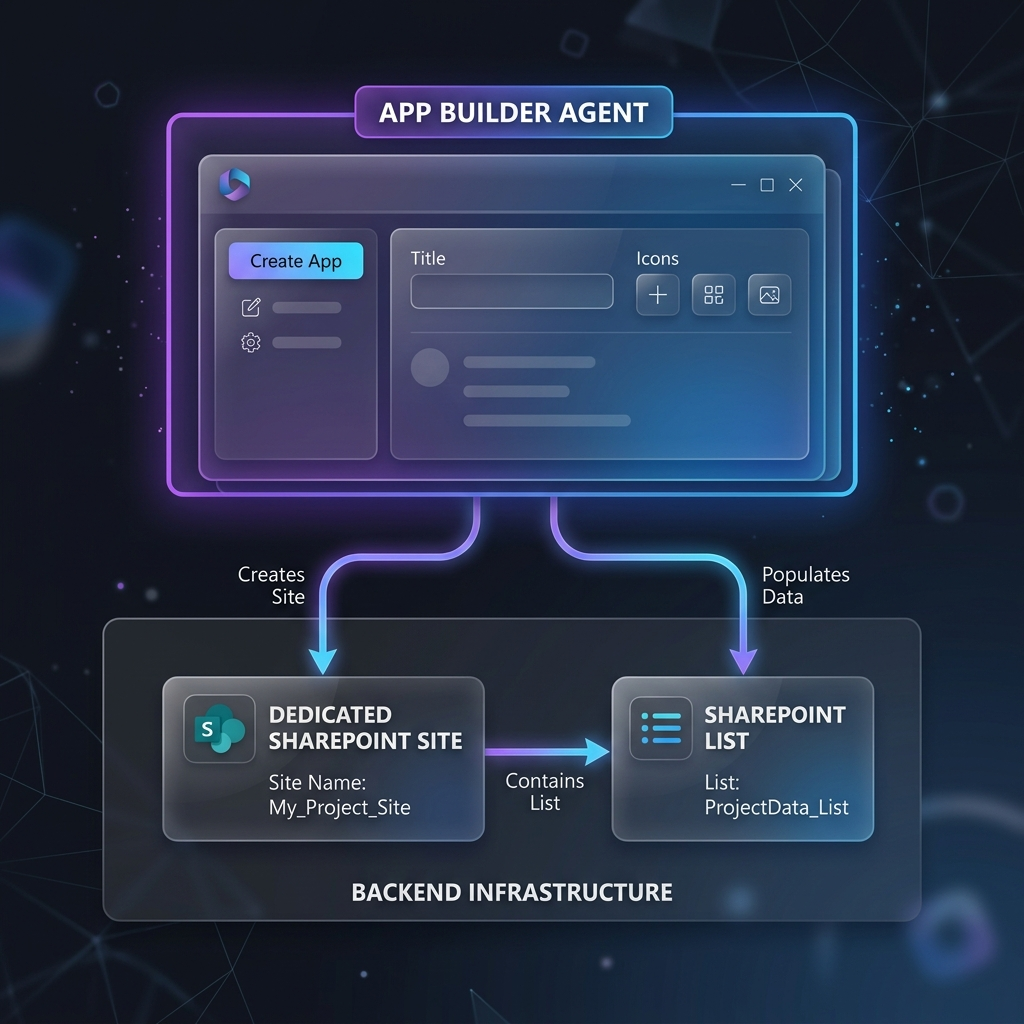
For IT administrators, this is the critical, undeniable takeaway: The App Builder Agent persists data by automatically creating a new SharePoint site and a new SharePoint list to store the app’s data.
- Data Limitations: You cannot connect this app to an existing SharePoint list, nor can you point it toward external or existing enterprise data sources. The database is strictly created at runtime by the agent entirely from scratch.
- UI and Data Handling: The agent will initially generate sample or demo data to demonstrate the UI (which users will need to delete before inputting real information). The UI also handles dynamic element updates—for example, it will dynamically update UI elements like tabs when a data row’s status changes (such as marking an item “Important”).
- The Implication: Because users can spin these up continuously for personal use, administrators need to be prepared for the background generation of these micro-SharePoint environments and have a targeted governance strategy to prevent SharePoint sprawl.
App Management & Navigational Quirks
Apps created by the App Builder live internally inside the App Builder Agent’s chat interface. This creates a specific navigational quirk: to exit an app and start a new one, you must click “New Chat”. This resets the agent context and begins a fresh build interface.
Additionally, whilst apps can be shared with colleagues via a link, it is important to note that they do not currently support co-authoring.
3. The Workflows Agent: Solving the Scheduling Gap
While the ability to build custom Copilot agents has been available, a glaring functional gap has remained for standalone agents: the lack of a built-in scheduling trigger. If a user built an inbox-management agent, they still had to manually prompt it every morning.
The Workflows Agent solves this exact issue. It allows users to schedule Copilot prompts to run on a regular, recurring basis (or based on triggers)—acting as a lightweight, natural-language automation layer for personal routines.
Constructing a High-Fidelity Workflow
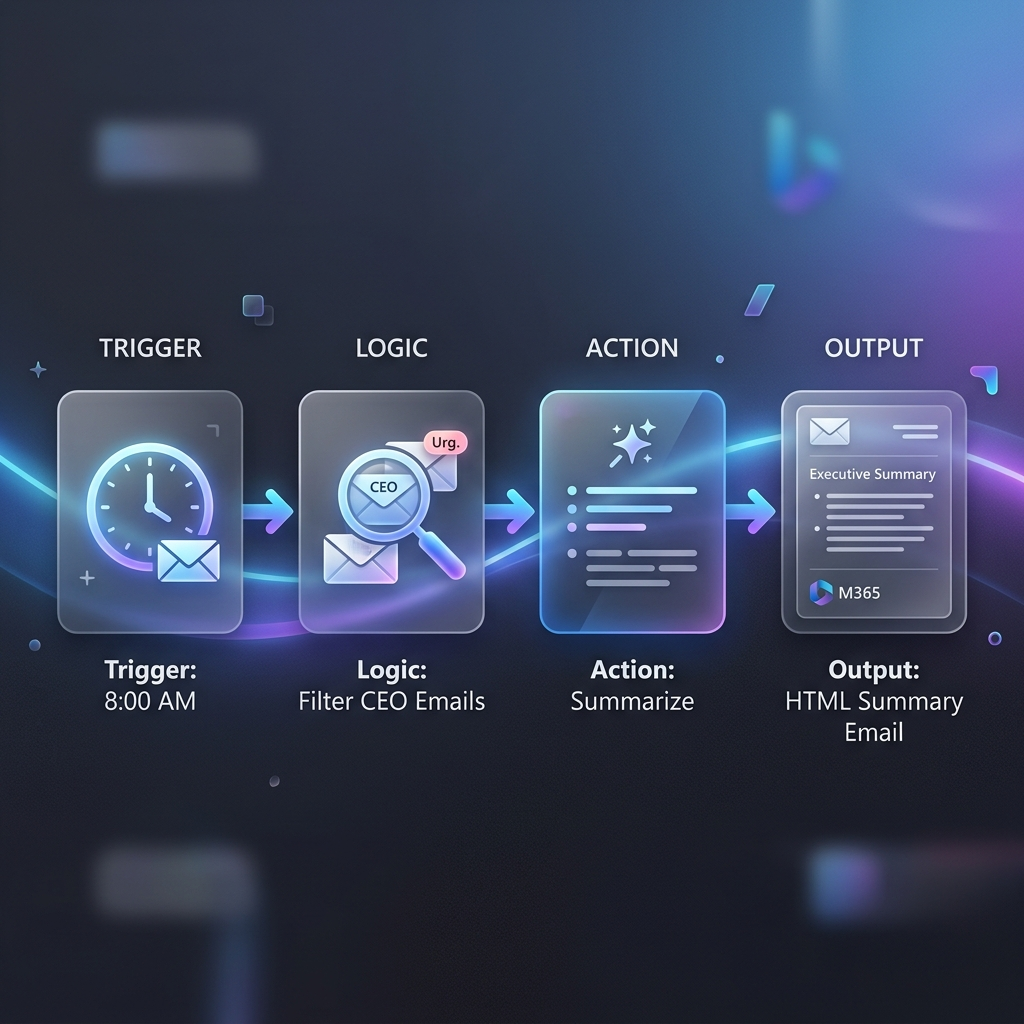
The top use case for the Workflows Agent natively is inbox management (for instance, receiving daily 8:00 AM summaries of unread emails). However, simply asking the agent to “summarize my emails at 8:00 AM” will yield generic results. To leverage this tool optimally, prompts must go beyond the basics:
- Define the Logic (Specificity): Instruct the agent exactly how to prioritize its execution rules.
- Example: “Prioritize emails from the CEO, manager, and key clients like Contoso.”
- Define the Output Format (Formatting): Explicitly dictate the exact format of the output payload.
- Example: “Send me a summary email in HTML format, listed by priority, with explicitly extracted due dates.”
Under the Hood Execution
When you finalize a workflow prompt, the agent establishes the necessary architectural connections. It requests the necessary permissions to required Microsoft 365 services (such as your Outlook inbox) and utilizes backend “AI Actions” to parse, evaluate, and generate the content pipeline seamlessly.
- Testing The Logic: Before relying entirely on their automated, recurring schedule, workflows can—and should—be run manually for immediate testing to ensure the formatting, priority tagging, and logic perform predictably.
Conclusion
Microsoft 365 Copilot is rapidly moving beyond single-turn text generation into persistent, structural productivity. The App Builder and Workflows agents represent a shift toward hyper-personalized, user-generated tooling. While they do not replace the robust, enterprise-wide capabilities of the Power Platform, they provide information workers with unprecedented power to architect their own daily efficiency.
Read next