Automating Content Governance: A Deep Dive into SharePoint Premium’s Classify & Extract

Writer
Quiz available
Take a quick quiz for this article.
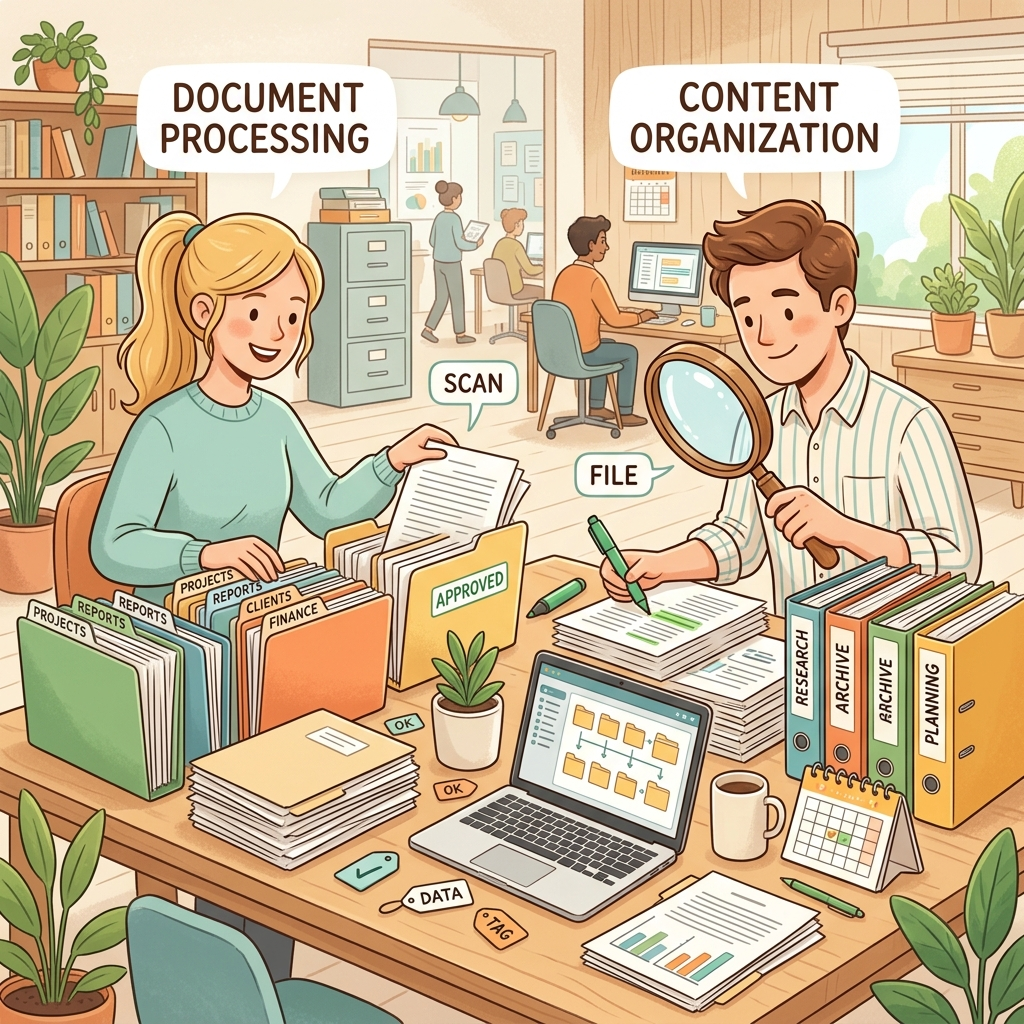
When managing massive Microsoft 365 environments—especially during complex cross-tenant migrations or when consolidating legacy data from on-premises file shares to SharePoint Online—information architecture often becomes a bottleneck. Moving thousands of files is only half the battle; ensuring that data is structured, searchable, and actionable is where the real challenge lies.
This is where SharePoint Premium (formerly known as Microsoft Syntex) becomes an essential architectural tool. Designed as an AI-powered content management and governance add-on, it automates the heaviest lifting in document processing.
While its feature breadth includes e-signatures, M365 backup, M365 archive, autofill columns, content assembly, image tagging, and translation, in this post we are going to dive deep into one of its most powerful capabilities: Classify and Extract.
Moving thousands of files is only half the battle; ensuring that data is structured, searchable, and actionable is where the real challenge lies.
What is Classify and Extract?
At its core, Classify and Extract allows administrators and users to automatically identify document types and pull key metadata directly from the file into SharePoint document library columns.
Whether you are dealing with highly structured vendor invoices or completely unstructured custom corporate documentation, this tool parses the file, extracts the relevant strings of text, and maps them to your SharePoint schema.

Data Handling & Columns
Extracting from both structured and unstructured documents, SharePoint Premium handles the extracted data elegantly and can output the data in two ways:
- The “Extracted Text” Column: An out-of-the-box column that acts as a catch-all, dumping the entirety of the text payload scraped from the document.
- Custom Mapped Columns: Specific data points (like “Invoice Total”, “Subtotal”, or “Client Name”) are pushed directly into dedicated custom-defined columns you define in the library.
Graceful Fallbacks: If a specific data point is missing from a document (e.g., an invoice with no subtotal), the model gracefully ignores it and skips that column without failing the rest of the extraction process.
Understanding the AI Models
To extract data, SharePoint Premium relies on AI models. Depending on your organization’s needs, you can choose between pre-built models or train your own custom models.
1. Pre-Built Models
If you are processing standardized business documents, Microsoft provides highly accurate, ready-to-use models out-of-the-box. These are ideal for:
- Invoices & Receipts: Automatically pulls line items, vendor details, descriptions, tax components, subtotals, and totals.
- Contracts: Extracts critical clauses, dates, and signees.
- Sensitive Information: Detects and extracts personally identifiable information (PII) for compliance and governance flagging.
2. Custom AI Models
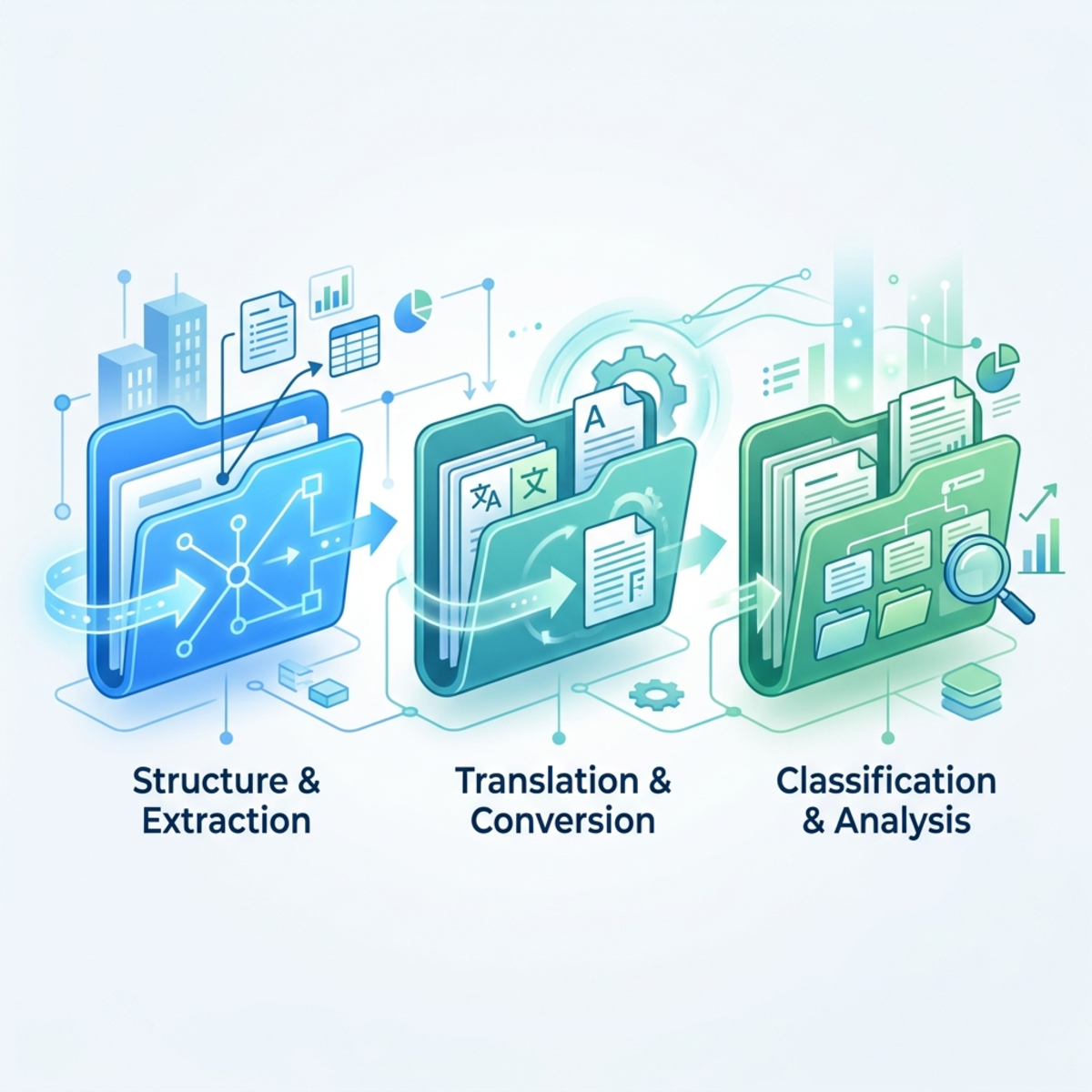
Every enterprise has custom, non-standard documentation—proprietary intake forms, highly specific architectural blueprints, or specialized HR documentation. For these organization-specific files, you can train Custom AI models. SharePoint Premium offers three distinct approaches:
| Model Type | Best For | Key Strength |
|---|---|---|
| Structured Extraction | Documents with similar layouts (PDF, PNG, JPEG). | Great for extracting embedded table data; boasts the widest language support. |
| Single Class | Classifying a single file type. | Extracts custom info from that one specific classification. |
| Free-form Extraction | Documents with wildly varying layouts. | Trained by selecting content anywhere in the file, regardless of where it lives on the page. |
Implementation Guide: Technical Prerequisites
Getting Classify and Extract up and running requires a few specific configuration steps, starting at the tenant level.
Step 1: Tenant-Level Enablement
- Navigate to the M365 Admin Center.
- Go to Settings -> Org settings.
- You must first enable Pay-as-you-go services. SharePoint Premium operates on a consumption-based model for these advanced AI features.
- Once billing is configured, enable the specific SharePoint Premium features (such as Autofill columns, e-signature, Image tagging, translation, and Classify & Extract) under the Admin Center Settings.
Step 2: Library-Level Execution
- Navigate to your target SharePoint Document Library (e.g., an “Invoices” library).
- For new setups, you will need to activate document classification at the specific site/document library level.
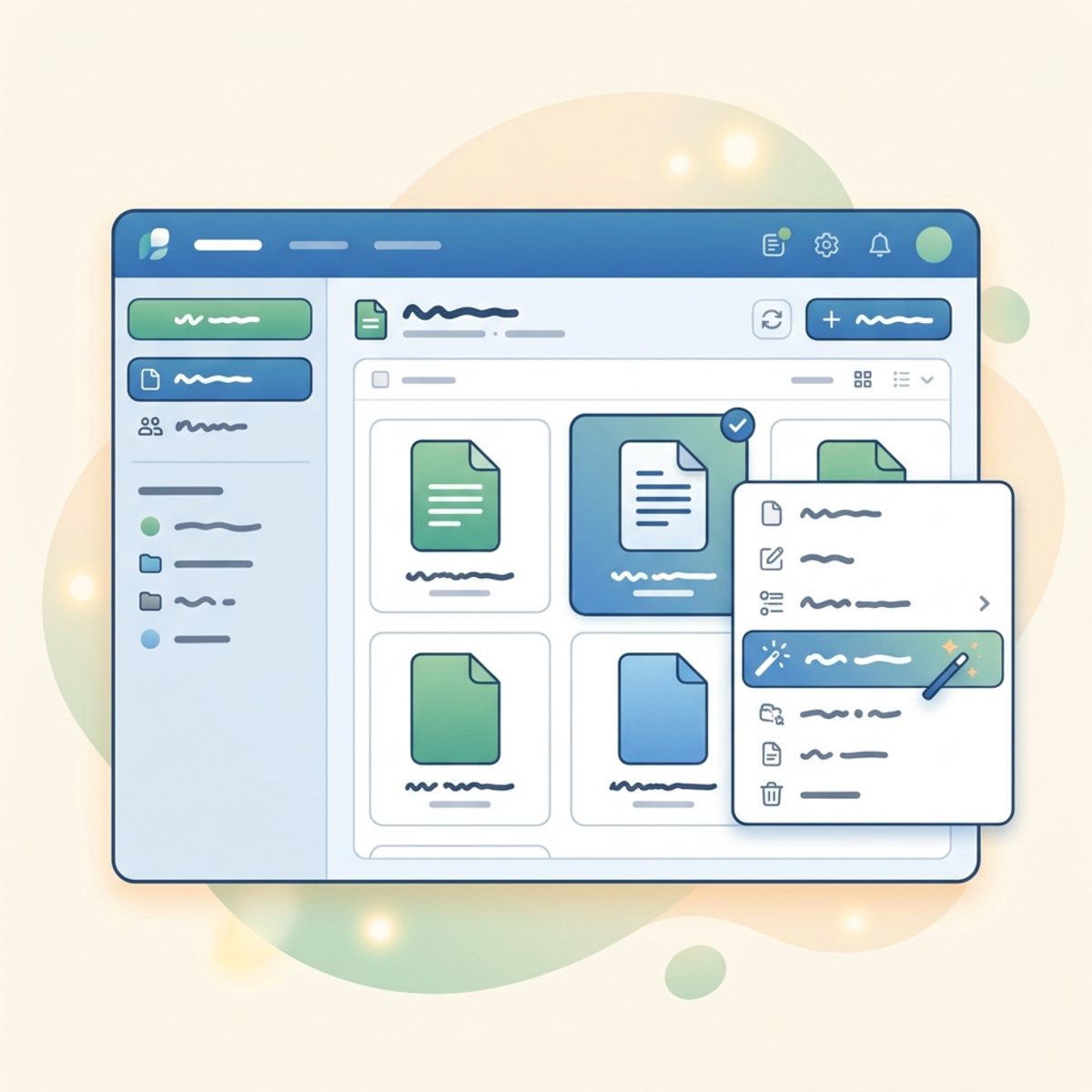
- Once active, it can be triggered manually for existing files via the UI (by selecting a file, clicking the three-dot menu, and clicking the “Classify and extract” button) or it runs automatically on newly uploaded files.
- You will be prompted to either Analyze with an existing model or Create a new model.
Step 3: Training a Custom Model
If you choose to build a custom model, preparation is key.
You will need to provide at least 5 to 6 sample documents of varying layouts representing different structural variations of your file to train effectively. Upload these into the training interface and manually map the data points (e.g., highlighting where the “Total Cost” is located across the different samples).
Operational Gotchas and Pro-Tips
Before rolling this out in a production environment, keep these technical nuances in mind:
Environment Provisioning / The Power Platform Tax: Creating a custom model for the first time can be slow because M365 provisions a default Power Platform environment in the background to handle the processing logic. Be patient during the first run.
Processing Latency: While single files process in seconds when manually triggering the extraction, large datasets can take up to 24 hours.
Automated vs. Manual Triggering: By default, once a model is applied to a library, it will automatically process newly uploaded files. For legacy files already resting in the library, you must manually trigger the classification via the UI.
SharePoint Premium’s Classify and Extract bridges the gap between unstructured file storage and highly structured, queryable data. By automating metadata tagging, you drastically reduce manual data entry and build a much more intelligent, governable M365 environment.
Read next