Architecting Intelligent Libraries: A Deep Dive into SharePoint & OneDrive AI Actions

Writer
Quiz available
Take a quick quiz for this article.

Enterprise document management has long been a static repository of files, requiring heavy manual intervention to extract value, migrate data, or simply understand what a document contains. With the recent rollouts to the Microsoft 365 ecosystem, that paradigm is shifting.
As of early March 2026, Microsoft has deeply embedded AI Actions into SharePoint and OneDrive. These features transform standard document libraries into active, agentic workspaces capable of extracting, comparing, and summarizing complex data on the fly. Whether you are automating enterprise workflows or managing massive document migrations, understanding how to leverage these native AI capabilities is critical.
Here is a technical deep dive into the AI Actions available in SharePoint, how they contextually adapt to your data, and how to use them to streamline enterprise data operations.
Licensing and Architectural Prerequisites
Before diving into the features, it is important to map out the prerequisites. To surface these AI Actions within your tenant, you must have one of the following:
- An active M365 Copilot license.
- A SharePoint Premium license (available via a Pay-As-You-Go subscription model).
Scope of Availability: It is crucial to note that these AI Actions are
currently scoped strictly to Document Libraries. If you are utilizing
standard SharePoint Lists, selecting an item will not trigger the AI action
menus. The capabilities are tied directly to file storage architecture,
accessed either via the top command bar or the ellipsis (...) context menu
of a specific file.
Context-Aware Intelligence: The Dynamic Menu
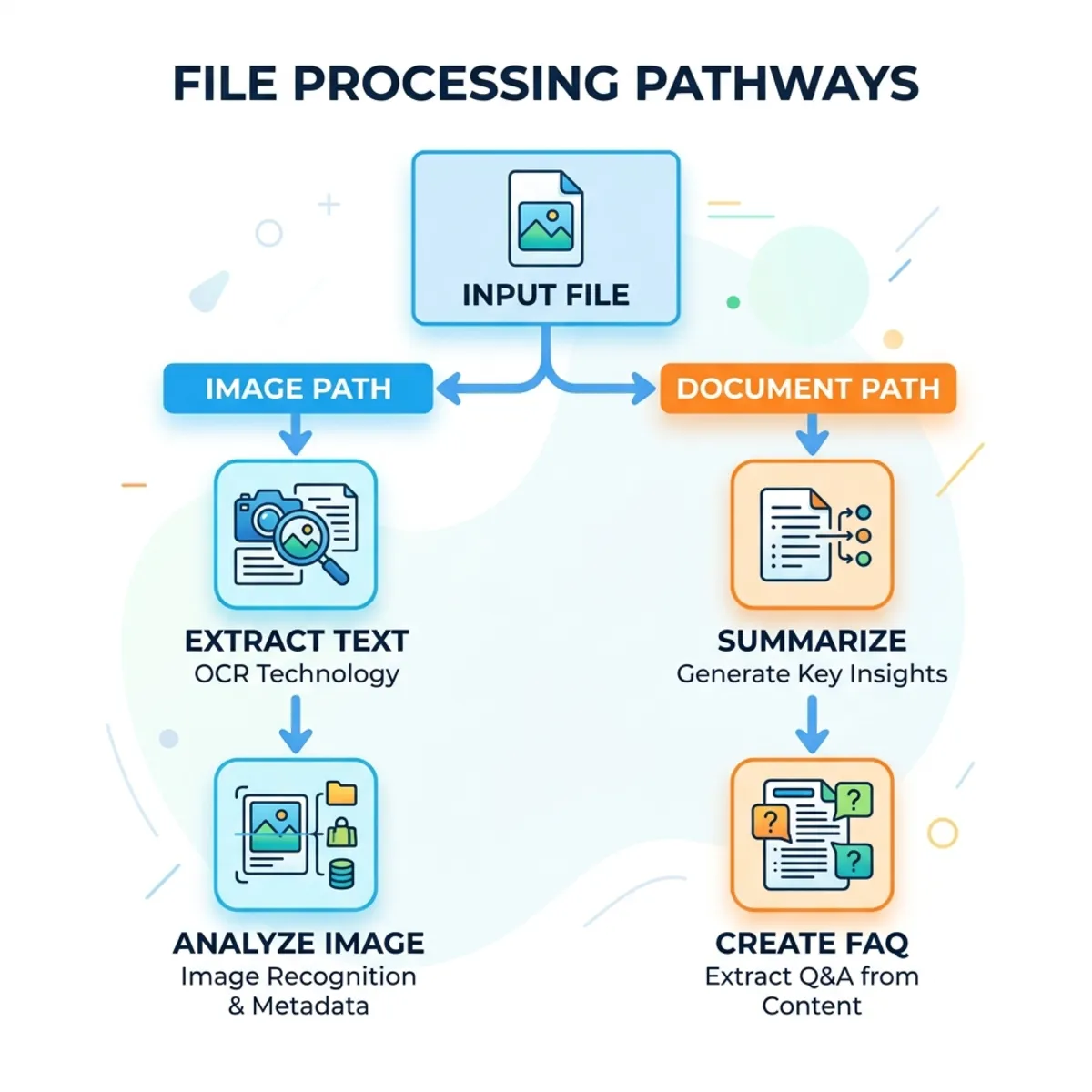
One of the most robust design choices in SharePoint’s AI integration is its contextual awareness. The AI capabilities do not present a static menu; rather, the underlying engine identifies the MIME type and contents of the selected file, dynamically adjusting the available actions. A PNG invoice will trigger a completely different set of LLM prompts and tools compared to a multi-page DOCX contract.
1. Vision and Image Processing (PNGs and Images)
When interacting with image files (such as scanned PNG invoices or receipts), the AI leverages visual processing models to interpret unstructured data.
- Explain Image: This action goes beyond simple OCR. It processes the visual hierarchy of the document, identifying the layout (e.g., “a clean modern design with geometric shapes”), and categorizing sections like itemized tables, bank details, and signature blocks.
- Extract Text: This is a highly valuable tool for data ingestion. The AI pulls raw text from the image and formats it into a cleanly structured UI (separating bill-to details, ship-to details, line items, and tax rates).
- Analyze Image: This opens the Copilot sidebar, keeping the image in context while allowing you to query the file conversationally—ideal for quick searches for specific invoice numbers or vendor terms.
Pro Tip: For “Extract Text”, the structured output is formatted perfectly for manual or automated porting directly into your CRM, Dataverse tables, or backend SQL databases, effectively bypassing traditional manual data entry processes.
2. Document Intelligence and Transformation (DOCX and PDFs)
For standard document formats (DOCX, PDF), the AI focuses on reading comprehension, summarization, and content transformation.
- Summarize: Instantly generates a concise overview in a pop-up window. For contracts or complex licensing guides, it extracts the heavy-lifting details—such as extracting due dates and billing info—allowing you to parse critical variables without reading the entire file.
- Create FAQ: This action reverse-engineers a document into a structured Frequently Asked Questions format.
- Create an Agent: Directly from the library, you can instantiate a localized agent grounded in the context of the selected documents, allowing for sustained, progressive context gathering.
Pro Tip: If you are managing corporate communications or technical documentation, the “Create FAQ” tool is highly useful for generating ready-to-publish website content. Run this action on internal policies or product guides and directly export the resulting Q&A structure into your external-facing websites or knowledge bases.
3. Media Conversion: Audio Overviews and Podcasts
One of the most innovative features is the ability to transform written text into audio natively within the library, effectively turning dry technical documents into accessible media.
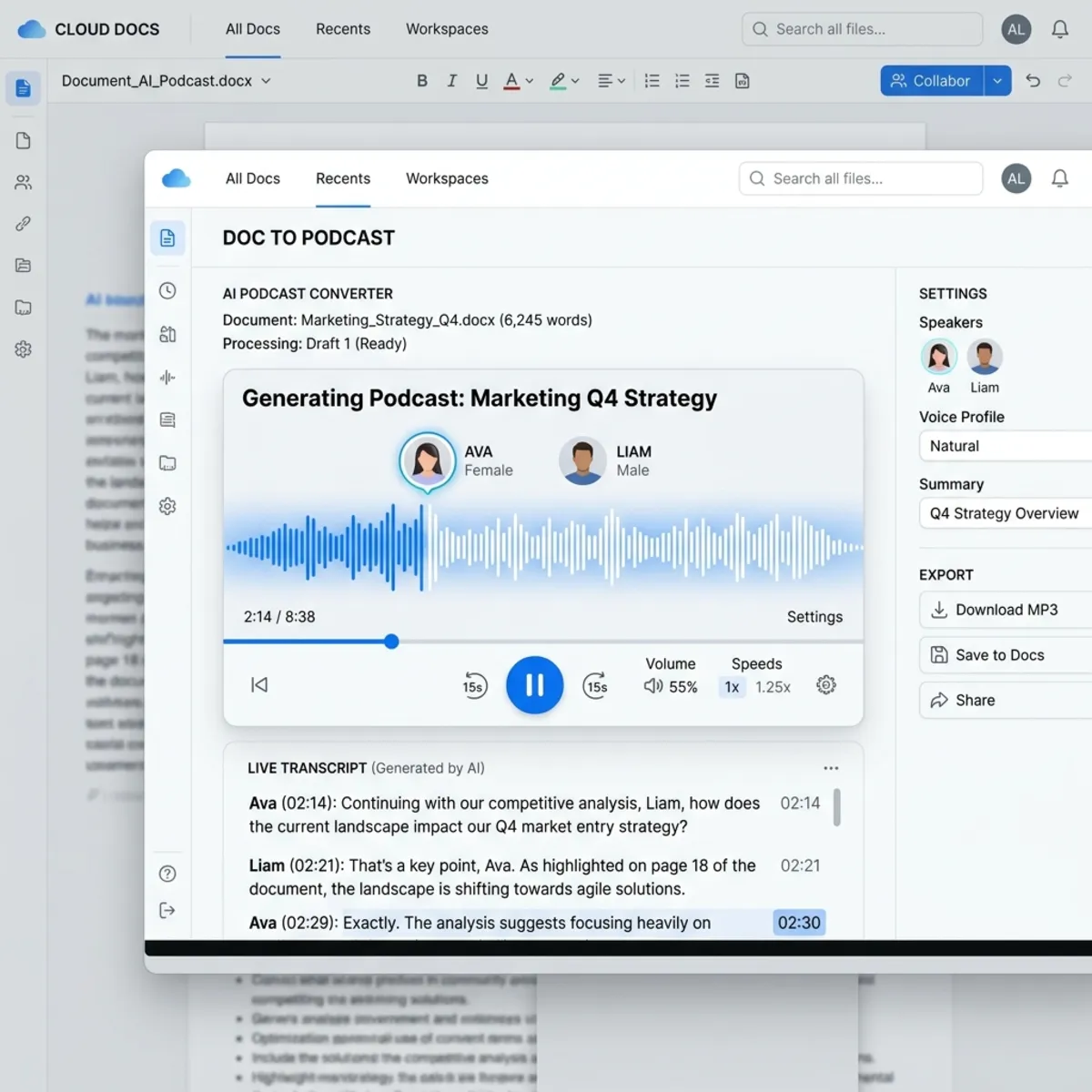
- Create Audio Overview: By selecting a document, the AI can synthesize a spoken-word summary. The built-in media player allows users to select different speakers, adjust playback speeds, view a live transcript alongside the audio, and save the generated MP4 directly to OneDrive.
- Podcast Style: A specialized mode for a more engaging consumption method. The underlying LLM rewrites the document’s contents into a conversational script and utilizes two distinct AI voices to discuss the material, simulating a podcast interview about the document.
4. Multi-File Orchestration: Comparisons
Evaluating the delta between two similar files is a notorious time-sink. SharePoint AI Actions allow you to select multiple files simultaneously and run comparative analyses.
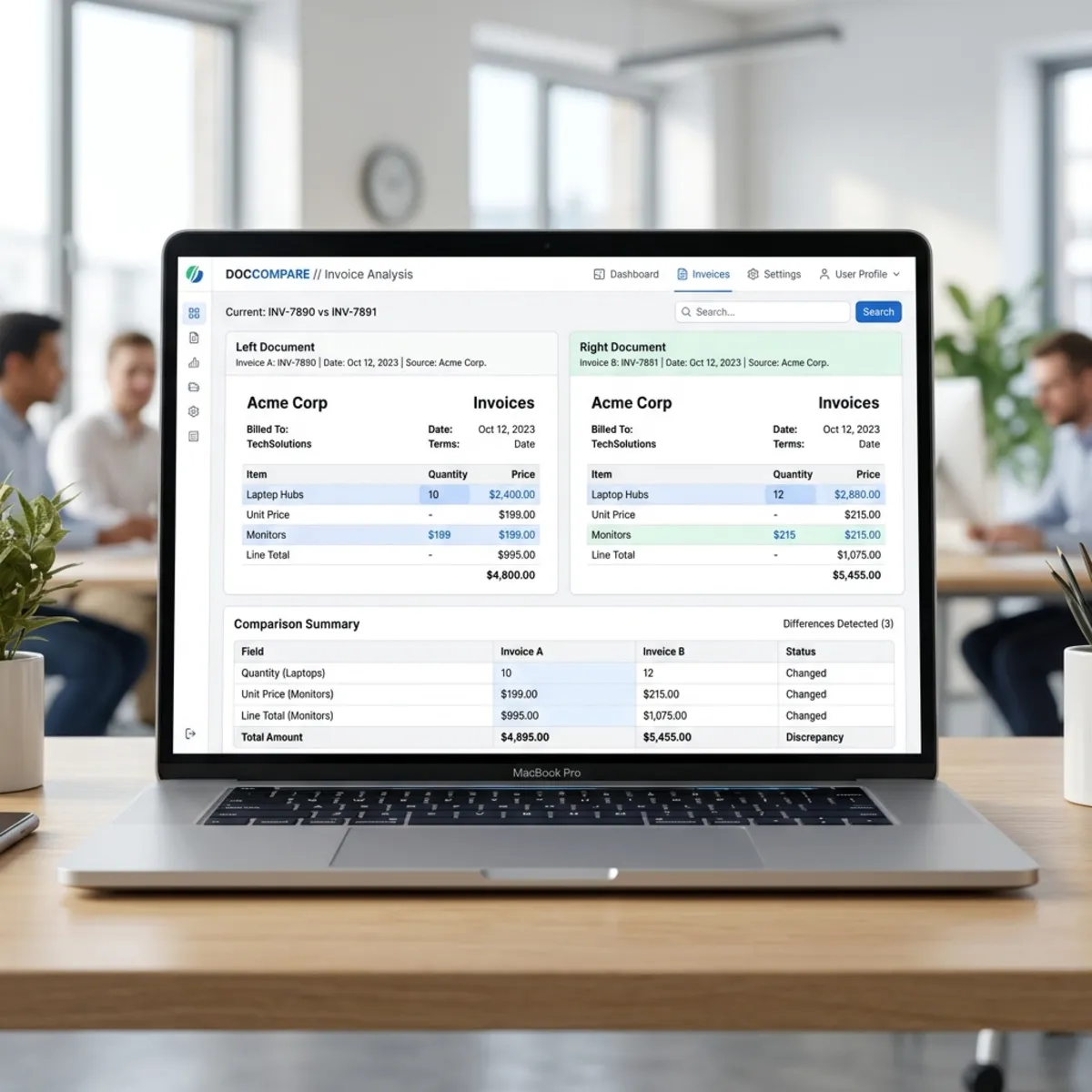
- Compare Documents: When selecting two text-heavy files (e.g., an English and French version of the same contract, or draft versus final), the AI evaluates both and outputs a summary defining the differences in content, structural layout, level of detail, and language.
- Compare Images: This is particularly powerful for financial or supply chain operations. By selecting two different image-based invoices side-by-side, the AI will evaluate them and generate a matrix highlighting differences in vendors, disparate line items, and totals across the invoices.
General Actions Across the Library
No matter what files you’re working with, the library provides overarching actions at your fingertips. From the context menu, you can simply “Ask a question” about the selected context or “Create an agent” to maintain a persistent AI assistant scoped exactly to the files you chose.
Conclusion
The integration of AI Actions within SharePoint and OneDrive represents a significant leap forward in how we handle unstructured data. By understanding how to leverage these contextual tools—from extracting database-ready text from images to generating website-ready FAQs and conversational podcasts—architects and end-users alike can vastly reduce manual administrative overhead and build more intelligent, automated data ecosystems.
Read next