M365 Copilot: Building a Governed Prompt Library

Writer

Prompt engineering often begins as an individual habit. One person finds a useful prompt, saves it, and refines it over time. Another team solves the same problem independently. Before long, the organization has dozens of prompt collections scattered across spreadsheets, wikis, Teams posts, and personal notes.
That model can produce isolated pockets of success, but it does not scale well. People struggle to discover proven prompts, authors publish near-duplicates, and useful patterns remain trapped inside individual teams.
Organizational prompts for Microsoft 365 Copilot provide a tenant-managed alternative. Authorized administrators can create, import, publish, pin, analyze, and retire prompts from the Microsoft 365 admin center. Published prompts then appear inside supported Copilot experiences, where users can discover and adapt them instead of starting from a blank input box. This is the enterprise-level distribution mechanism many customers have wanted: prompt reuse becomes intentional and centrally curated rather than dependent on personal collections or the generic examples supplied by Microsoft.
Availability note: Microsoft announced organizational prompts as rolling out in June 2026. However, the current Microsoft Learn documentation still identifies the capability as early access through the Frontier program and warns that preview functionality can change. Verify availability in your tenant before designing a production process around it.
This is best understood as a product capability and administration guide: the focus is not merely how to write a prompt, but how to operate a reusable prompt catalog as an enterprise service.
The right mental model: a catalog, not a command center
An organizational prompt is a reusable starting point. When a user selects one, Copilot places its text in the message box; the user can modify it before submitting.
That distinction matters. The library helps an organization:
- make strong prompt patterns easier to find;
- reduce repeated effort across teams;
- guide users toward approved business scenarios;
- improve prompts using adoption data; and
- retire entries that no longer add value.
It does not turn a prompt into a deterministic workflow, enforce the quality of the generated answer, or grant access to information the user could not already access. It is closer to a curated template catalog than an execution or policy engine.
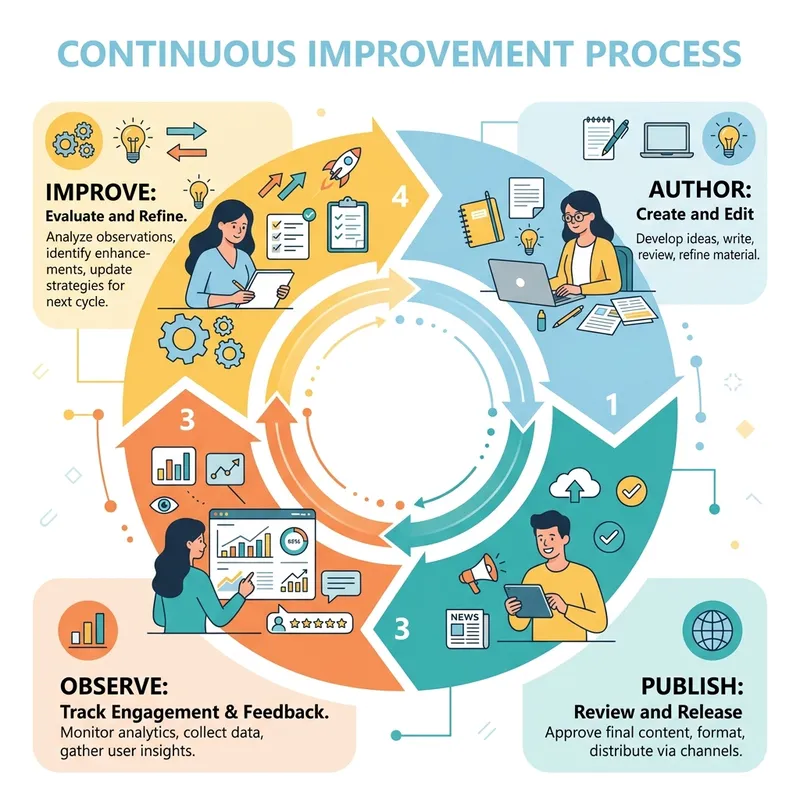
A useful operating model has four stages:
- Author a prompt for a recognizable task.
- Publish it with metadata that supports discovery.
- Observe whether people use it.
- Improve or retire it based on evidence.
Current capability at a glance
| Capability | Current behavior |
|---|---|
| Administration | Managed under Microsoft 365 admin center > Copilot > Prompts |
| Required roles | AI Administrator, Search Editor, or a role with equivalent permissions |
| Authoring | Manual creation or CSV-based bulk import |
| Tenant capacity | Up to 1,000 published organizational prompts |
| Bulk import | Up to 100 prompts per file, with a 5 MB file limit |
| Publication delay | Microsoft says prompts typically take about three hours to appear |
| Pinning | Up to four prompts can be pinned |
| Discovery | Suggested prompts, Prompt Lab, and type-ahead suggestions in Copilot Chat |
| Analytics | Active users and submissions over the last 7, 14, or 28 days |
| Localization | Separate prompt entry per language; automatic translation is not available |
1. Establish least-privilege ownership
Microsoft requires one of two roles—or an equivalent custom permission set—to manage organizational prompts:
- AI Administrator
- Search Editor
This is a better boundary than routinely assigning Global Administrator. The practical design question is not only who can click Publish? It is who owns prompt quality, business accuracy, and catalog hygiene?
A workable responsibility split might look like this:
- Platform owner: controls access to the administrative workspace and the publishing process.
- Business subject-matter expert: validates that the prompt reflects the real task and terminology.
- Prompt curator: improves structure, removes duplication, applies metadata, and monitors adoption.
These responsibilities can be performed by the same person in a small environment. In a larger tenant, separating them reduces the chance that technically valid but operationally poor prompts reach the wider organization.

Rule of thumb: Treat permission to publish as a catalog-management responsibility, not merely an administrative privilege.
2. Create the prompt in the Microsoft 365 admin center
The documented navigation path is:
Microsoft 365 admin center > Copilot > Prompts
On a newly enabled tenant, the workspace is naturally empty until an administrator creates or imports the first entry. Select Create prompt to open the guided authoring experience, complete the required fields, and publish the entry. Microsoft documents the following schema:
| Field | Required | Limit | Purpose |
|---|---|---|---|
| Title | Yes | 35 characters | Label displayed on Prompt Lab cards |
| Display prompt | Yes | 132 characters | Short text used on suggestions, cards, and autosuggest |
| Prompt | Yes | 8,000 characters | Full prompt inserted into Copilot |
| Language | Yes | Locale value | Identifies the language of the prompt |
| Task type | Yes | Supported value | Powers task-based organization and filtering |
| Department | No | 120 characters | Free-form categorization and filtering |
| Supported apps | Yes | Supported value | Determines the Copilot surfaces where the prompt can appear |
| Description | No | 200 characters | Administrative context; not shown to end users |
Design the prompt for adaptation
A centrally published prompt should be specific enough to be useful but flexible enough to survive contact with real work. Instead of hard-coding one project, document, or reporting period, use clear placeholders and tell the user what to supply.
This prompt is reusable because it defines the task, evidence standard, output structure, and boundary between source facts and inference without assuming a particular project.
3. Understand supported apps without overstating data boundaries
The Supported apps field controls the Copilot surfaces for which the prompt is intended. Microsoft currently gives examples such as Copilot web and Copilot work.
Depending on the preview build, the interface may also use newer Work IQ language around the work experience. Treat these labels as evolving product terminology: the architectural distinction is still between prompts intended for organizational context and prompts intended for web-oriented scenarios.
It is tempting to describe this as a security switch between public and internal data, but that is too strong. The field helps place the prompt in an appropriate Copilot context; it is not a substitute for permissions, data protection, or the actual controls governing grounding and web access. The source demonstration deselects the web option for a prompt intended to use work data; that is a sensible authoring choice, but it should not be interpreted as a new access-control boundary.
Think of it as runtime placement metadata:
- Choose a work-oriented surface when the prompt is designed to use organizational context.
- Choose a web-oriented surface when the task primarily depends on public web information—for example, summarizing a public web page or analyzing an article open in the browser.
- If a prompt could operate in more than one context, test its behavior in every surface you intend to support.
A prompt cannot override Microsoft 365 permissions. Copilot’s access to organizational content still depends on the signed-in user’s existing access and the applicable Microsoft 365 Copilot data boundaries.
4. Use metadata as information architecture
A prompt library becomes less useful as it grows unless users can quickly narrow the catalog. Organizational prompts use Task type and Department to support discovery.
Task type
Task type describes the kind of work the prompt performs. Microsoft documents values such as Analyze, Create, and Edit. For imported prompts, use only the values offered by the admin-center template and reference lists.
Department
Department is free-form text and can represent a business function such as Finance, Human Resources, Sales, or IT. Leave it blank when a prompt is genuinely useful across the organization. It supports organization and filtering; it should not be mistaken for an authorization boundary or proof that the feature can target a defined user subset.
That has two consequences:
- Labeling a prompt
Financedoes not prove that only Finance users can see it. - A prompt must not contain sensitive information merely because it is categorized for a particular department.
The best metadata vocabulary is deliberately small. HR, Human Resources, People, and People Operations may make sense locally, but using all four creates a fragmented catalog. Define a controlled naming convention before bulk publication, even where the product field itself is free-form.
5. Plan localization as separate content lifecycle
Organizational prompts include a required language field, but Microsoft does not currently provide automatic translation between prompt entries. If a prompt must be available in multiple languages, create and maintain a separate entry for each language.
Do not treat this as a one-time translation exercise. Prompts behave like product content: when the source prompt changes, each translation may also require review and retesting.
A practical pattern is to maintain:
- a stable internal identifier outside the prompt text;
- one approved source-language version;
- one entry per supported locale;
- a translation owner; and
- a lightweight check that all localized variants remain aligned after edits.
Literal translation may not be enough. The localized version should preserve intent, required inputs, constraints, and output structure while using terminology natural to the target audience.
6. Import and export prompts at scale
Manual creation is reasonable for a small pilot. It becomes inefficient when migrating an existing repository or launching a catalog across several functions.
The admin center supports CSV import:
- Open Copilot > Prompts.
- Select Import prompts.
- Download the official CSV template.
- Enter one prompt per row.
- Save the file as UTF-8 CSV.
- Upload it and review the validation preview.
Microsoft currently limits each import to 100 prompts and 5 MB. Larger collections must be split across files.
Treat the template as a contract
Do not improvise column names or supported values. Required fields, locale values, task types, products, and character limits are validated against the product schema.
Typical failures include:
- missing required fields;
- invalid structure or unsupported values;
- character-limit violations;
- incorrect locale or task-type values; and
- exceeding the tenant’s 1,000-prompt publication limit.
The admin center also supports exporting all organizational prompts to CSV. Export is useful for backup, catalog review, and bulk editing, but an exported file can contain columns—such as Last Updated—that are not accepted by the import template. Remove unsupported columns before attempting to re-import the file.
Practical migration advice: Validate a small batch first. A ten-row test file reveals schema and encoding mistakes much faster than troubleshooting a full catalog.
7. Design for how users actually discover prompts
The original value of the feature is not central storage. It is putting curated prompts into the flow of work.
Microsoft documents three primary discovery experiences:
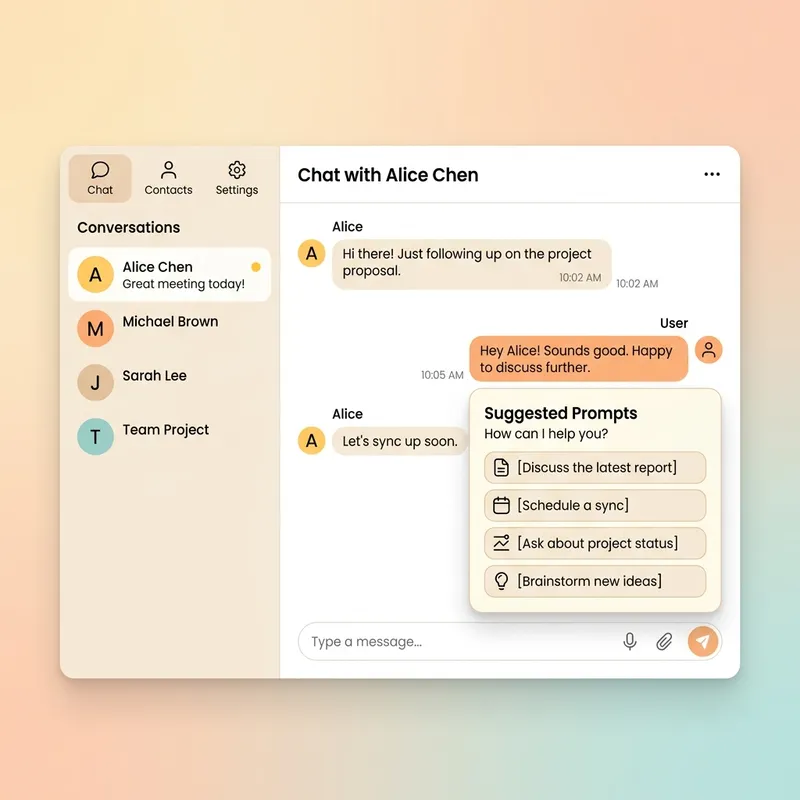
Suggested prompts in the Microsoft 365 Copilot app
Pinned organizational prompts appear behind the Suggested button on the Copilot Chat home page. Users can open the broader gallery, distinguish organizational entries from Microsoft-provided examples, and save useful prompts to their personal collection for faster reuse.
Administrators can pin up to four prompts. Pinning should therefore be reserved for broadly useful, time-sensitive, or strategically important scenarios—not simply the prompts with the most vocal owners. Usage analytics can identify candidates, but curators should also consider audience breadth and business relevance.
Prompt Lab and personal saved prompts
Prompt Lab shows the organizational prompts available to the user. People can search by keyword and filter by task type or department. Selecting a prompt inserts it into the message box without submitting it, preserving the user’s ability to adapt the text. Users can also bookmark prompts so they appear with their saved prompts; central publication and personal saving therefore complement rather than replace one another.
Microsoft Teams
The source experience shows organizational prompts inside the Copilot app in Teams, exposed through the prompt browser under From your organization. This gives users access to the same curated starting points without leaving the collaboration environment.
Microsoft Edge
In the Copilot experience in Edge, users can browse more prompts and open the organizational collection. Web-oriented prompts are particularly natural here for scenarios such as summarizing the current public page or analyzing an article, while work-oriented prompts are better suited to organizational context.
Type-ahead suggestions
As a user types in the Copilot message box, matching organizational prompts can appear as autosuggestions when their wording or inferred intent resembles a catalog entry. This is the shortest route for someone who already knows roughly what they want.
These placements are separate discovery paths, not five different prompt libraries. Microsoft states that organizational prompts surface through Microsoft 365 Copilot Chat, Microsoft Edge, and Microsoft Teams. Exact labels and placement can evolve during preview, so adoption material should be based on the experience visible in your tenant rather than screenshots or assumptions from an earlier build.
8. Use analytics to manage the catalog—not to declare prompt quality
The admin center provides two prompt-level metrics:
- Active users: distinct users who submitted the prompt.
- Submissions: total number of submissions.
These metrics can be reviewed over the last 7, 14, or 28 days.
They answer an adoption question: Are people using this prompt? They do not directly answer a quality question: Did the prompt produce a correct or valuable result?
Use the metrics as signals:
- High active users and high submissions: the prompt may serve a common scenario and could be a candidate for pinning.
- Few active users but repeated submissions: a small audience may rely on it heavily; do not delete it without checking the scenario.
- Low or zero activity: investigate discoverability, metadata, title clarity, relevance, and duplication before retiring it.
- High activity with poor user feedback: usage alone should not protect a weak prompt; revise and retest it.
A lightweight review cycle can combine quantitative and qualitative evidence:
- Review active users and submissions.
- Check whether the title and display prompt match the language users search for.
- Ask representative users whether the output helped them complete the task.
- Test the prompt against several realistic inputs.
- Improve, republish, or retire it.
9. A practical operating model
The product supplies the catalog and telemetry. The organization still needs a simple editorial process.
Intake
Capture the business task, target audience, expected inputs, desired output, and reason the prompt should be centrally published rather than privately saved or shared with one team.
Review
Check the prompt for:
- a clear task and audience;
- explicit input requirements;
- an output format appropriate to the work;
- unsupported claims or hidden assumptions;
- unnecessary sensitive information;
- duplicate or overlapping entries; and
- correct language, task type, department, and supported apps.
Test
Run the prompt with multiple realistic inputs. Include both normal and incomplete cases. Confirm that it guides the user when required context is missing rather than confidently inventing details.
Publish
Publish through the admin center or approved CSV process. Allow for the documented propagation time before reporting an issue.
Measure and maintain
Review telemetry on a regular cadence, gather user feedback, and track meaningful changes outside the product if your organization needs an editorial history or approval record.
What this feature does—and does not—solve
| Organizational prompts help with | They do not automatically provide |
|---|---|
| Discovering reusable prompt patterns | Deterministic workflow execution |
| Publishing organization-specific guidance | Guaranteed answer accuracy |
| Organizing prompts by task and department | Department-level access control |
| Promoting priority prompts through pinning | A replacement for Microsoft 365 permissions or data controls |
| Measuring use through active users and submissions | Direct measurement of business outcome or answer quality |
| Migrating prompt catalogs through CSV | Automatic multilingual synchronization |
This boundary is important. Organizational prompts standardize the starting instruction. They do not standardize every input, every model response, or every business decision that follows.
Final perspective
A prompt library is successful when it becomes easier to use than the scattered alternatives it replaces.
That requires more than publishing a large collection. The strongest implementations keep the catalog intentional: a small vocabulary, useful metadata, clear owners, tested prompt patterns, selective pinning, and a regular retirement cycle. Analytics then help curators see where to investigate, while user feedback reveals whether the prompt actually improves the work.
In my view, this capability is overdue. Customers have spent years asking for a practical way to manage reusable prompts at the organizational level instead of relying only on personal prompt habits and generic galleries. Microsoft 365 Copilot organizational prompts provide the native distribution and management layer that was previously missing. The remaining challenge is editorial discipline. Treat prompts as maintained enterprise content—not magic instructions and not permanent artifacts—and the library can become a practical bridge between isolated prompting expertise and repeatable organizational practice.
Sources
- Organizational prompts for Microsoft 365 Copilot, Microsoft Learn, updated June 18, 2026.
- Understand Prompt Gallery in Copilot, Microsoft Learn, updated February 6, 2026.
- What’s New in Microsoft 365 Copilot — June 2026, Microsoft Community Hub, published June 30, 2026.
Read next